Quick Links
Astah Community Release Notes: 6.2
- Model Version:33
Astah files (.asta) are upward compatible. If the files have been edited by the newer model version of Astah, they cannot be opened in the older model version.
[System Environment]
- Sun Microsystems JDK 6 Update 16(JRE 6 Update 16) or later is required
- Astah community no longer runs on JDK1.4,JDK5
[Bundled Java version]
- JRE 6 Update 21
New Functions
- Improvement on print/Export images/Copying to Clipboard
- The watermark has become smaller.
- New Common Diagram Elements
- Oval
- Oval and Filled Oval elements are added on each diagram's tool bar
- Following options are available from oval's Pop-up menu
- Line width
- Line Type
- Fill
- Set Background Color
- Set Line Color
- TextBox
- Filled TextBox and non filled are added on each diagram's tool bar
- Following options are available from TextBox's Pop-up menu
- Show border
- Frame Width
- Line Type
- Fill
- Set Background Color
- Set Line Color
- Filled Rectangle, Corner-rounded Rectangle and Texts
- Filled Rectangle, Corner-rounded Rectangle and Texts are added on each diagram's tool bar
- Following options are available from Pop-up menu of these elements
- Fill
- Set Background color
- Diagrams which new common diagram elements are installed for
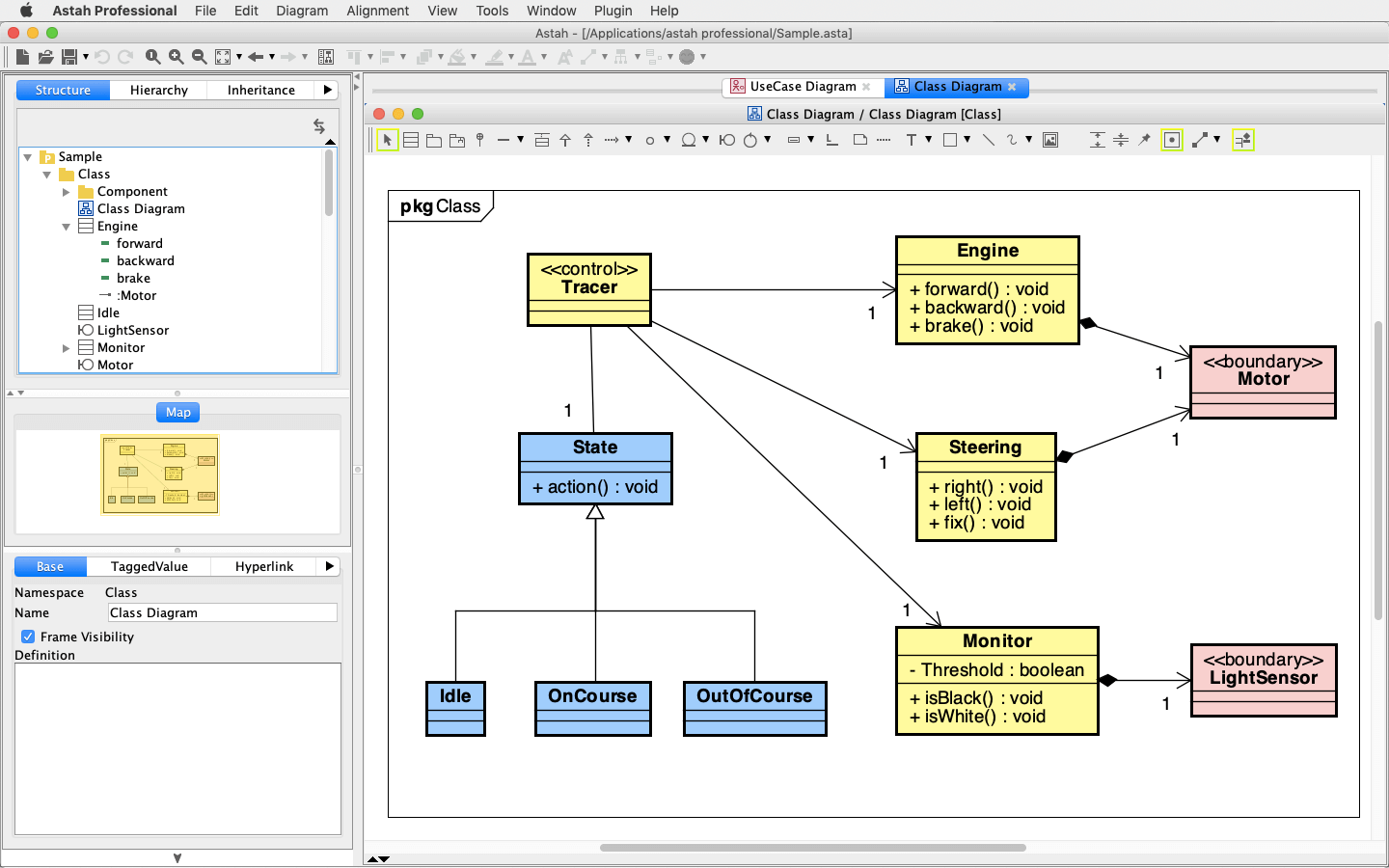
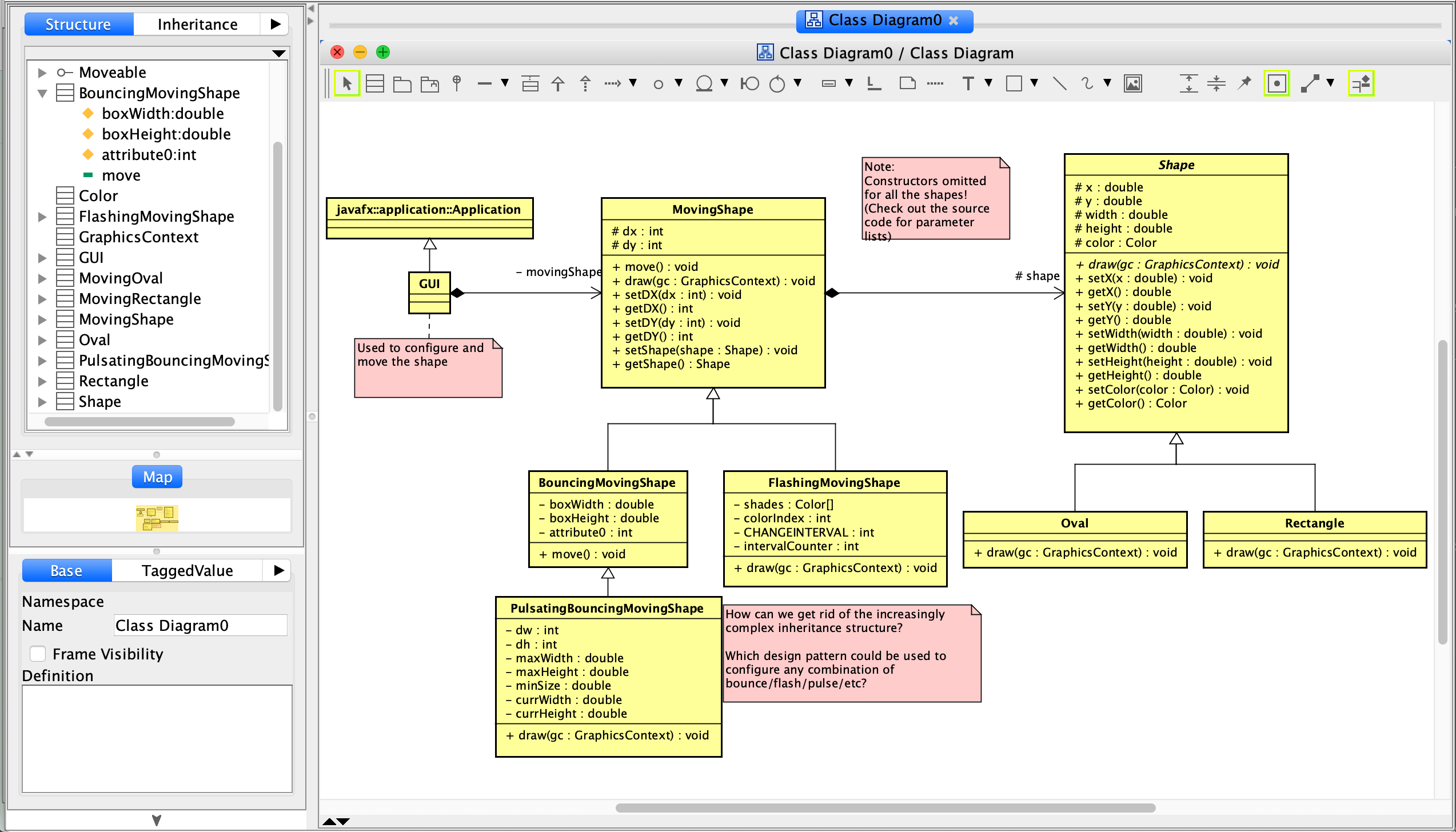
- Class Diagram
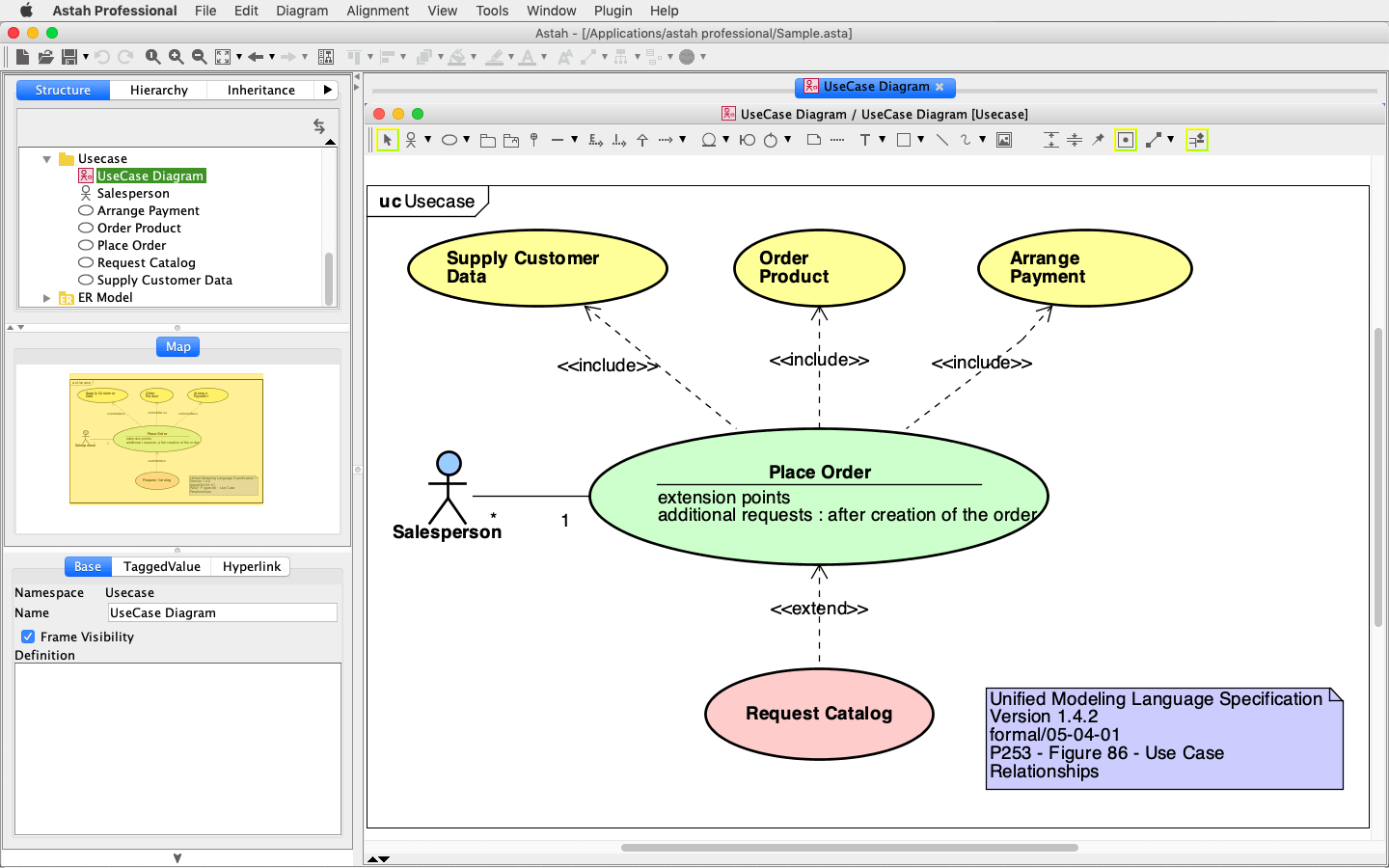
- UseCase Diagram
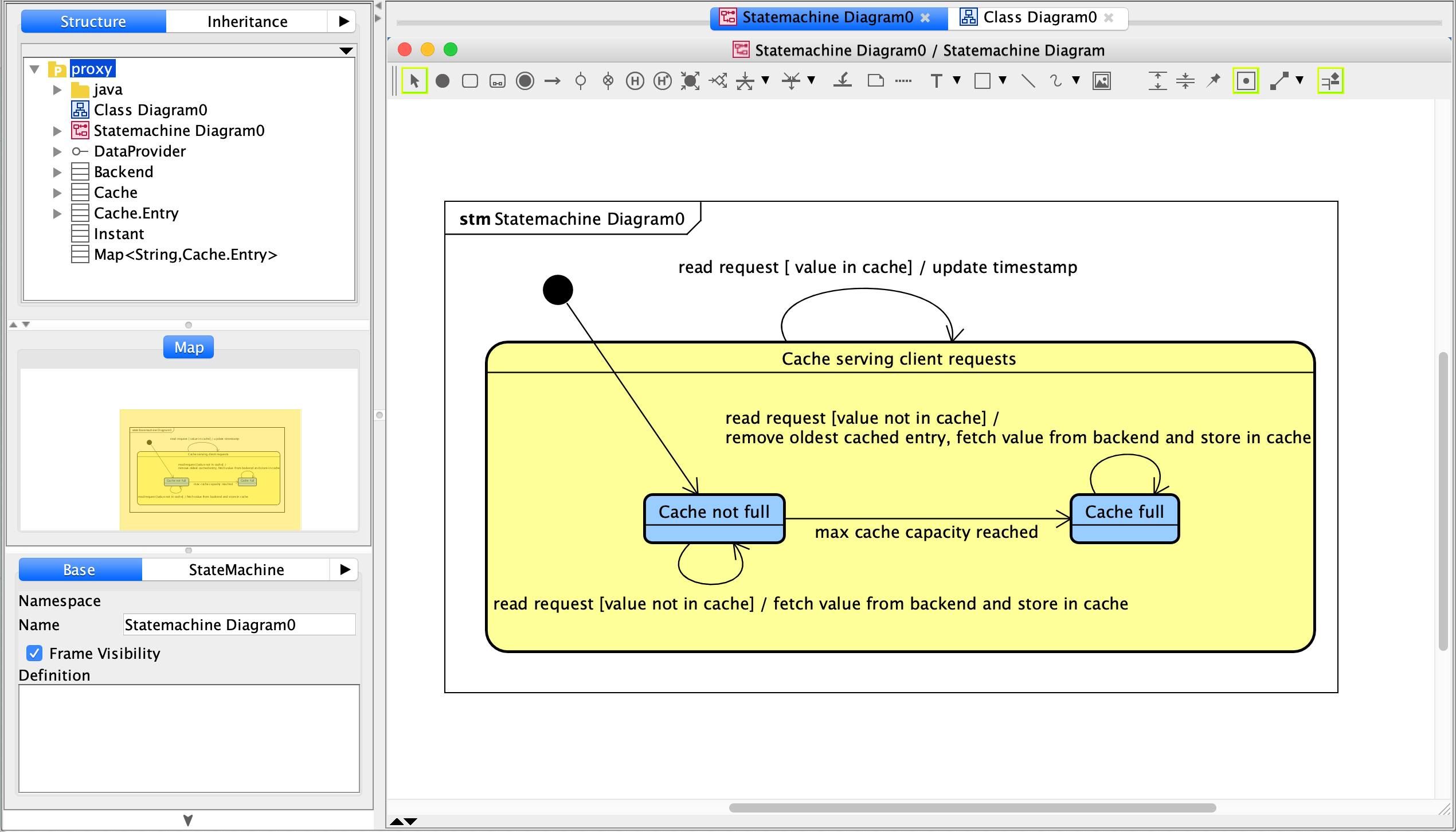
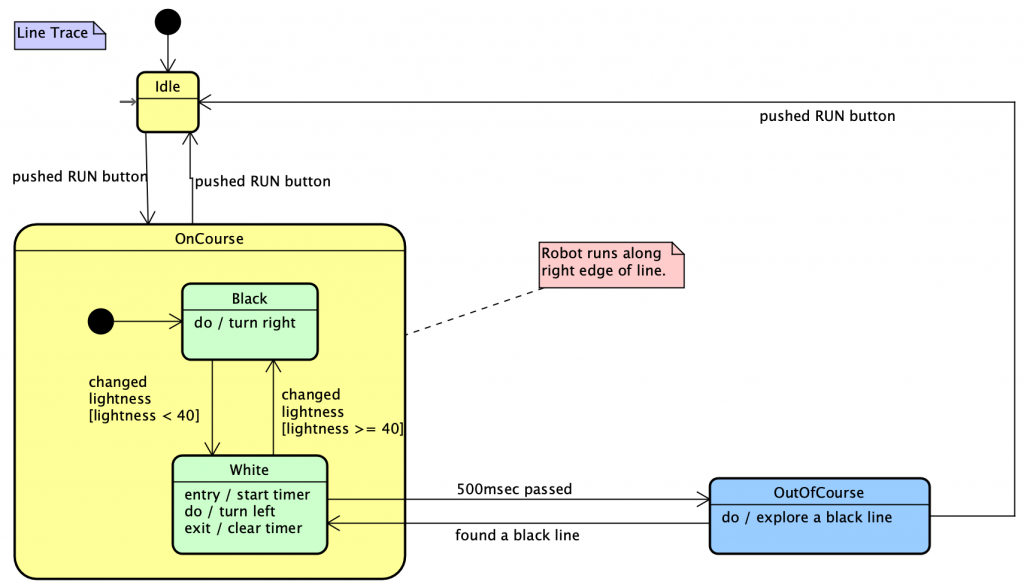
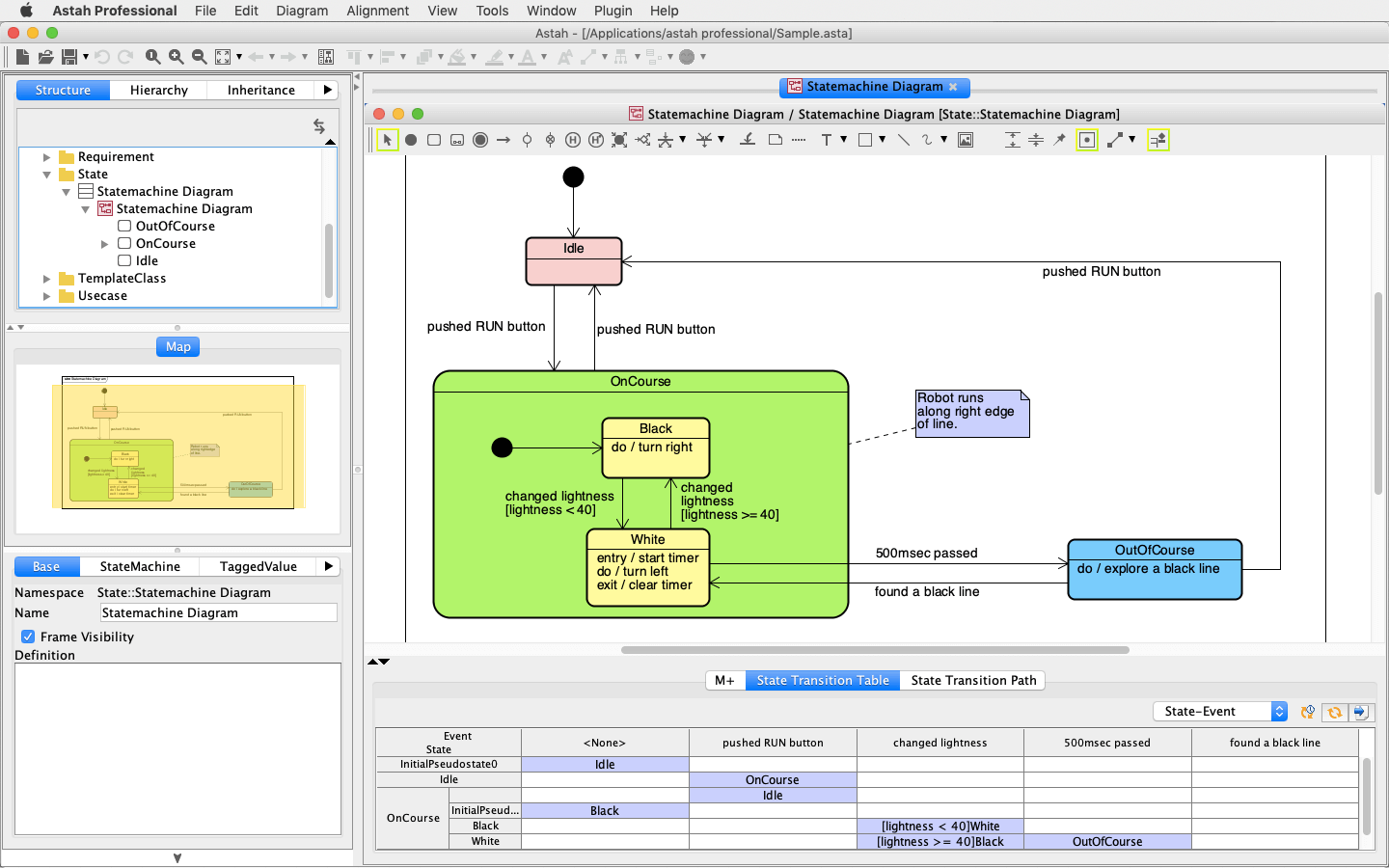
- Statemachine Diagram
- Activity Diagram
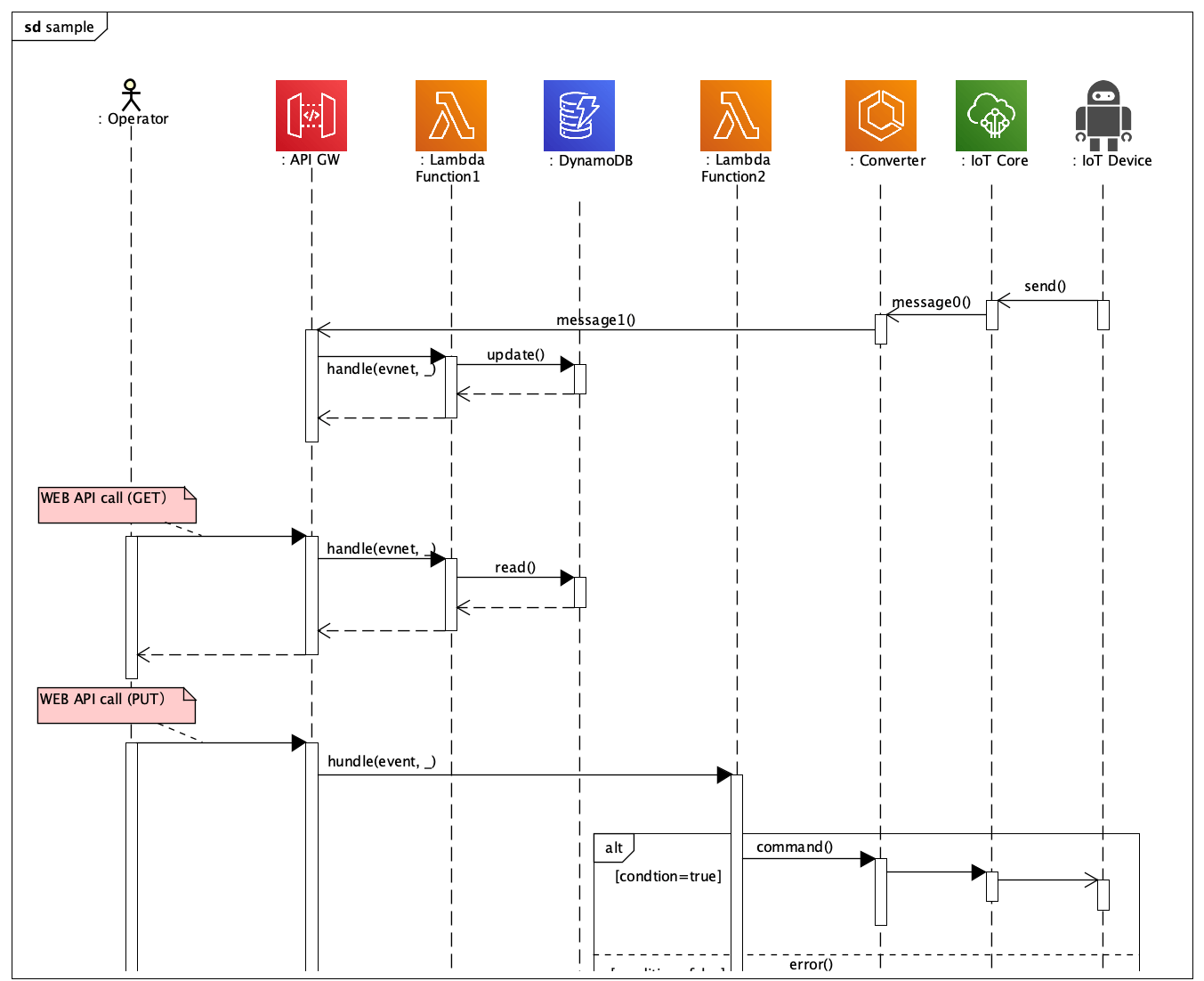
- Sequence Diagram
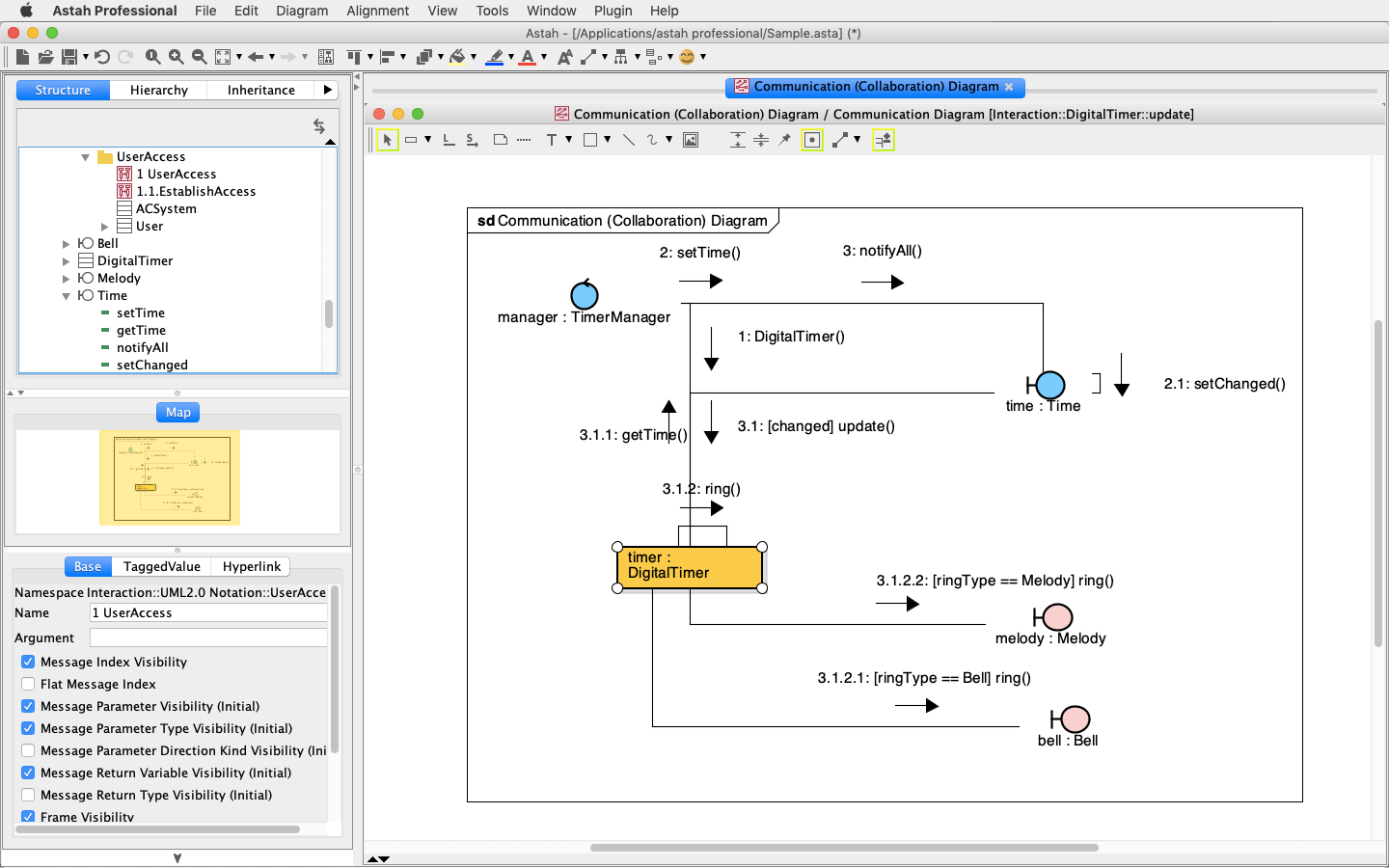
- Communication Diagram
- Component Diagram
- Deployment Diagram
- Composite Structure Diagram
- System Properties
New color is applied for Common Diagram Elements (Rectangle, Rounder corner rectangle, oval, Text and TextBox) by default- [New Item Color] - [Common diagram elements] Default: Eggshell
- Oval
- Project's property
- Now project file (.asta) can contain some of System Properties setting as listed below by itself(Icon of Project appears beside the following options)
- System Properties
- Diagram Editor
- Show shadow on elements
- Gradation (Element)
- Gradation (Background)
- Rectangle Antialiasing
- Text Antialiasing
- Others Antialiasing
- New Item Color
- All
- New Stereotype Color
- All (From 1 to 9)
- Diagram Editor
- System Properties
- New Menu on Project's Pop-up menu (In the Structure Tree)
- Apply Current Project Style to Items - This applies the current project style to existing model elements
- Set Property (Project) - Opens System Properties which Project can hold the setting of
- Synchronize Property (Project) - Synchronize the System Properties setting and Project's Properties
- New Menu on Diagram's Pop-up menu (In the Structure Tree)
- Apply Current Project Style to Items - This applies the current project style to existing model elements
- Preset color style buttons are added on System Properties
- [System Properties] - [New Item Color] / [New Stereotype Color]
- [Apply Preset1 Style]: Eggshell colors
- [Apply Preset2 Style]: Light blue colors
- [Apply No Color Style]: No colors
- [System Properties] - [New Item Color] / [New Stereotype Color]
- New default color setting
- [Preset1 Color Style] (Eggshell colors) is set as default color style for new items
- Now project file (.asta) can contain some of System Properties setting as listed below by itself(Icon of Project appears beside the following options)
- Improvements on System Properties
- Diagram Editor
- Defaults setting of following options are changed.
- Show shadow on elements: ON
- Gradation (Element): Diagonal
- Text Antialiasing: ON
- Following option has been moved to the Diagram Editor tab
- Background Color
- Defaults setting of following options are changed.
- Project View
- Default setting of following option is changed.
- Wrap the contents in the Definition are of the Property View: ON
- Default setting of following option is changed.
- New Item Color
- Organized and added model elements below with default setting as Eggshell colors.
- SubmachineState
- ShallowHistoryPseudostate
- DeepHistoryPseudostate
- ChoicePseudostate
- Partition - [Activity Diagram]
- Flow Final Node
- Connector - [Activity Diagram]
- Lifeline - [Sequence Diagram]
- InteractionUse
- StateInvariant
- Lifeline - [Communication Diagram]
- Common Diagram elements
- Organized and added model elements below with default setting as Eggshell colors.
- File
- Stack size when creating/importing a project file (1 to 64MB) (Restart Astah) Default: 5
- Now you are able to specify the stack size in the System Properties
- From version 6.2, specifying the -Xss option in .bat or .sh no longer works
- Now you are able to specify the stack size in the System Properties
- Template File
- Default mode is now Java6.asta
- Stack size when creating/importing a project file (1 to 64MB) (Restart Astah) Default: 5
- UML2.x
- The tab label is changed from UML2.0 to UML2.x
- Diagram Editor
- Improvement on Combobox of Property view
- When you specify Type in the Combobox of Property View (Listed below), [Select] will be on the top of the selection to enable you to type and find it fast
- It supports wildcard such as * and ?
- Attribute - [Base]Tab - [Type]
- Operation - [Base]Tab - [Return Value]
- Operation - [Parameters]Tab - [Type]
- Class - [Attribute]Tab - [Type]
- Class - [Operation]Tab - [Return Value]
- Class - [Template Parameter]Tab - [Type] / [Default Value]
- Subsystem - [Operation]Tab - [Return Value]
- TemplateBinding - [Template Parameter]Tab - [Type] / [Default Value] / [Actual Parameter]
- Association - [Association End A] / [Association End B]Tab - [Target]
- InstanceSpecification - [Base]Tab - [Base Class]
- SubmachineState - [Submachine]Tab - [StateMachine]
- CallBehaviorAction - [Activity]Tab - [Activity Graph]
- ObjectNode - [Base]Tab - [Base Class]
- Lifeline (Sequence Diagram) - [Base]Tab - [Base Class]
- InteractionUse - [Base]Tab - [Refer To]
- Message (Sequence Diagram) - [Base]Tab - [Operation]
- Lifeline (Communication Diagram) - [Base]Tab - [Base Class]
- Message (Communication Diagram) - [Base]Tab - [Operation]
- Part (Component Diagram) - [Association End A]/[Association End B] - [Target]
- Connector (Component Diagram) - [Base]Tab - [Type]
- Port (Component Diagram) - [Base]Tab - [Type]
- NodeInstance - [Base]Tab - [Type]
- ComponentInstance - [Base]Tab - [Type]
- Part (CompositeStructure Diagram) - [Association End A] / [Association End B] - [Target]
- Connector (CompositeStructure Diagram) - [Base]Tab - [Type]
- Port (CompositeStructure Diagram) - [Base]Tab - [Type]
- Now 20 suggestions appear in the Combo box of the Property View
- Improvements on Class Diagrams/CompositeStructure Diagram
- You can preset the default type for Parameters (in Operations) when creating them in Class/CompositeStructure Diagrams
- [System Properties] - [Basic] - [Default Type of Parameter (i.e. String - java.lang) ] Default: int
- You can preset the default type for Parameters (in Operations) when creating them in Class/CompositeStructure Diagrams
- BusinessActor, BusinessUseCase, BusinessEntity and BusinessWorker
- These models are newly supported in the diagrams listed below
- Class Diagram
- BusinessEntity
- BusinessWorker
- InstanceSpecification (BusinessEntity)
- InstanceSpecification (BusinessWorker)
- UseCase Diagram
- BusinessActor
- BusinessUseCase
- BusinessEntity
- BusinessWorker
- Sequence Diagram
- Lifeline (BusinessActor)
- Lifeline (BusinessEntity)
- Lifeline (BusinessWorker)
- Communication Diagram
- Lifeline (BusinessActor)
- Lifeline (BusinessEntity)
- Lifeline (BusinessWorker)
- Deployment Diagram
- InstanceSpecification (BusinessEntity)
- InstanceSpecification (BusinessWorker)
- Class Diagram
- BusinessActor
- A model with "actor" and "business" stereotypes
- BusinessUseCase
- A model with "business" stereotype
- BusinessEntity
- A model with "entity" and "business" stereotypes
- BusinessWorker
- A model with "control" and "business" stereotypes
- These models are newly supported in the diagrams listed below
- Improvements on Structure Tree
- Add new option to show States (Submachine states) in the Structure Tree
- [System Properties] - [Project View] - [Show States (Submachine states) on the structure tree, Default: OFF
- Add new option to show Actions (CallBehavior Actions) on the structure tree
- [System Properties] - [Project View] - [Show Actions (CallBehavior Actions) on the structure tree, Default: OFF
- Add new option to show States (Submachine states) in the Structure Tree
- Improvements on Sequence Diagram
- [Create Reply Message] added on Message's Pop-up menu
- Now you can create a Reply Message from Message's Pop-Up Menu "Create Reply Message"
- Reply Message for Frames and InteractionUse
- Reply Messages can be created for Messages that originated from Frames or InteractionUses
- [Reply Message Automatic Mode] works for Messages that originated from Frames or InteractionUses
- You can change the Operation's name when renaming the message on the Diagram
- When Message's Target lifelines has a Class which has SuperClass or Interface and you create a new Operation from the message's Pop-up Menu,
now you can select a Class that creates the Operation
- [Create Reply Message] added on Message's Pop-up menu
- Improvements on Communication Diagram
- You can change the Operation's name when renaming the message on the Diagram
- When Message's Target lifelines has a Class which has SuperClass or Interface and you create a new Operation from the message's Pop-up Menu,
now you can select a Class that creates the Operation
- Improvement on Statemachine Diagram
- States and Submachine States
- Resizing the States and Submachine States makes the its name, InternalTransition, Entry/Do/Exit contents wrapped
- Resizing the Submachine States makes its included contents wrapped
- [Auto Resize] menu is added on its Pop-up menu
- ON: Unable to wrap the contents
This mode gets turned OFF when resizing the States/Submachine States manually - OFF: Allows you to wrap the contents
- ON: Unable to wrap the contents
- States and Submachine States
- Improvements on Diagram Editor
- Alignment Guide
- Alignment Guide appears when moving models on the Diagram
- A green dashed line appears when moving models on the Diagram
- There are some model elements which are not supported for the Alignment Guide
- Improvements on Grid
- With Grid, you can align models up/down/right/left and centered
- When you are moving model elements by Keyboard, only left top is to be aligned
- Alignment Guide appears when moving models on the Diagram
- Improvements on Draw Suggest Feature
- Having a mouse close to the model will show the suggestions
- To enable this feature, check on [Tool] - [System Properties] - [Diagram Editor] - [Show Draw Suggest on the Diagram Editor (Restart Astah)] option
- Improvements on Knobs
- You can change the shape of knobs
- [System Properties] - [Diagram Editor] - [Knob] Default: Round
- You can color the knobs
- [System Properties] - [Diagram Editor] - [Knob Color] Default: White
- You can change the shape of knobs
- Most models would be editable when creating them
- Better look when selecting models by dragging
- New look on Tool bar
- You can move the Diagram tabs by drag and drop
- [Note] Unable to do this on Mac OS Aqua Look & Feel
- Improved the move of Zoom in/out by Ctrl + Mousewheel
- New shortcut key is added, [Ctrl + W] to close the Diagram Editor tab
- Alignment Guide
- Improvement on Copy&Paste
- Note(*), Text, Rectangle, Line, Images can be pasted on different type of diagrams
(*)Note cannot be pasted on Mind Map
- Note(*), Text, Rectangle, Line, Images can be pasted on different type of diagrams
- Improvement on Java6 Default Model
- New Java6 Default Model
- New Default model is stored in Astah Install Folder\template\project\Java6.asta
- This opens by [File] - [New By Template
- This can be opened every time as new file by setting [Astah Built-in Template] for [Tool] - [ Properties] - [Create New Project by:]
and [Java6.asta] for [Tool] - [System Properties] - [Template File]
- New Interfaces are added in Java5.asta
- New Interfaces and Classes are added in Java1.4.asta
- New Java6 Default Model
- Improvements on Splash
- Better look on the Splash
- Java6 Splash is used
- Improvement on dialogs
- [ESC] key closes the most dialog windows
- [Check Invalid Models] command is added
- You can check if there is any invalid models in the project by [Tool] - [Correct Model] - [Check Invalid Models]
- This command checks if there is any invalid models in the current project
- Invalid models could be created by the discordance of models by Astahs bugs
- An exception may occur if you continue to work on projects with invalid models in
- You can correct invalid models if they are detected
- You can check if there is any invalid models in the project by [Tool] - [Correct Model] - [Check Invalid Models]
Fixed Bugs
- [4159] An Actor is created under the UseCase if a Lifeline (Actor) is created in the Sequence Diagram under the UseCase.
- [4150] Wrong error message pops up when creating more than one Attribute with the same name.
- [4145] Text is always wrapped when modifying it of State, Submachine State and Transition of Statemachine Diagram, InstanceSpecification of Class Diagram, Lifeline of Sequence Diagram, ObjectNode of Activity Diagram, Lifeline of Communication Diagram, InstanceSpecification of Deployment Diagram.
- [4143] Pressing Ctrl+F/Ctrl+M adds Attributes/Operations to Artifacts/Lifelines in the Diagram Editor.
- [4131] [ESC] key does not cancel the creation of association lines sometimes.
- [4104] When clicking around where Messages arrow is in Sequence Diagram, Astah automatically tries to switch the Message's lifelines
- [4103] An invalid model may be created by deleting InteractionUse after switching the Message's source from it to other lifelines
- [4102] An exception occurs by copying Messages and Lifelines at the same time
- [4101] Switching Source/Target of Message could get the Message out of ExecutionSpecification and not update the Index of the Message
- [4100] Creating Attributes by Suggest Feature could create Operations instead
- [4099] Improved the performance of grabbing the midway points of lines such as associations
- [4097] Dragging a message which has the same Source/Target OccurrenceSpecifican and a Reply message makes the notation of its Reply Message wrong
- [4094] The moving of Interaction Use in Sequence Diagram does not work properly sometimes
- [4092] Creating a new Message could detach OccurrenceSpecification from Lifeline sometimes
- [4091] Pressing [ESC] key right after creating Attributes/Operations on the diagram disables Suggest Feature
- [4086] Moving the CombinedFragment Up/Down in the Sequence Diagram detaches the Message from the CombinedFragment
- [4085] Display of Part contents in CompositeStructure Diagram/Component Diagram is not correct during editing them
- [4084] Cloned ports will lose its Type in the CompositeStructure Diagram/Component Diagram
- [4083] Creating Attributes/Operations on the Diagram continuously with [Enter] key may add unnecessary Attributes/Operations
- [4081] Improve the difficulty of switching the targets of Associations/Messages on the Diagram
- [4080] Message's Sender/Receiver does not show in its Property if its Frame or InteractionUse
- [4079] Entering "{}" in Association End's name directly in the Diagram Editor throws an exception error
- [4076] Moving a Message (That is originated from InteractionUset toward Frame) up could detach the Message from InteractionUse
- [4075] [Align] - [Align Horizontally]/[Align Vertically] menu do not work for plural classes and associations Package
- [4074] If Diagram Editor does not show diagram names properly on its tab if the name is long
- [4066] Some options are missing when opening the System Property windows in default size
- [4065] After pressing [ESC] key down while editing model names in the Diagram, it wouldn't let you move the model with arrow keys
- [4064] Selecting other models by dragging the mouse does not work if other models are already selected
- [4060] Selecting models by dragging does not work for models inside a State in Statemachine Diagram unless there is more than one state inside the State
- [4059] Transitions would not appear on the Diagram after moving them between States in Statemachine Diagram
- [4056] Plural transitions should not be created from one Initial Pseudo State in Statemachine Diagram
- [4042] It is unable to avoid having the Software Update Information dialog when launching Astah
- [4040] An inappropriate dialog appears by pressing [Ctrl+F]/[Ctrl+M] while Parts/Ports are selected in the CompositeStructure Diagram
- [4026] Transition name of states would not show properly by executing Auto Layout in the Statemachine Diagram
- [4020] Array should not be specified for [Type] on the [Template Parameter] tab of Class's Property
- [4015] Dragging Part and Interface together on the CompositeStructure Diagram throws an exception
- [4013] There is no frames in the diagrams created by Astah API
- [4012] An invalid message may appear when creating a Part with UnknownType
- [4001] StructuredClass in the CompositeStructure Class should not allow to create more than one Part which has the same name and type
- [3992] It is unable to modify InstanceSpecification after checking off [InstanceSpecification Name Visibility]/[Classifier Visibility] from its Pop-up menu
- [3921] By moving an Operand up to outside of a frame, ExecutionSpecifications would look strangely
- [3655] Moving a CombinedFragment by dragging makes StateInvariants appear strangely
- [4025] It is unable to execute the Software update via Proxy
Existing Bugs
- When modifying a multiplicity of Associations directly, the entered multiplicity will be set as a Role name


![Subscribe to our blog! [Subscribe]](/resources/images/main/rss.png)