
Astah License Registration Guide
Thank you for purchasing an Astah license. This guide shows how to register it.
Please choose the appropriate option below based on your situation:

For New Customers
Follow these steps if you are a new user and have not yet created a ChangeVision Members account. If you purchased a floating license, set up the license server first:
Steps
- Go to the ChangeVision Members site and create a new account.
- Once your account is created, log in to your account.
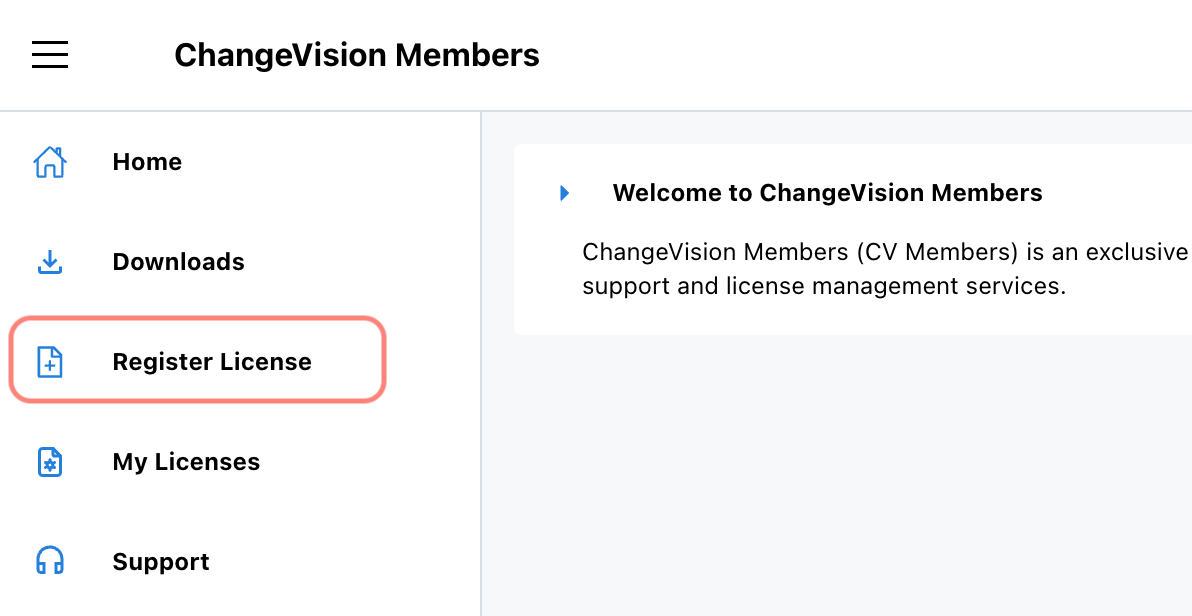
- Go to the [Register License] menu, enter the license number and validation code, and follow the on-screen instructions.
- Your license file is ready. Please set it up in Astah.
For Existing Customers Renewing a License
Follow these steps if you already have a ChangeVision Members account and wish to renew your current Astah license.
Steps
- Purchase a renewal license. For Astah Professional perpetual licenses, purchase a Support Renewal License; for other license types, purchase a new license of the same type you currently own.
- Log in to your ChangeVision Members account.
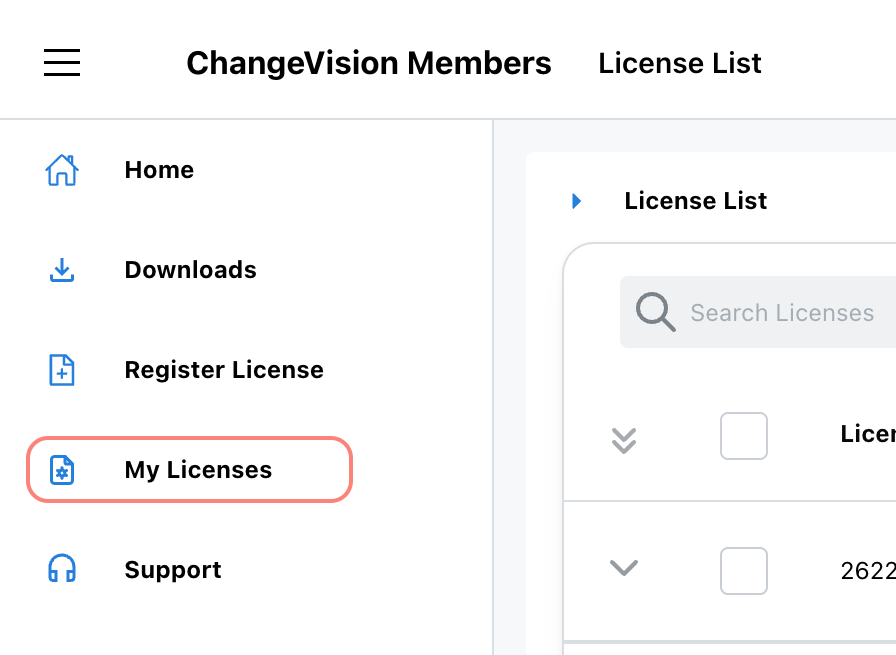
- Navigate to the [My Licenses] page.
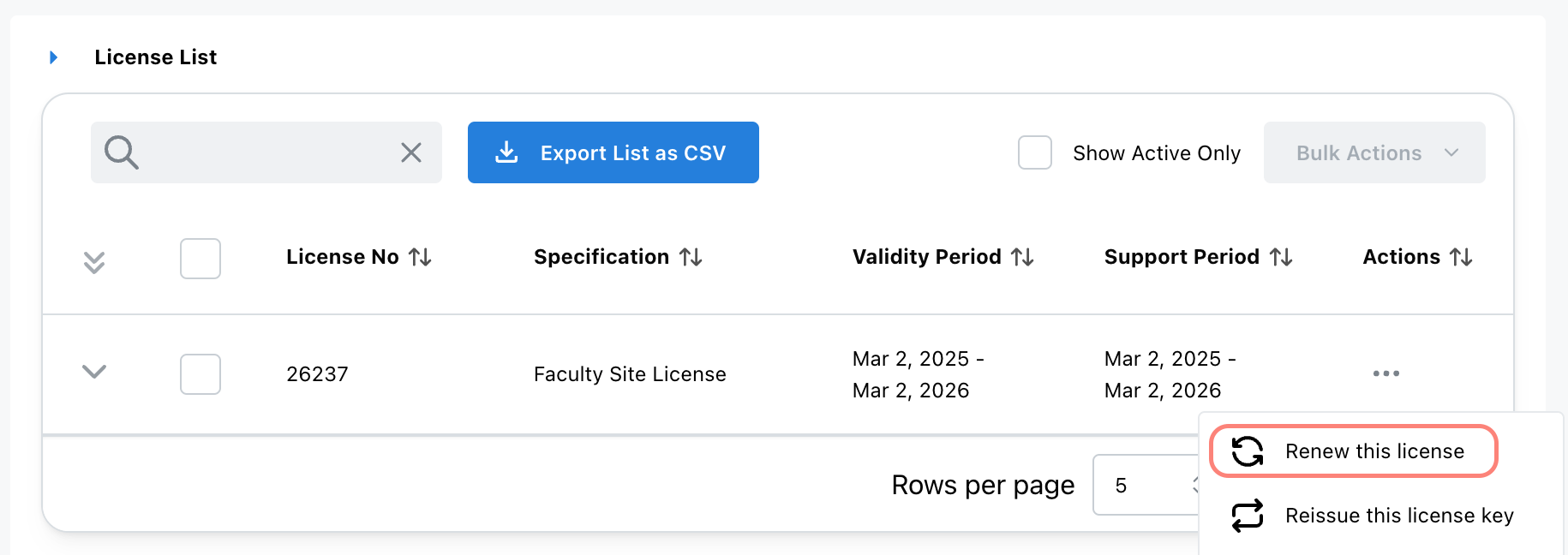
- Find the license you want to renew and select the [Renew this license] menu.
- Enter the license number and validation code of the license you purchased.
- Once the process is complete, a new license file is issued. Apply the new license file in Astah.
- If you are using a Floating License: Save the updated license file (.lic) in the same directory as the license manager (rlm or rlm.exe). Then open the RLM web server at
http://<hostname>:5054in your browser and click [Reread/Restart All Servers].
- If you are using a Floating License: Save the updated license file (.lic) in the same directory as the license manager (rlm or rlm.exe). Then open the RLM web server at
For Existing Customers Adding Seats to a License
If you are expanding your license by adding more seats, follow this process:
Steps
- Log in to ChangeVision Members.
- Navigate to the [My Licenses] page.
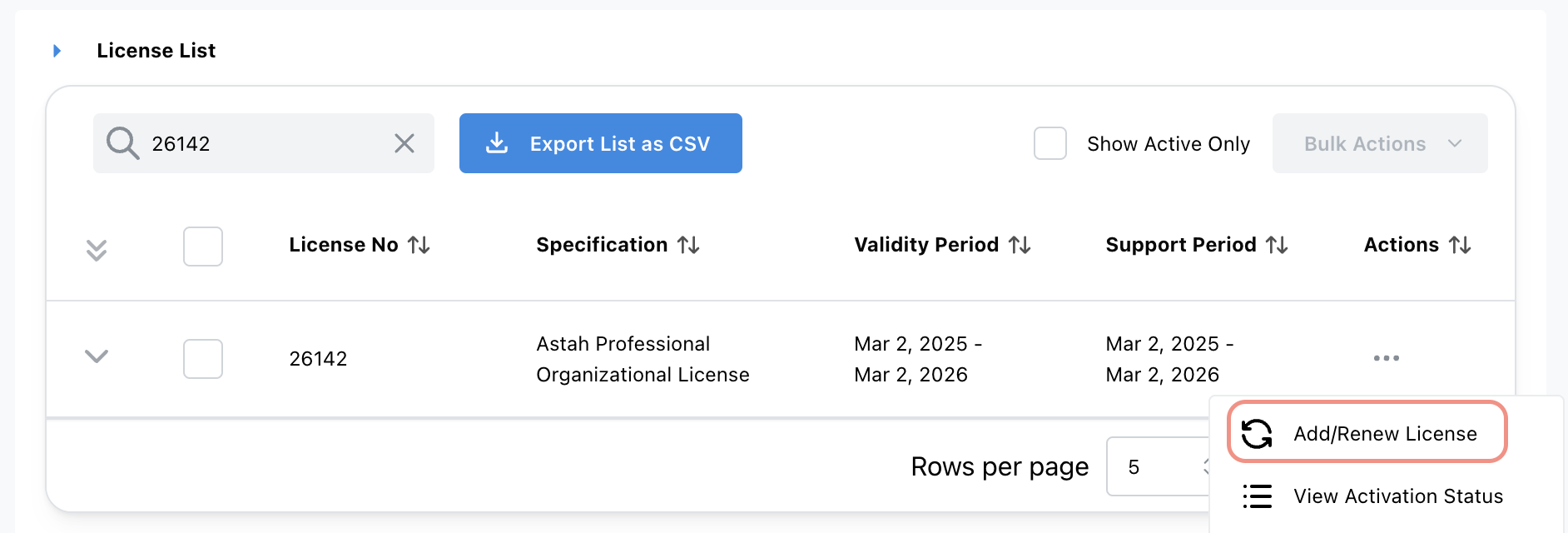
- Choose the license you want to add seats to and click the [Add/Renew License] menu.
- Enter the license number and validation code.
- A new license file will be issued upon completion.
- If you are using an Organizational License: If the user’s machine is connected to the network, the license will be updated automatically when launching Astah. There is no need to distribute the new license file to existing users.
- If you are using a Floating License: Save the updated license file (.lic) in the same directory as the license manager (rlm or rlm.exe). Then open the RLM web server at
http://<hostname>:5054in your browser and click [Reread/Restart All Servers].