
AI Chat Copilot




AI Chat Copilot is a chat pane in Astah. Describe what you want in plain language, and the AI creates, refines and reviews diagrams in your model, while you keep working in Astah. For use cases with prompts and videos, see AI Modeling in Astah.
Overview
Supported products
AI Chat Copilot works with these products, version 11 and later:
Supported diagrams
AI Chat Copilot can create and edit these diagrams in the latest version of each product.
| Diagram | Products |
|---|---|
| Class diagram | Astah Professional, Astah UML |
| Use case diagram | Astah Professional, Astah UML |
| Sequence diagram | Astah Professional, Astah UML |
| Activity diagram | Astah Professional, Astah UML |
| State machine diagram | Astah Professional, Astah UML |
| ER diagram | Astah Professional |
| Requirement diagram | Astah SysML, Astah System Safety |
| Block definition diagram | Astah SysML, Astah System Safety |
| Internal block diagram | Astah SysML, Astah System Safety |
| Parametric diagram | Astah SysML, Astah System Safety |
To compare all features by product, see Compare Editions.
Supported AI services
- OpenAI
- Anthropic Claude
- Google Gemini
- OpenAI-compatible services
Azure OpenAI is supported in Astah Professional and Astah UML version 12 and later.
API key required
Astah has no built-in AI. To use AI Chat Copilot, you need your own API key from a supported AI service, and the AI provider bills you for usage. See AI Settings.
Privacy and limitations
Your prompts and model information are sent to the AI service you choose. Change Vision does not receive them. For data and privacy, costs and limitations, see Using AI in Astah.
Get started
- Open a project
Create a new project or open an existing one. - Open the Chat Copilot pane
Choose [View] > [Show/Hide Extra View], then select the Chat Copilot tab.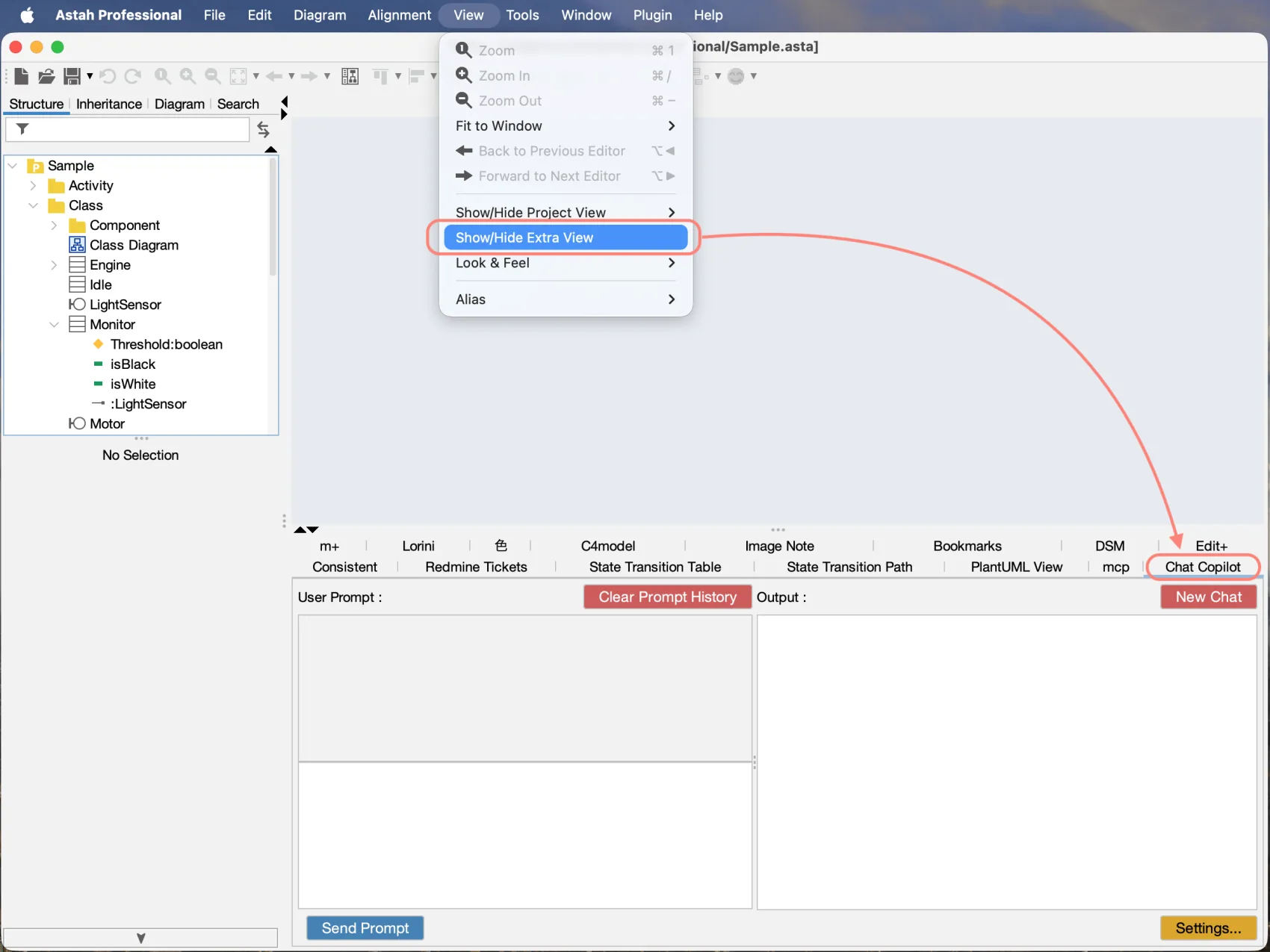
- Set up the AI service
Click Settings in the Chat Copilot pane, select the AI service, enter your API key and choose a model. For details, see Settings.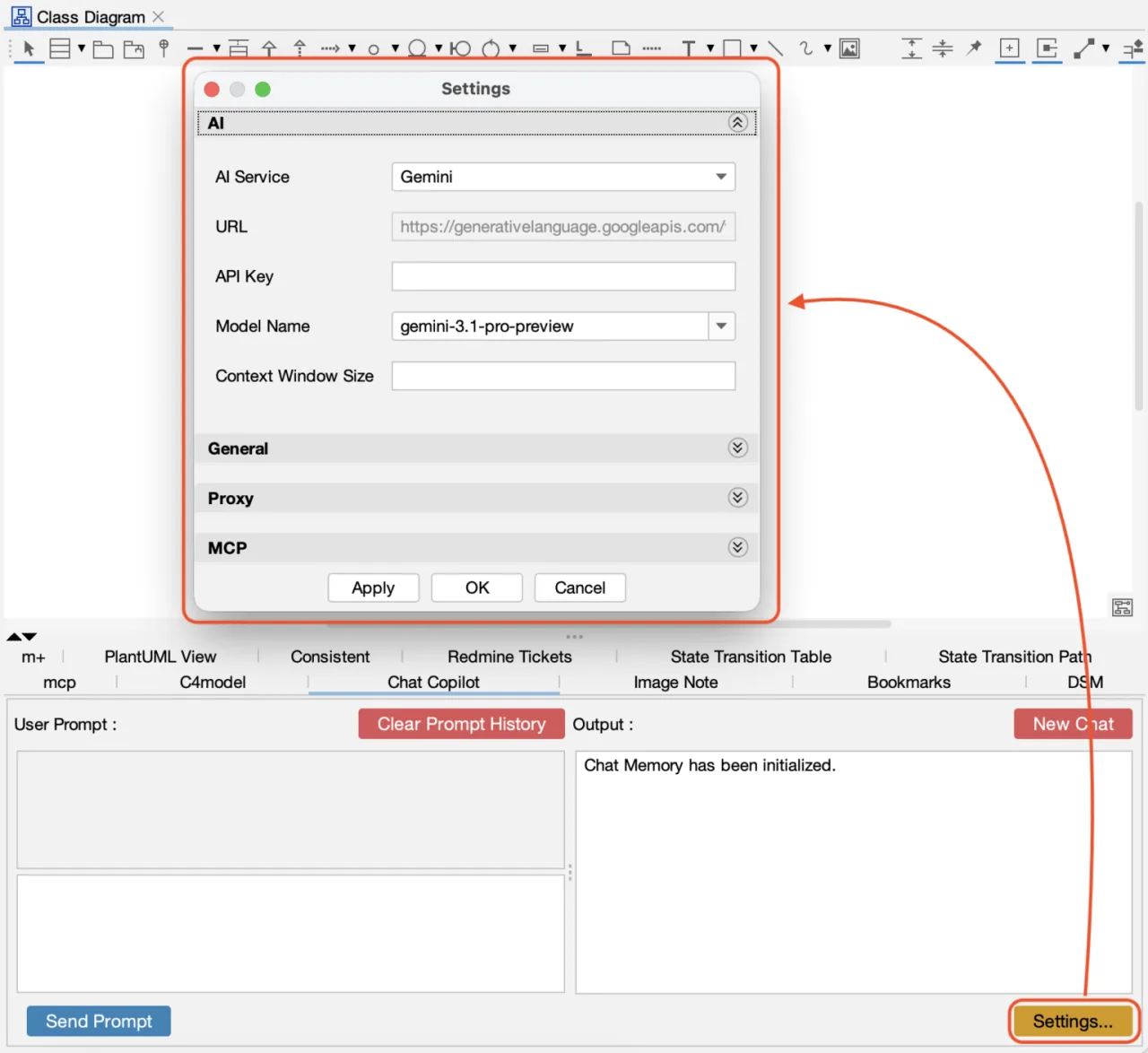
- Send a prompt
Type your request in User Prompt and click Send Prompt. The response appears in Output, and the elements the AI creates appear in your diagram. To try a prompt right away, see Examples.
Tip
To start over without the previous conversation, click New Chat in the upper-right corner.
Examples
Select a use case to see prompts you can copy and try in your own project.
Create UML diagrams with AI
- Open your project in Astah and click the [Chat Copilot] tab.
- Copy this prompt, edit the requirements, and send it:
Read the requirements below and create a UML class diagram named "Library - Domain Model" with the main classes, attributes, operations, relationships and multiplicities. Requirements: - Members can borrow up to 5 books at a time. - Each book has an ISBN, a title and one or more authors. - A loan records the borrow date, the due date and the return date. - Review the diagram and ask for changes in the same conversation, for example:
Add a Reservation class so that members can reserve books that are on loan.
Available in Astah Professional and Astah UML.
Review and document a design with AI
- Open the diagram in Astah and click the [Chat Copilot] tab.
- Ask for a review without changing the model:
Review the class diagram "Library - Domain Model". List missing elements, unclear relationships and naming inconsistencies, most important first. Do not change the model yet. - Apply the suggestions you agree with, by number:
Apply suggestions 2, 3 and 4. - Document the design for people who do not read UML:
Add a note to the diagram that summarizes this model in plain language
for team members who do not read UML.
To make sure the AI only reads your model, turn off Edit Mode.
Available in all four products.
Create SysML diagrams with AI
- Open your project in Astah SysML or Astah System Safety and click the [Chat Copilot] tab.
- Copy your requirements from your specification or spreadsheet, including the header row.
- Paste your requirements into this prompt and send it:
Create a SysML requirement diagram from the requirements below. Use the ID, name and text of each row, and use the Derived from column for derive relationships. Show all relationships on the diagram. [Paste your requirements here, including the header row] - Create the system structure:
Create a SysML block definition diagram for the delivery robot with the blocks DeliveryRobot, Chassis, DriveSystem, BatteryPack and Sensor. DeliveryRobot is composed of the other blocks. - Trace the requirements to the design:
In the requirement diagram, add satisfy relationships from each block
to the requirements it fulfills.
Available in Astah SysML and Astah System Safety.
→ More AI examples, with prompts and screenshots
Settings
Click Settings in the Chat Copilot pane, then configure the sections below.
AI Settings
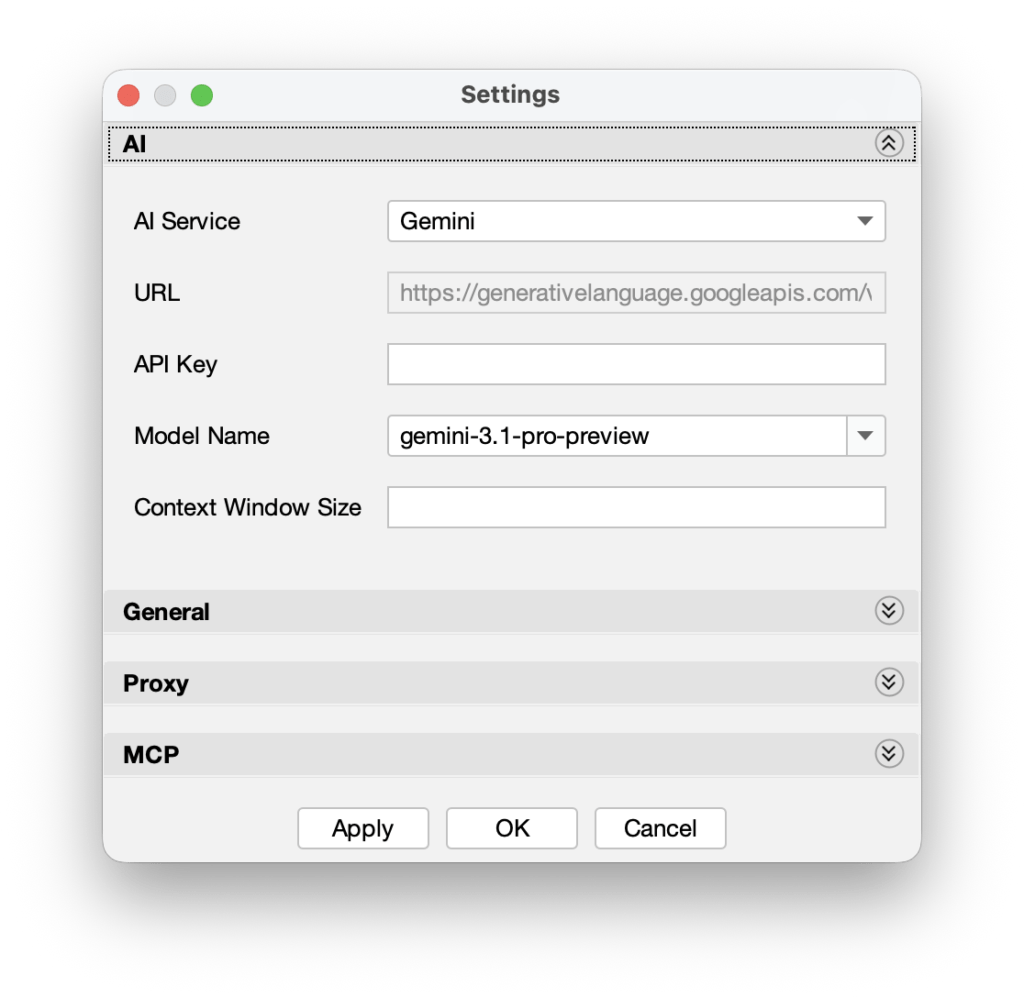
- AI Service: the AI service to use: OpenAI, Azure OpenAI, Claude, Gemini or OpenAI-compatible.
- Azure OpenAI is available in Astah Professional and Astah UML version 12 and later. Enter your Deployment Name and API Version. Leave API Version empty to use the latest version.
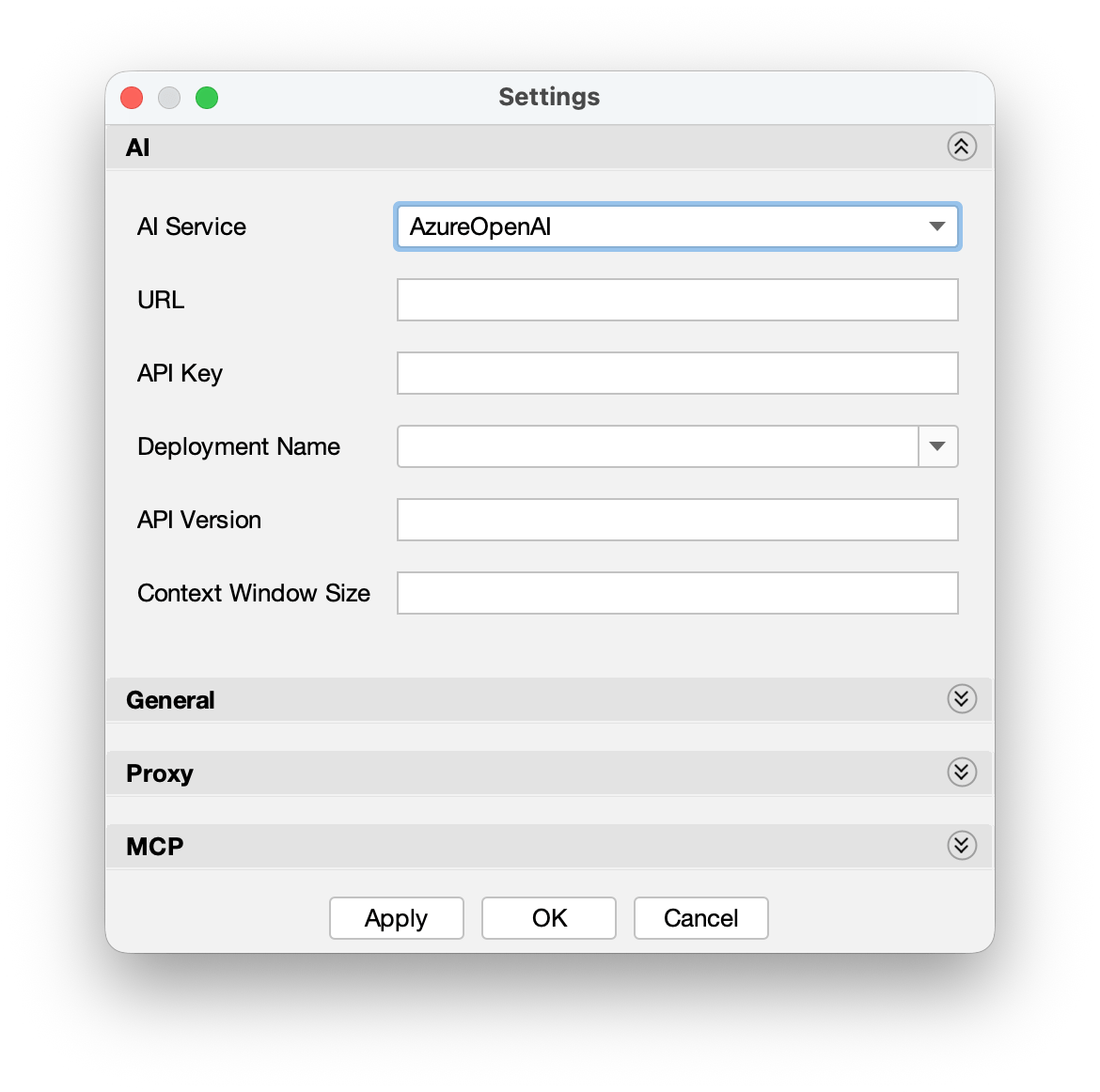
- Azure OpenAI is available in Astah Professional and Astah UML version 12 and later. Enter your Deployment Name and API Version. Leave API Version empty to use the latest version.
- URL: the base URL of the API. You can edit it only for OpenAI-compatible services and other custom endpoints.
- API Key: the API key from your AI service.
- Model Name: the AI model to use. After you enter your API key, click [Apply] to load the list of available models, including reasoning models.
- Context Window Size: the maximum number of tokens kept as conversation context. Leave it empty to let Astah set it from the model’s limit.
Note
Astah Professional and Astah UML version 12 no longer have a temperature setting. AI Chat Copilot sets it automatically.
General
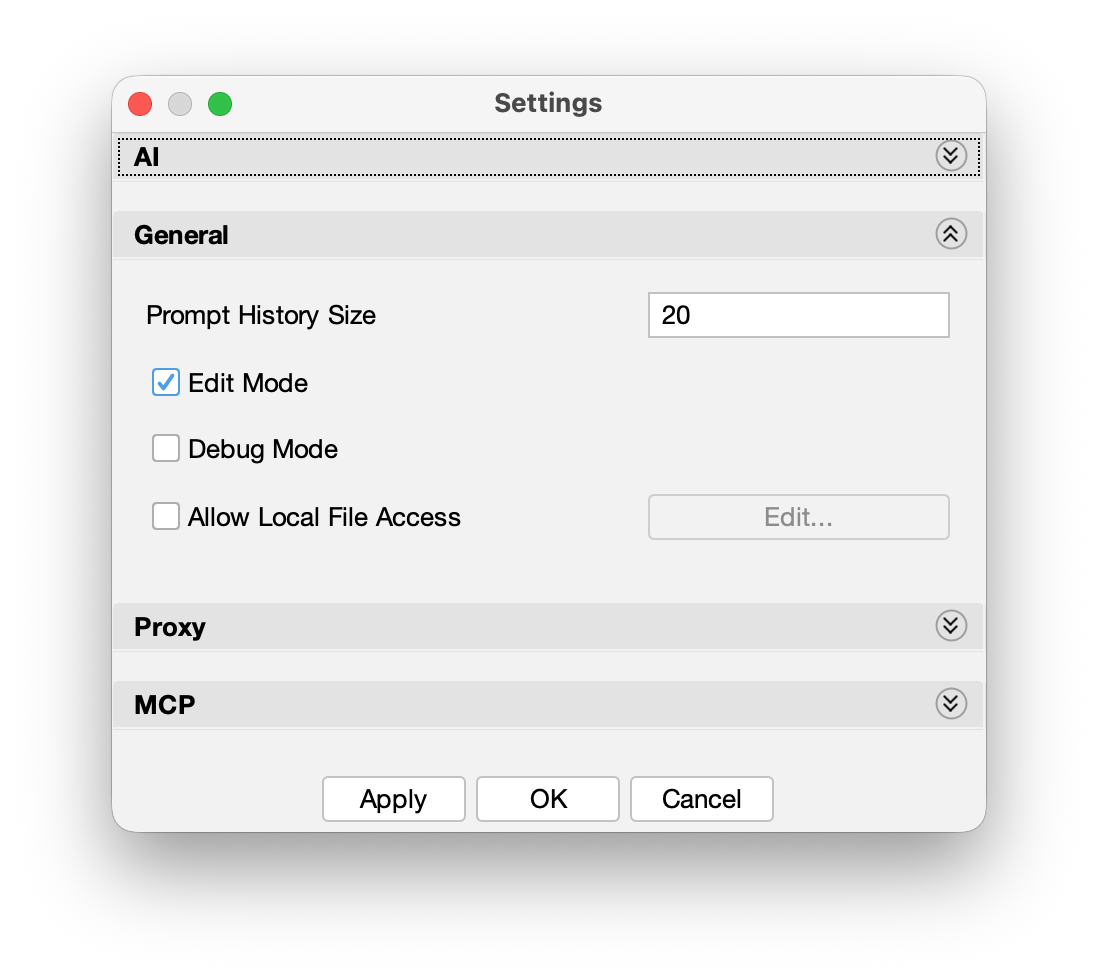
- Prompt History Size: the number of past prompts kept in the prompt history list. The history is saved only on your computer, and responses are not saved. To delete it, click Clear Prompt History.
- Edit Mode (on by default): lets the AI add, change and connect elements in your model. Turn it off to let the AI only read and analyze your model.
- Debug Mode: writes detailed logs for troubleshooting connection problems. The log file is saved to
(User Home)/.astah/<product>/astah-copilot.log, where<product>isprofessional,uml,sysmlorsystemsafety, depending on your product. - Allow Local File Access: lets the AI read text files on your computer for context. Click [Edit] to choose the folders it can read. Only allow folders that may be shared with the AI service. See Data and privacy.
Proxy
If your network connects to the internet through a proxy, turn on Use System Proxy Settings. AI Chat Copilot then connects to the AI service through your system’s proxy settings.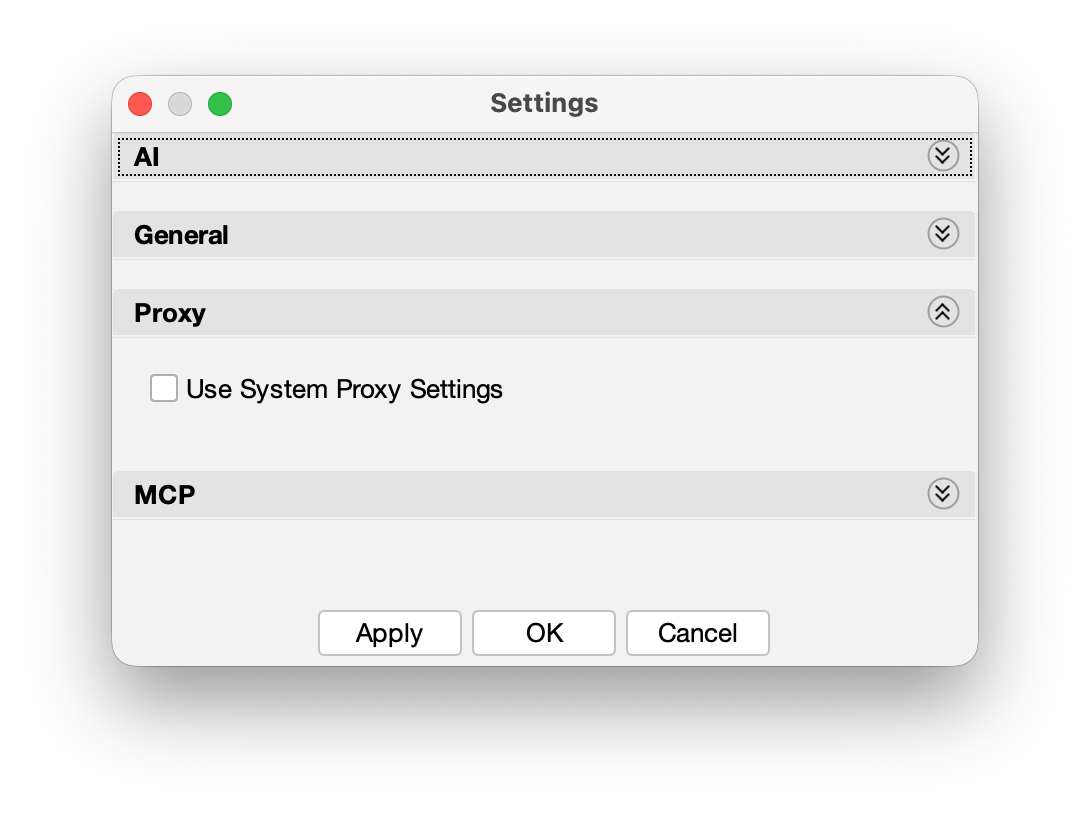
MCP
Configure this section only if you use the MCP server to connect Astah to external AI clients. The MCP server does not use the AI Settings above: the AI client you connect, such as Claude Desktop or VS Code, uses its own account, so no API key is needed in Astah.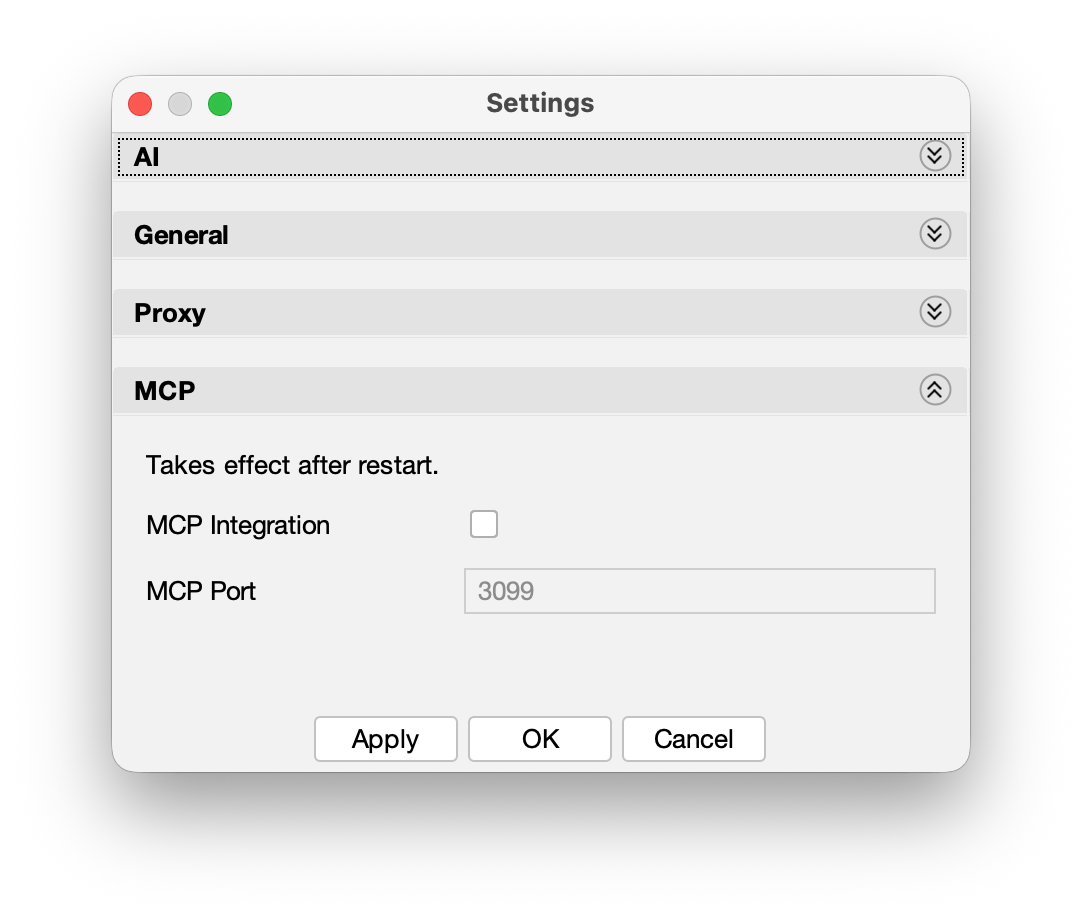
Versions and updates
AI Chat Copilot is a plugin that comes with Astah.
Check your version
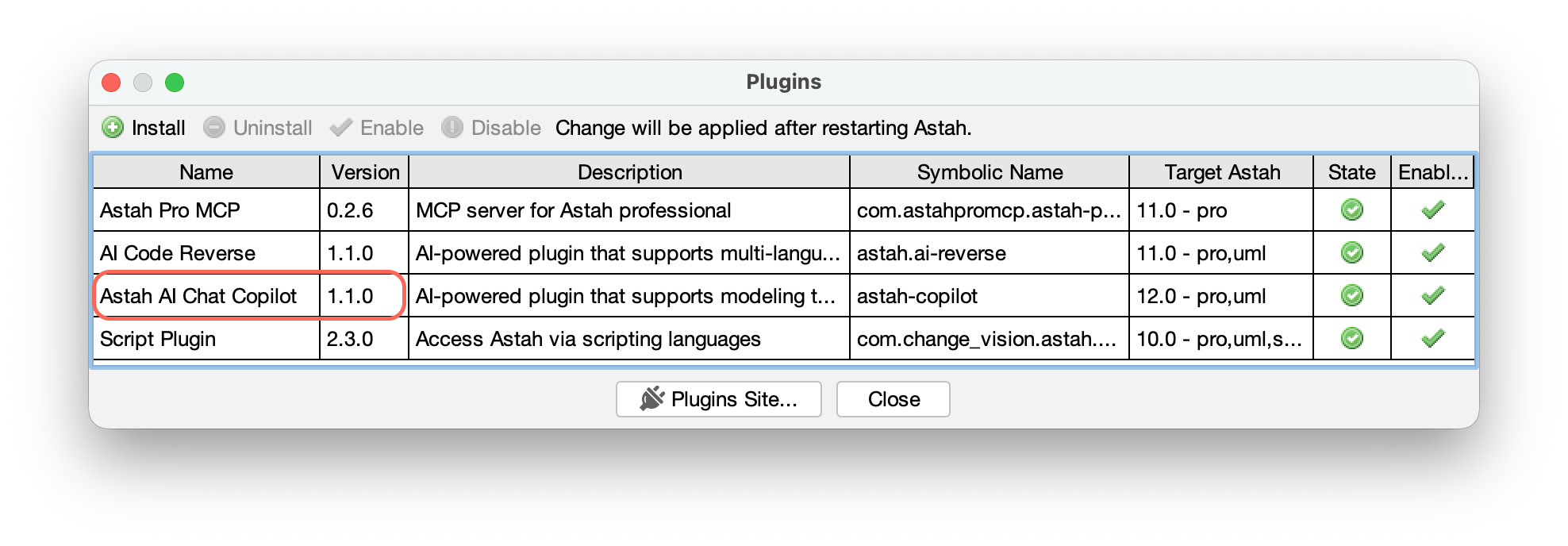
- Choose [Plugin] > [Installed Plugin].
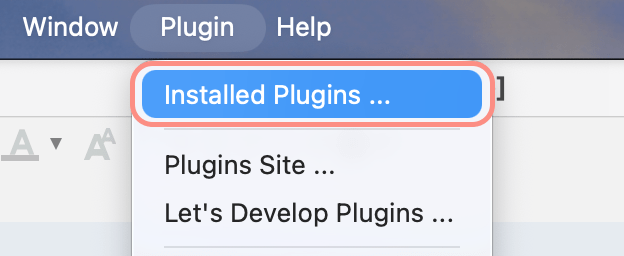
- Find Astah AI Chat Copilot in the list and check the Version column.
Latest versions
| Astah Version | AI Chat Copilot Version | Release Date | Note |
|---|---|---|---|
| Astah Professional and Astah UML version 12 | 1.1.0 | July 15, 2026 | Supports Azure OpenAI and reasoning models (ThoughtSignature) |
| Astah SysML and Astah System Safety version 11 | 1.0.0 | March 3, 2026 | Initial release |
| Astah Professional and Astah UML version 11 | 1.0.0 | December 17, 2025 | Initial release |
Update
- Download the .jar file for your Astah version from the table above.
- Drag and drop the .jar file into the Astah window while Astah is running.
- Restart Astah.
Uninstall
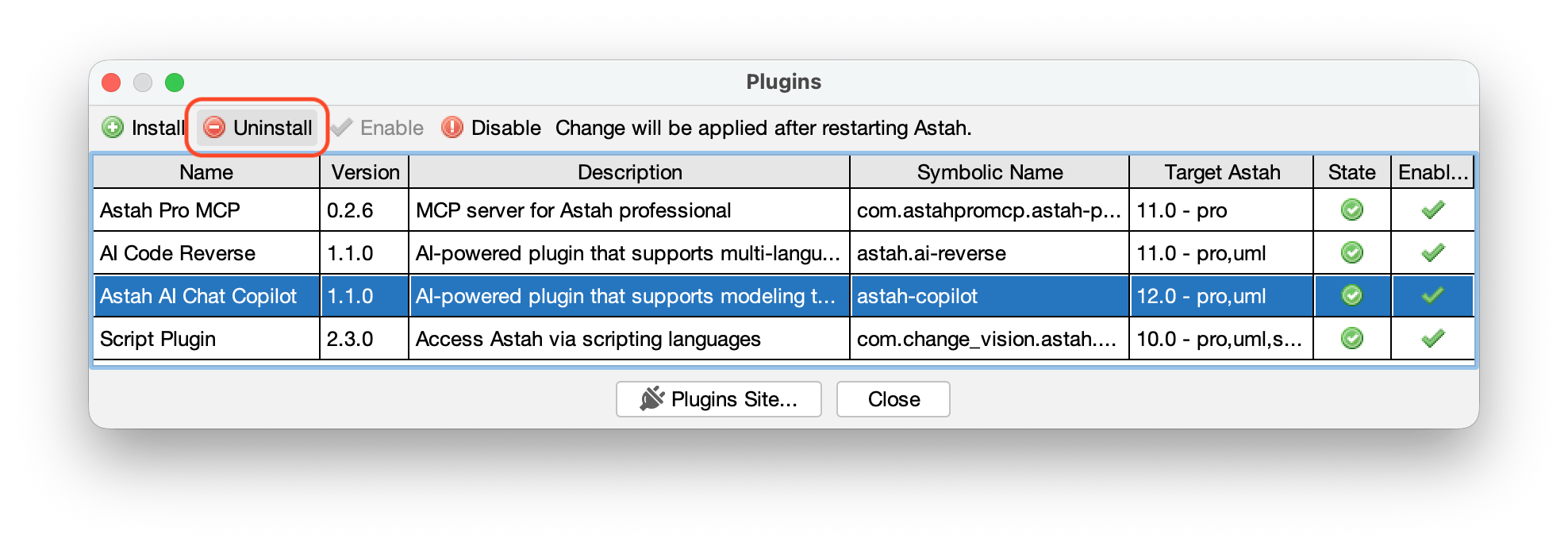
- Choose [Plugin] > [Installed Plugin].
- Find Astah AI Chat Copilot and click [Uninstall].
- Restart Astah. The Chat Copilot pane no longer appears.