Working with Java


Set Java
Astah supports modeling in Java, C++, and C#. If you are modeling in Java, set the project language to Java first:
- Select the root package in the Structure Tree and check [Java] in the bottom pane.
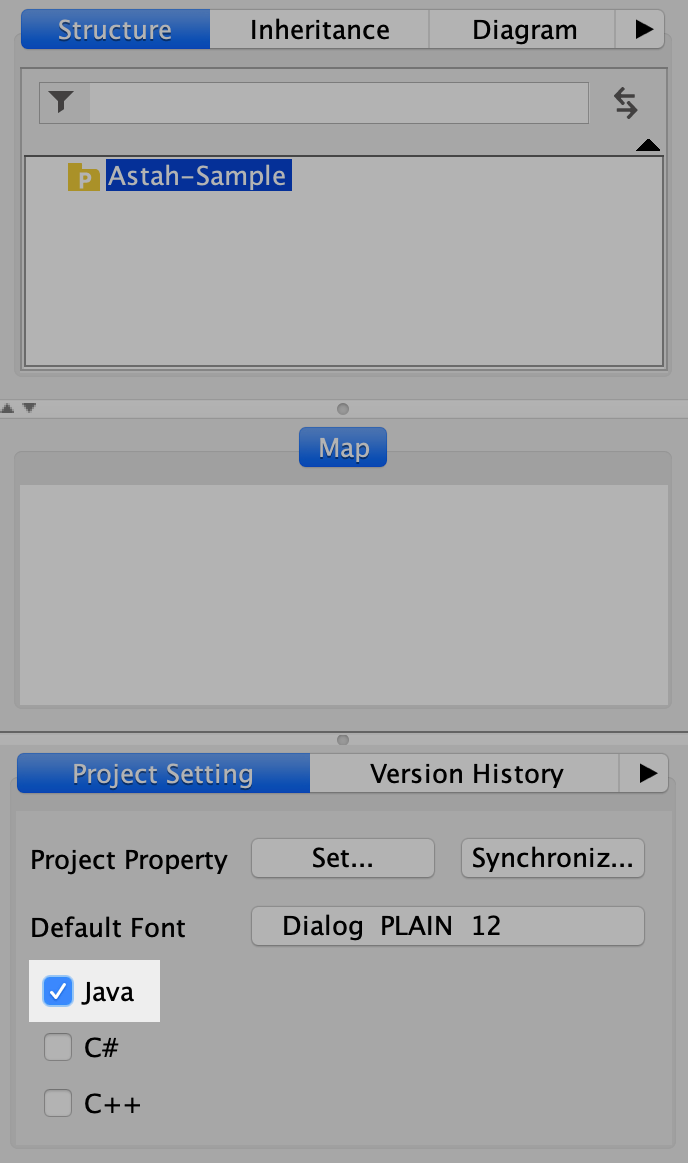
- With Java set, you can edit Java-specific options for Classes, Attributes, and Operations in the [Language] tab.

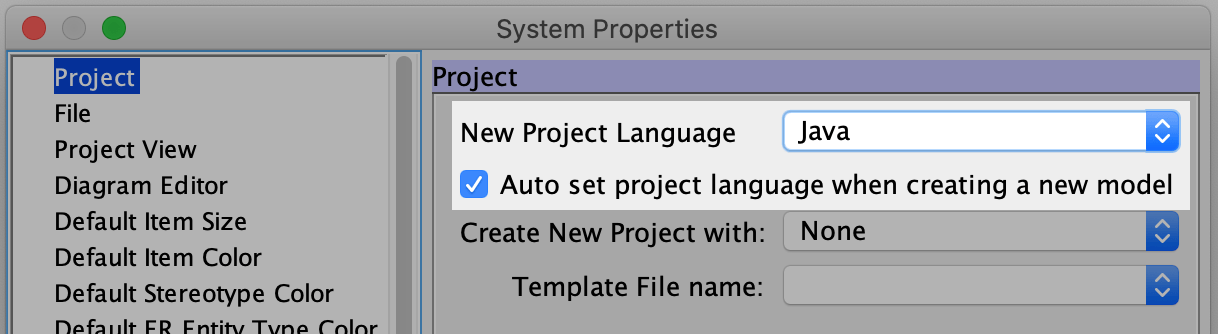
You can set Java as the default programming language for new projects in [Tools] – [System Properties] – [Project].

Import Java Source Code
You can import Java source code files and create class diagrams from the reverse-engineered models.
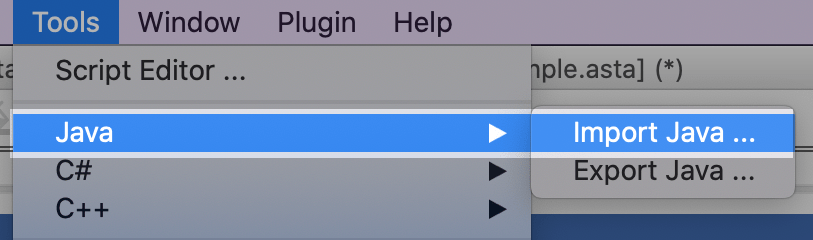
- Go to [Tools] – [Java] – [Import Java].
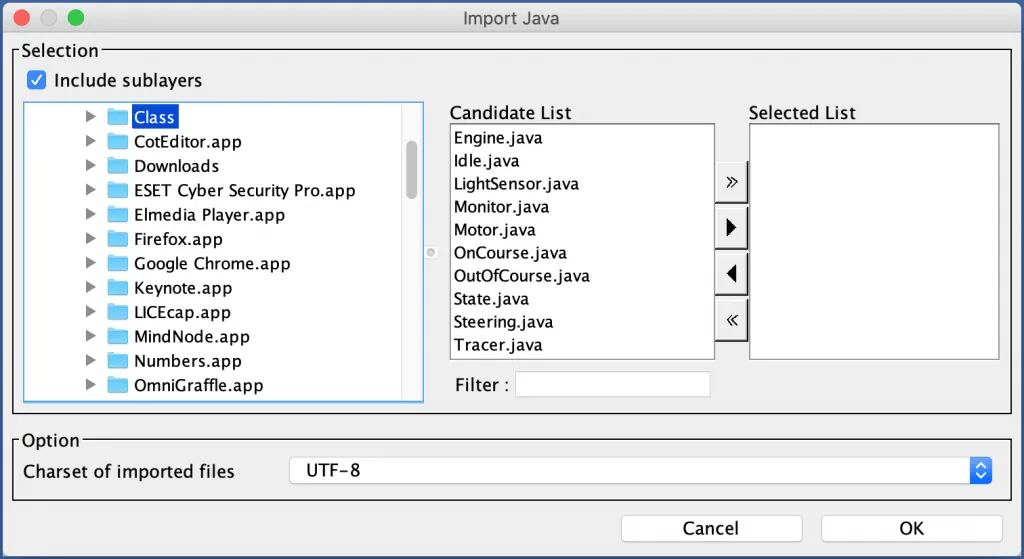
- Choose the .java files you want to import and click [OK]. Make sure you select the correct encoding.
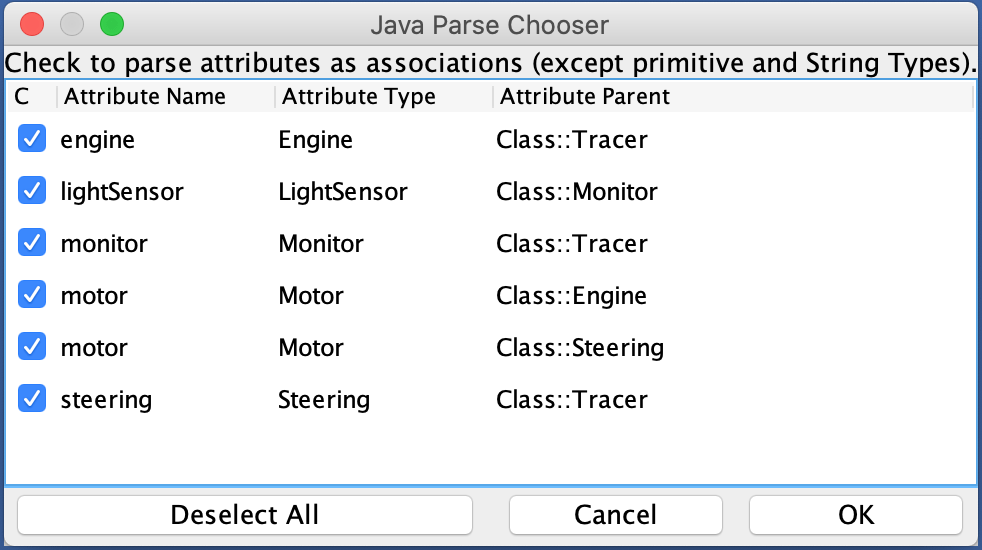
- Choose the attributes you want to import as associations.
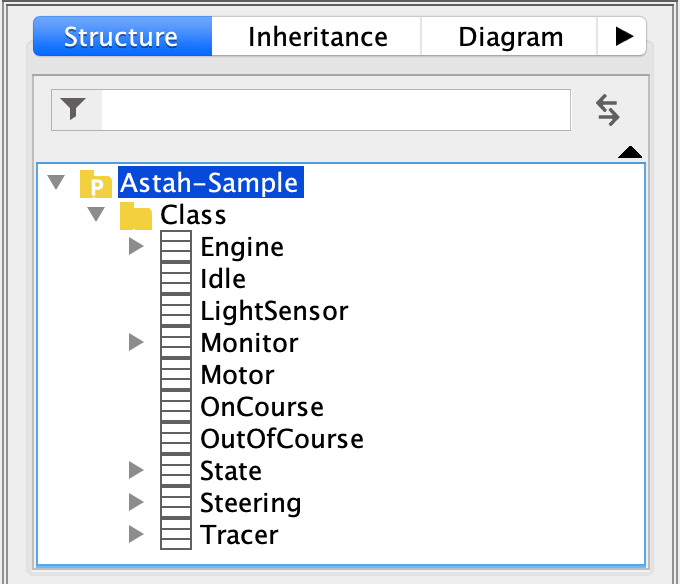
- The imported models are added to the tree.
Auto-generate Class Diagram
You can automatically create a class diagram from the imported models. For details and options, see Auto Create Class Diagrams.
- Right-click a package or class and choose [Auto Create Class Diagram].
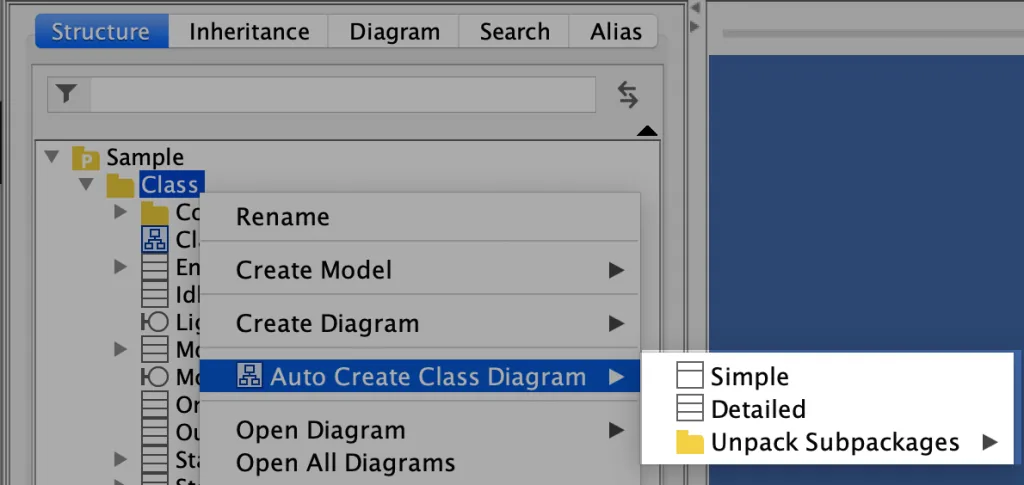
- The generated diagram opens in the Diagram Editor.
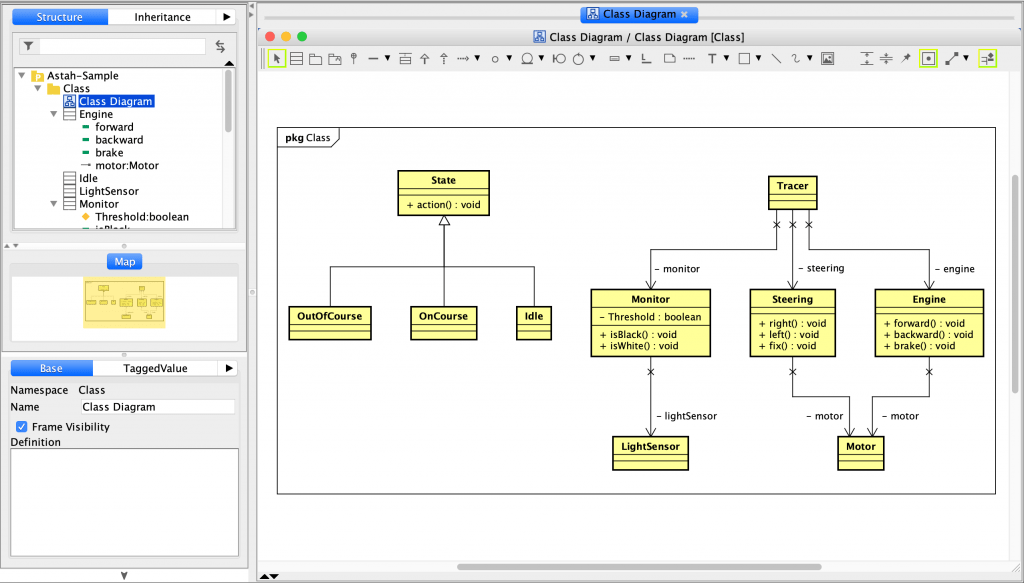
TIPS – Use Auto-layout
After generating a diagram, you can lay out the models vertically or horizontally from the [Alignment] – [Auto Layout] menu.
Use Reverse Plug-in
With the Easy Code Reverse Plug-in, you can reverse-engineer Java source code into a UML class diagram by dragging a repository URL or .java files directly onto Astah.
- Install the Easy Code Reverse Plug-in.
- Drag the link to a .java file in an online repository onto Astah.
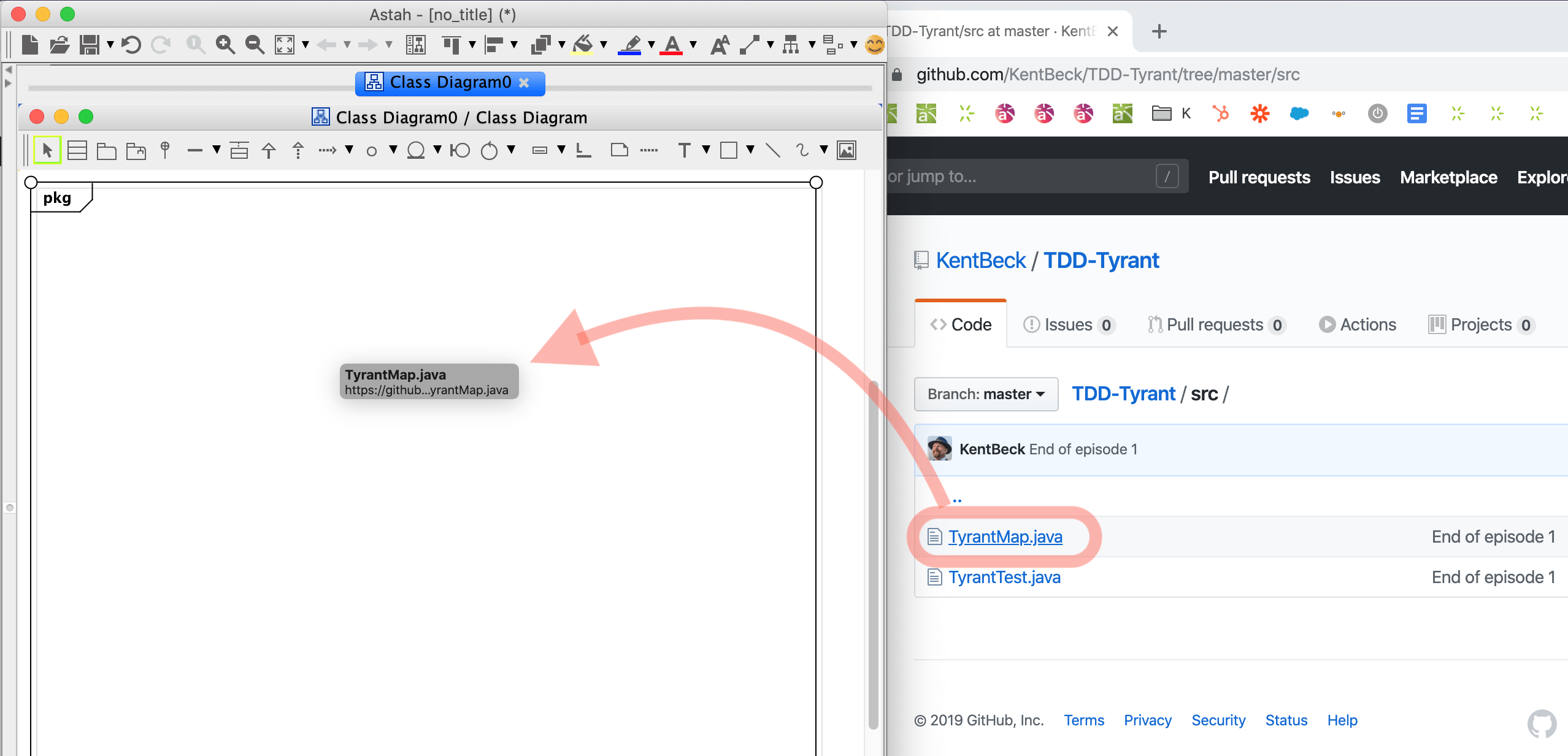
- The imported model appears on the diagram.

Generate Java source code
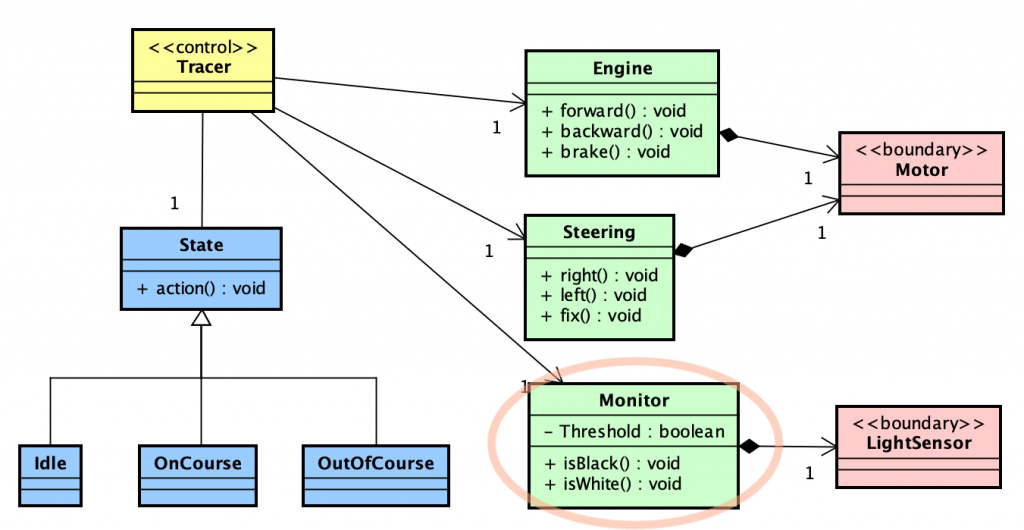
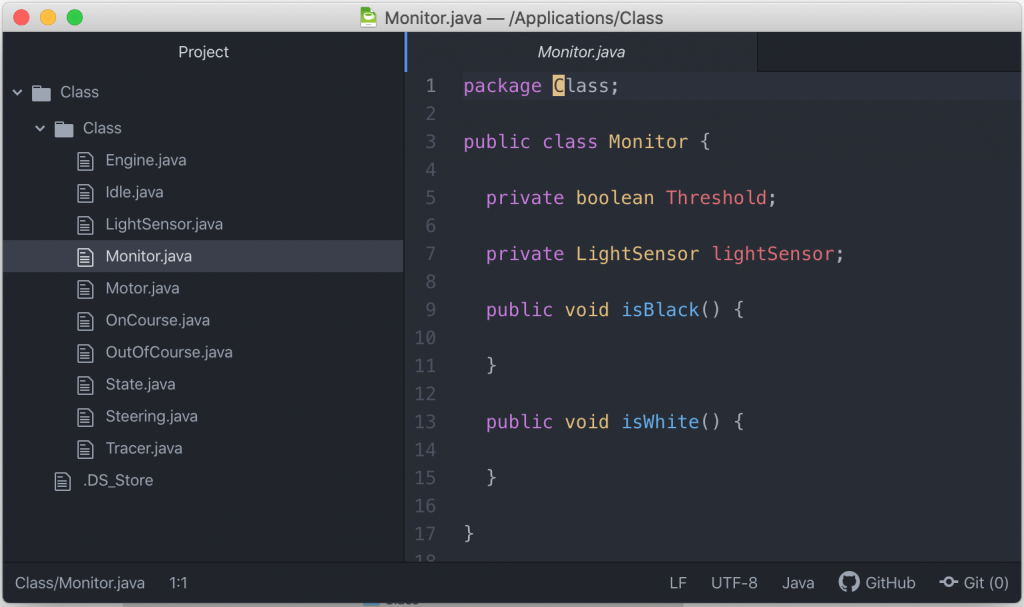
[Export Java] generates Java skeleton code from the selected diagram elements. The definitions of classes and operations are exported as documentation comments.
- Go to [Tools] – [Java] – [Export Java] in the main menu.
- Select the models you want to export as source code.
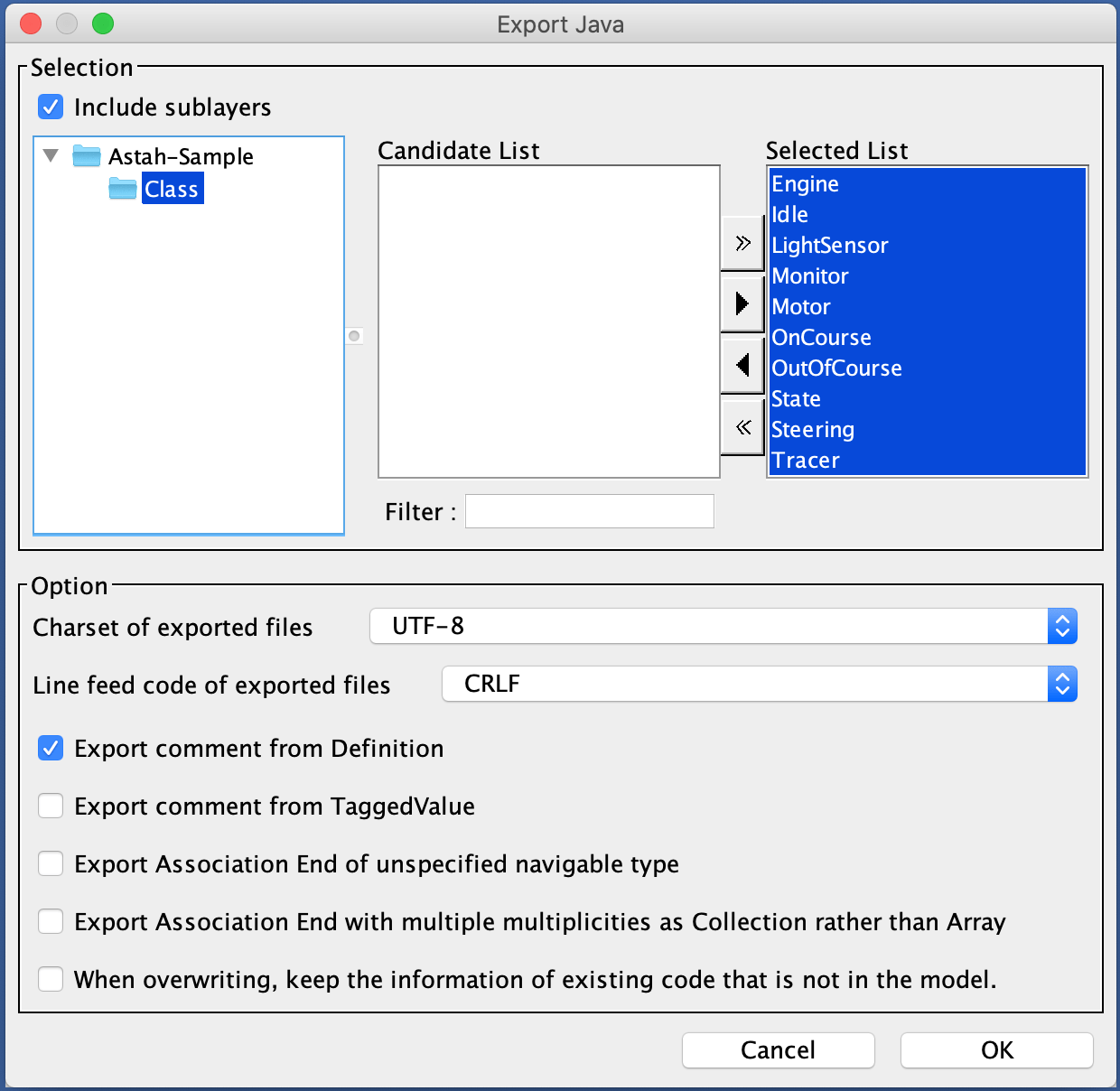
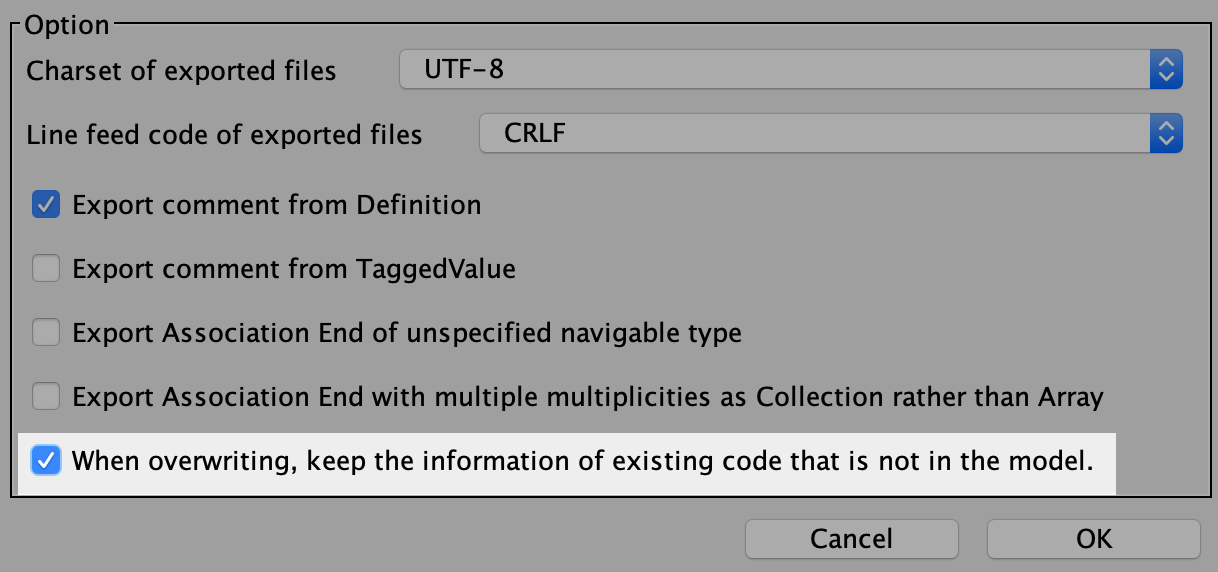
- The .java files are generated. If files with the same names already exist, they are completely replaced by the latest export. To keep modifications you’ve made to existing .java files, check the [When overwriting, keep the information of existing code that is not in the model.] option.
Sample source code