
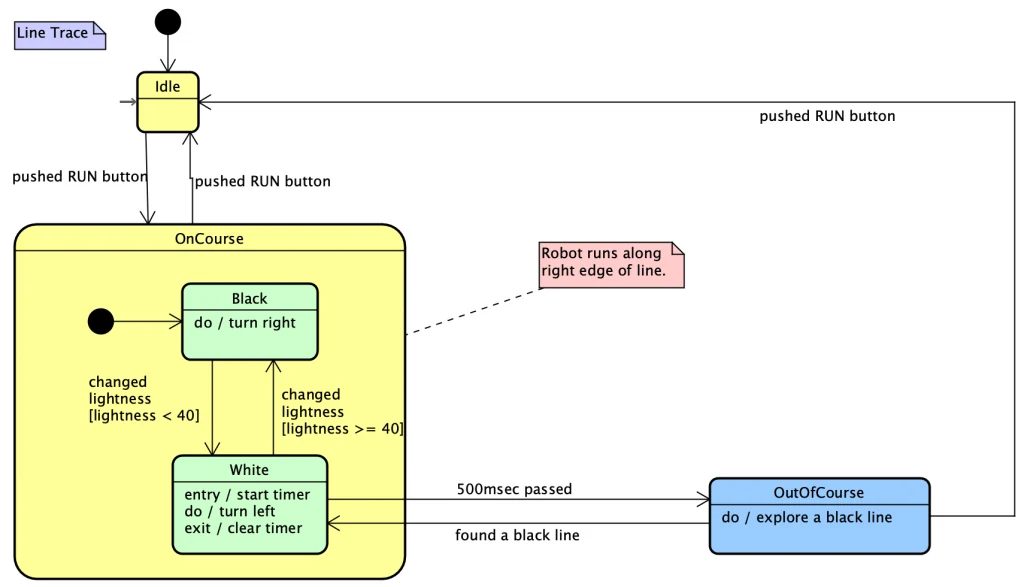
Statemachine Diagram





Initial Pseudo State
You can create an initial pseudo state by selecting it from the tool palette.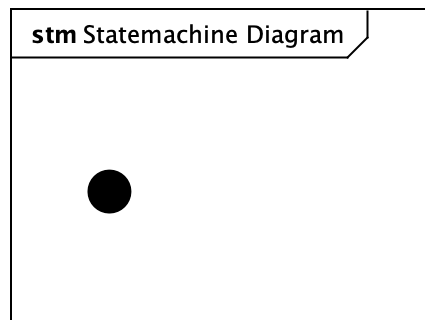
To allow more than one initial pseudo state on a diagram, go to [Tools] – [System Properties] – [UML] and disable the option below.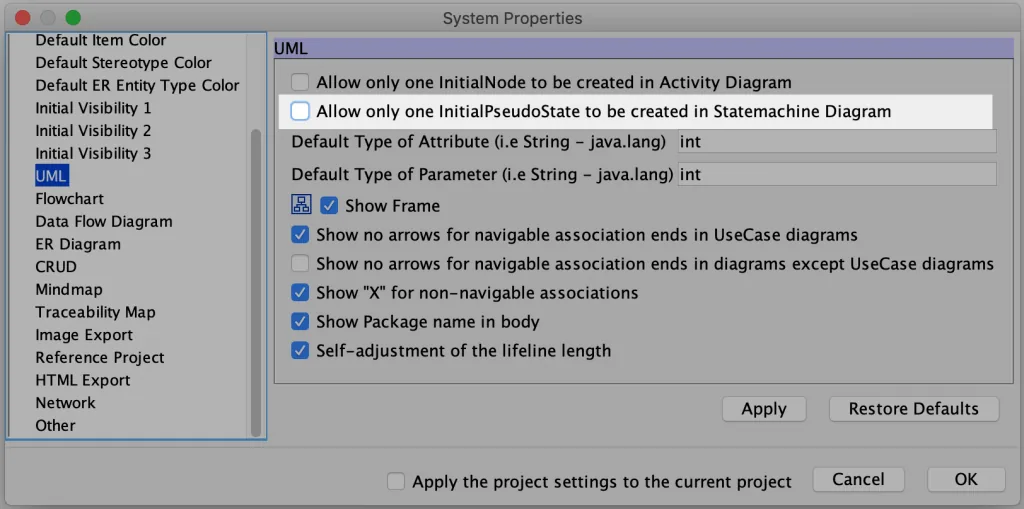
Note: This option is not available in Astah System Safety.
States
You can create a state by double-clicking on a diagram, or in any of the other ways described on the Diagram Editor page.
To insert a new state between two states, drag the new state onto the transition line.
Show States on the tree
By default, states do not appear in the Structure Tree. To show them, change the setting in [Tools] – [System Properties] – [Project View].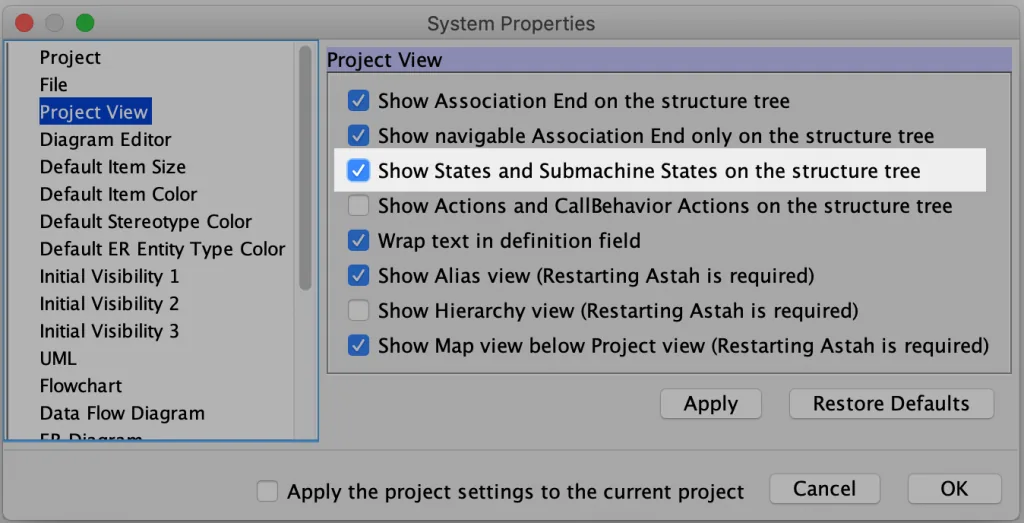
In Astah System Safety, this option is in [Tools] – [System Properties] – [SysML] – [Project View].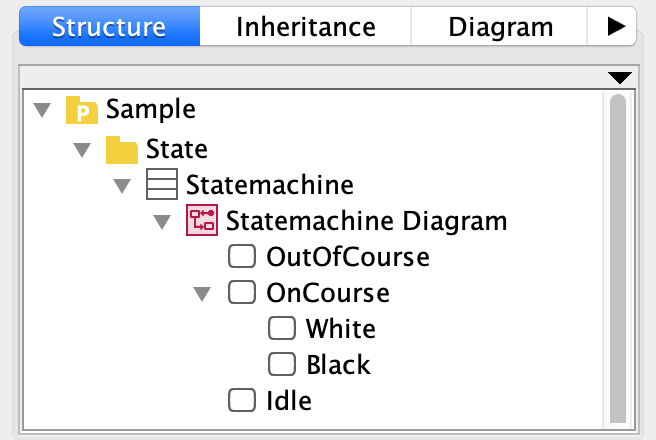
Note: You cannot drag and drop a state from the tree onto a diagram. To reuse states, copy and paste them.
Submachine State
You can create a submachine state by dragging a statemachine diagram from the tree onto a diagram. You can also drag it into a state.
Region
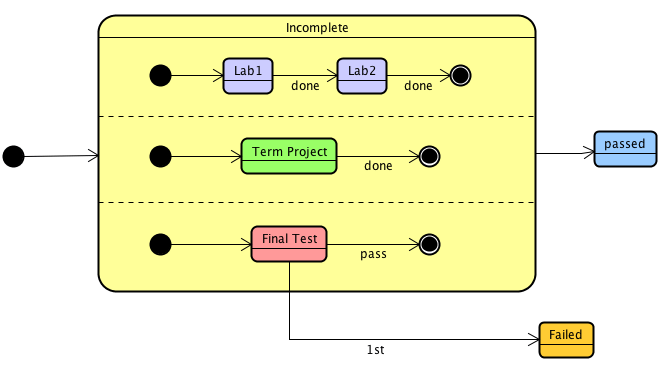
To add a region, choose [Add Region] from the state’s pop-up menu, then choose vertical or horizontal.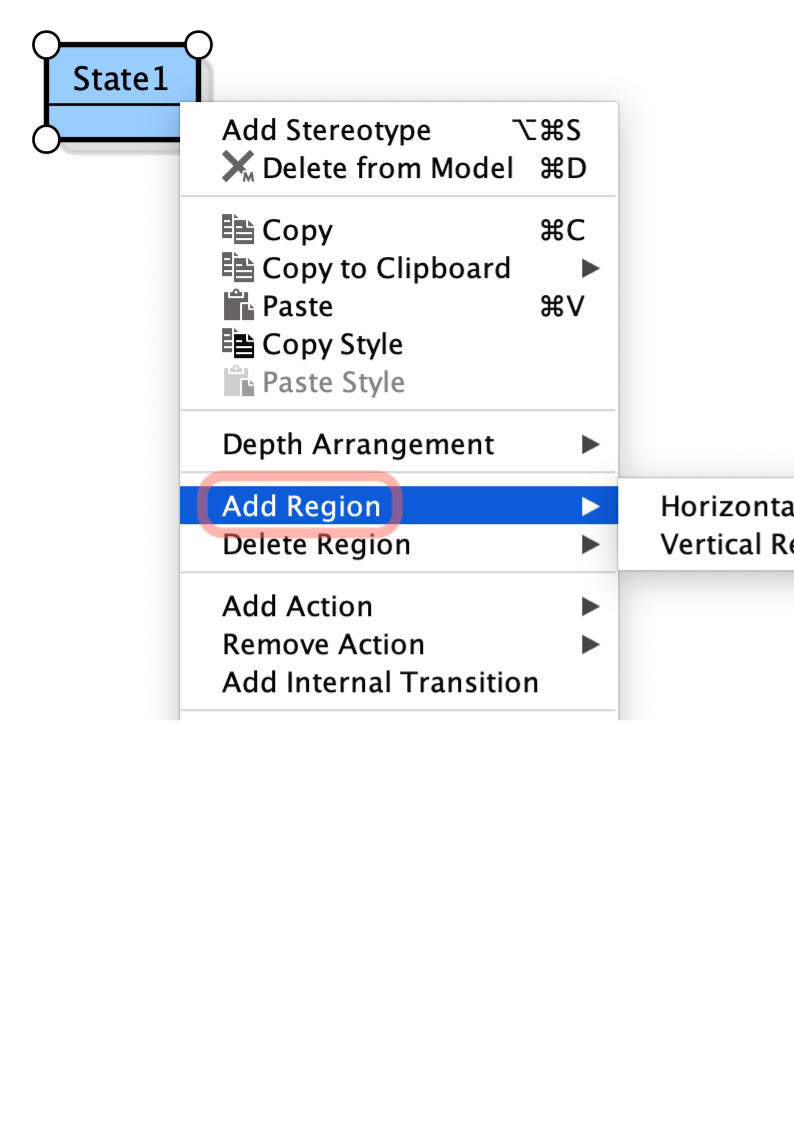
Set Region Name
In the [Region] tab of the state’s Property View, you can assign a name to each region. This is available in Astah Professional and Astah UML version 9.2 and later.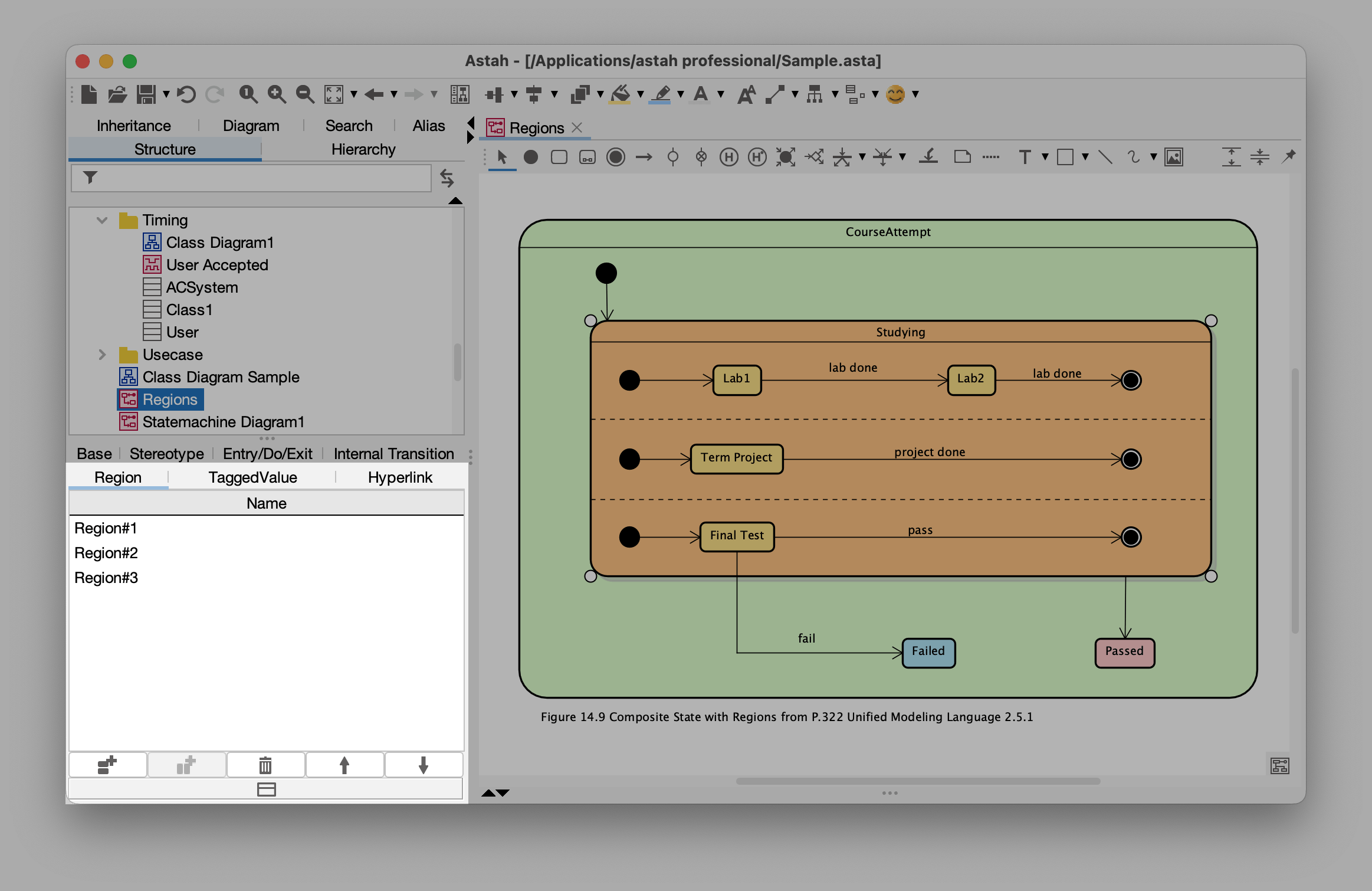
Change Display Order of Regions
In the same [Region] tab, use the arrow buttons to change the display order of the regions. This is available in Astah Professional and Astah UML version 9.2 and later.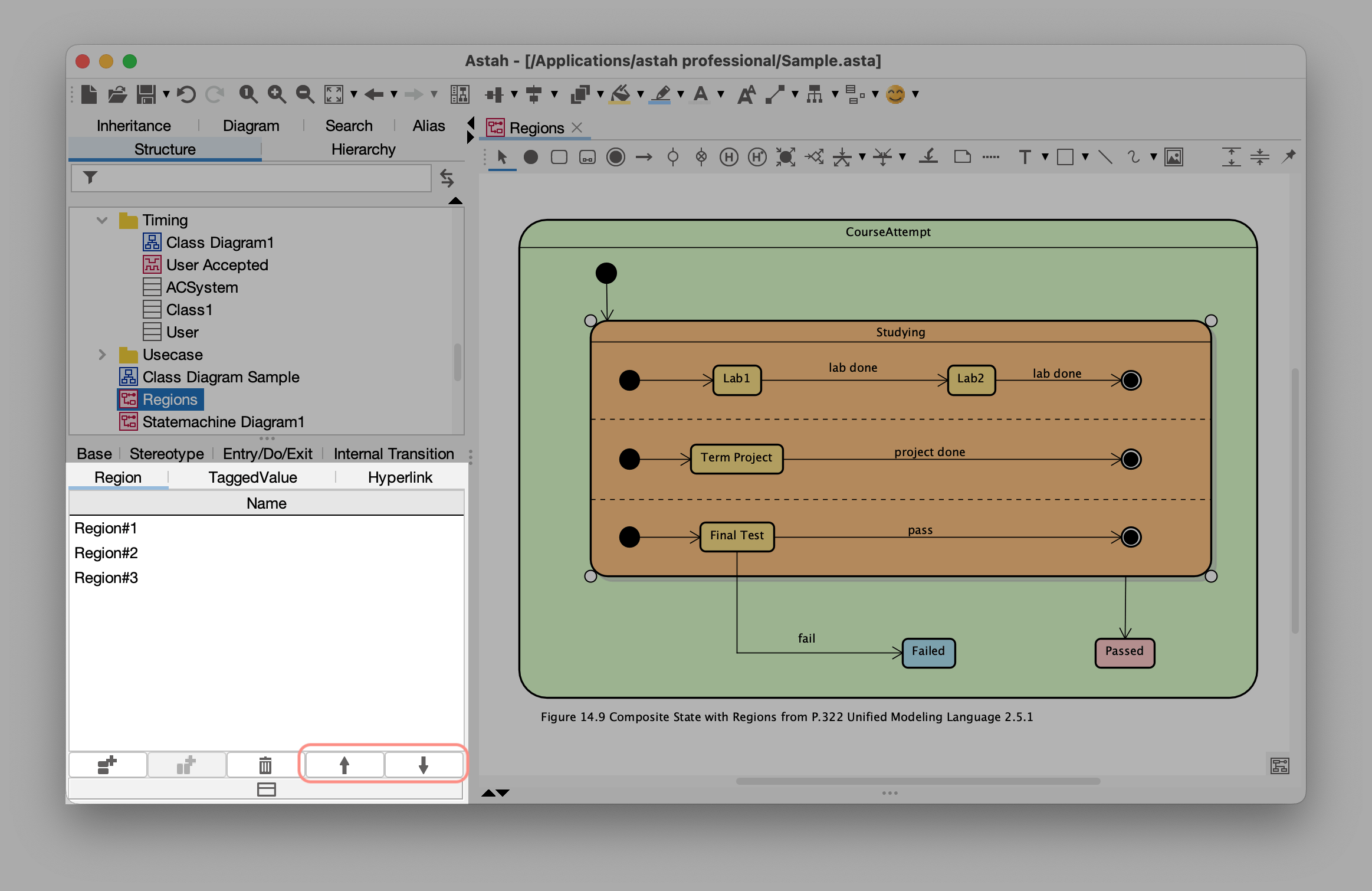
Questions about statemachine diagrams?
Please let us know if you have any questions about statemachine diagrams or would like tips on using them.