
Activity Diagram



Activity diagrams are supported in Astah Professional, UML, SysML, and System Safety products.
Partitions
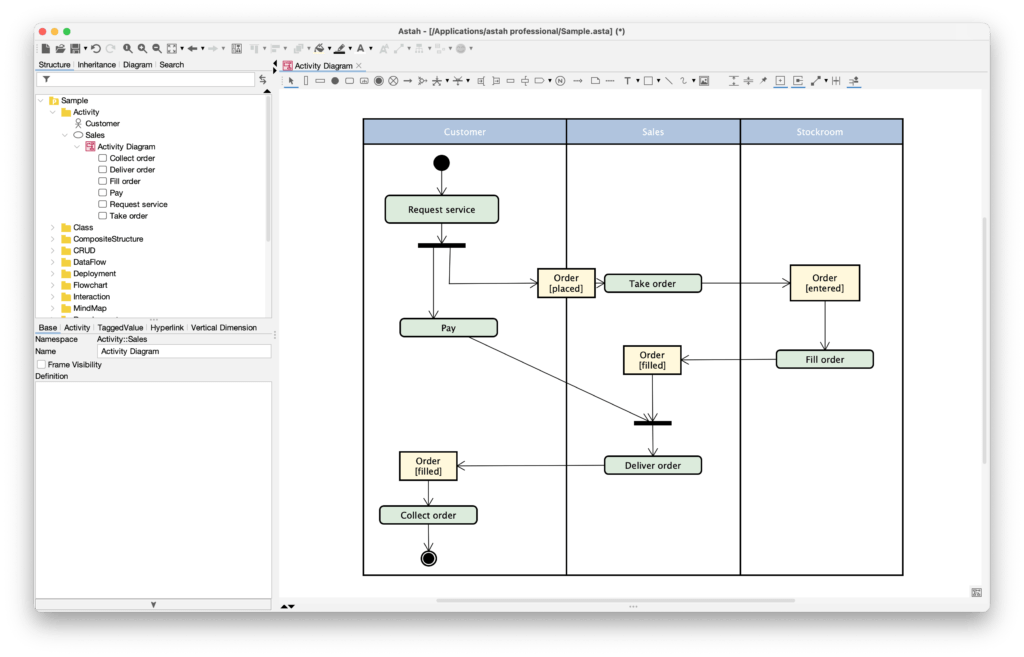
In an Activity Diagram, you represent “who” is performing an action by using Partitions.
Adding Partitions
You can organize your diagram into horizontal or vertical partitions to clearly show the responsibilities of different actors or departments.
- Select [Vertical Partition] or [Horizontal Partition] from the tool palette.
- Click on the diagram to place it.
- Double-click the partition header to enter the name of the Actor or Role (e.g., “Customer,” “Admin,” or “System”).
- Drag and drop existing Actions into the partition, or create new Actions directly within it.
Linking Partitions to Model Elements (Represents)
If you have already defined Actors or Classes in your project, you can link a Partition to that specific element.
- Select the target Partition on the diagram.
- Go to the [Property View] (usually located in the bottom pane).
- In the [Base] tab, find the Represents field.
- Select the Actor or Class from the drop-down list or by clicking the […] button to browse your project tree.
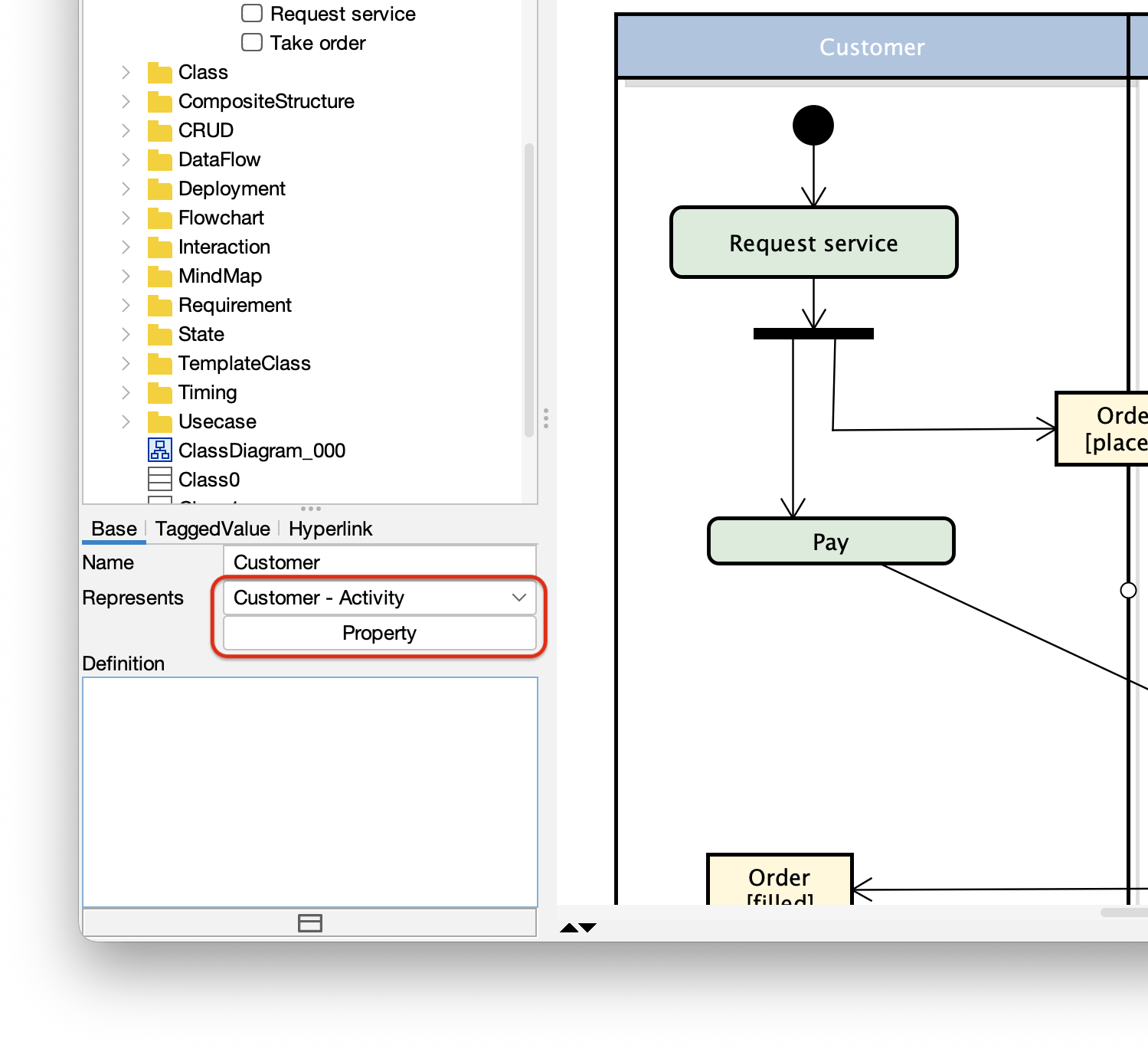
- Note1: Linking to an element ensures that if you change the name of the Actor in the tree view, the Partition header will update automatically.
- Note2: If you are using Astah SysML or Astah System Safety, you can directly drag and drop the model (Actor or Block) on to the Partitionsto set the Represent.
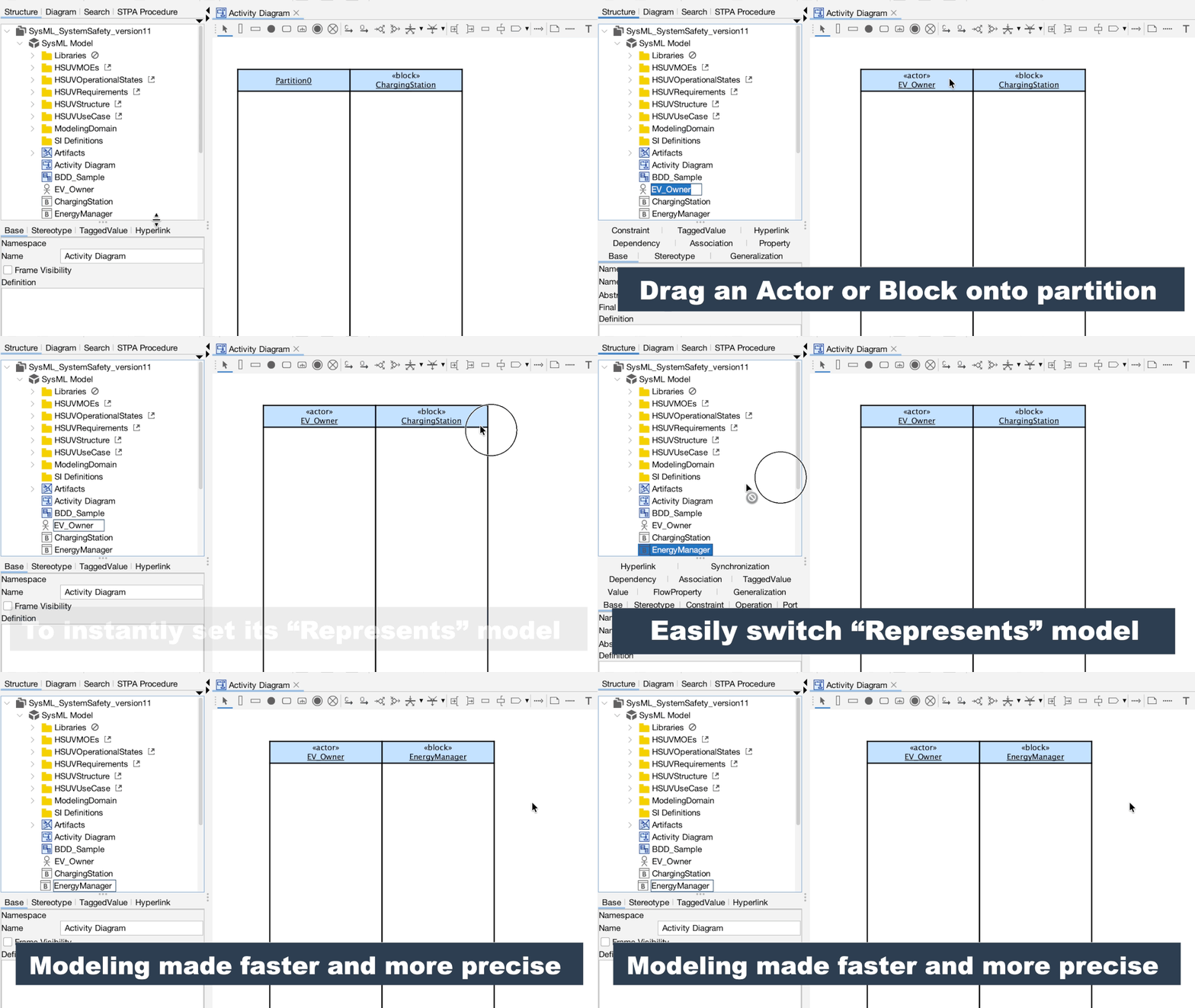
- Note1: Linking to an element ensures that if you change the name of the Actor in the tree view, the Partition header will update automatically.
Initial Node
You can create an initial node by selecting it from the tool palette.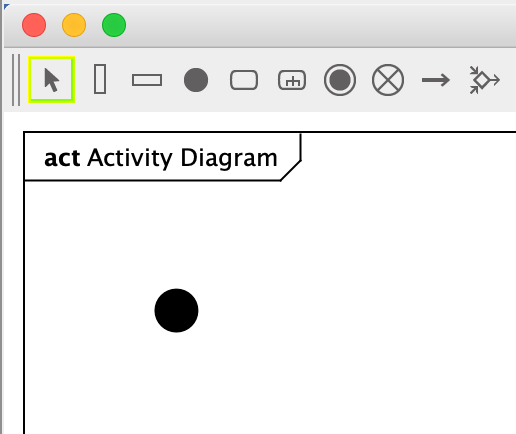
If you’d like to allow only one initial node in a diagram, go to [Tools] – [System Properties] – [UML] and enable the option below: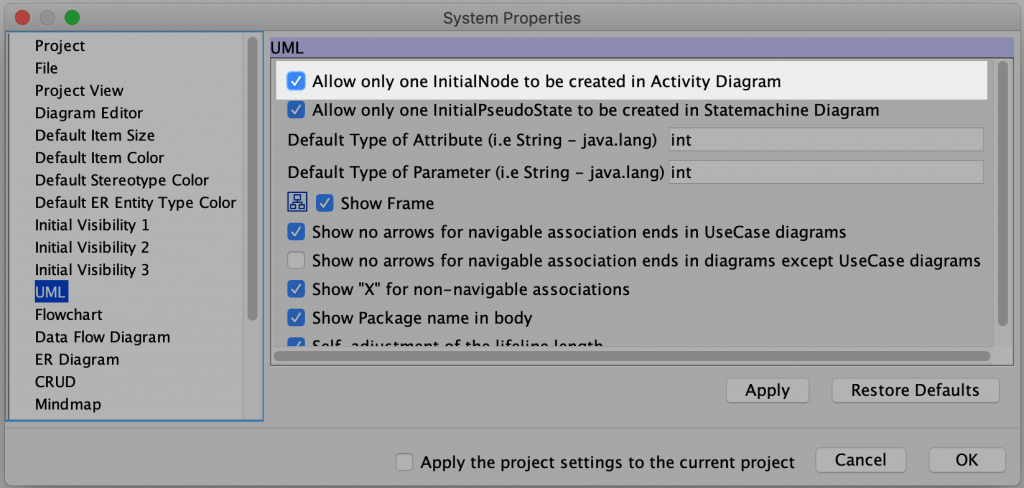
※ This option is not available in Astah SysML and Astah System Safety.
Action
You can create an action just by double-clicking on a diagram or any other ways that are described in the Diagram Editor page.
You can also insert an action by placing a new or existing action directly on the transition line.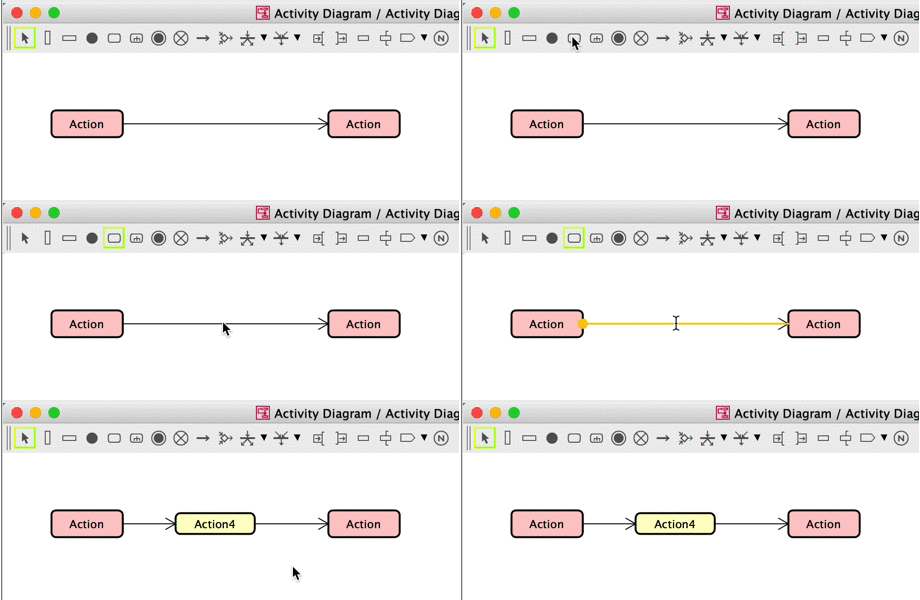
Show Actions on the tree
By default, actions won’t appear on the Structure Tree. So in order to show them in the diagram, you need to change the setting from [Tools] – [System Properties] – [Project View].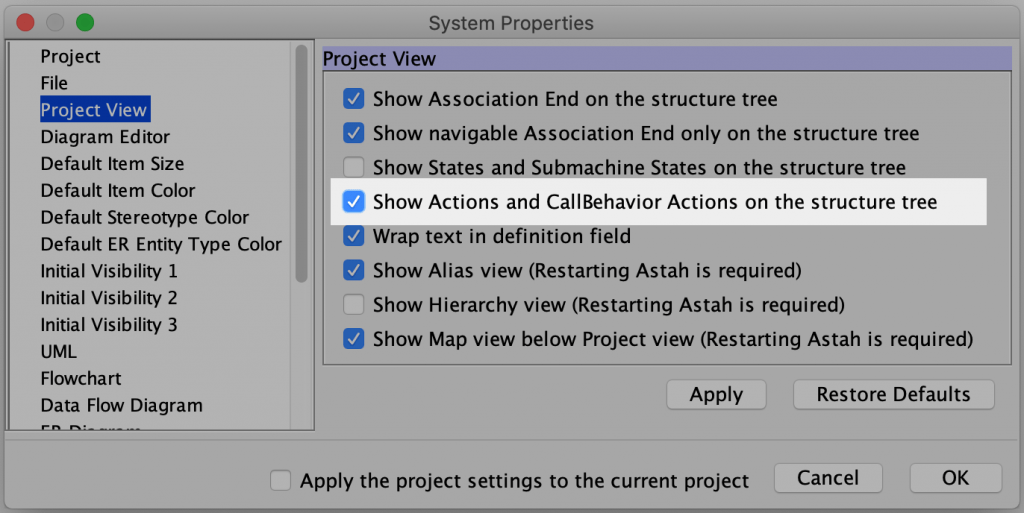
You can find this option from [Tools] – [System Properties] – [SysML] – [Project View] in Astah SysML and Astah System Safety.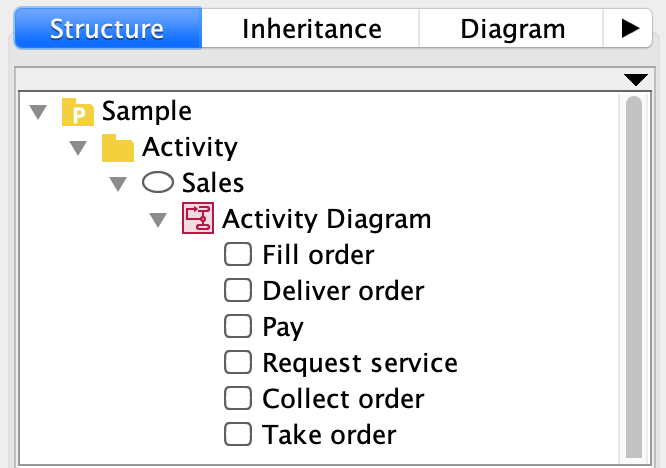
You can show Actions in the tree view, however, you cannot drag it to diagram from the tree view.
Show Actions in icon
※This is available in Astah Professional and Astah System Safety only.
You are able to switch actions to any image files you upload to Astah.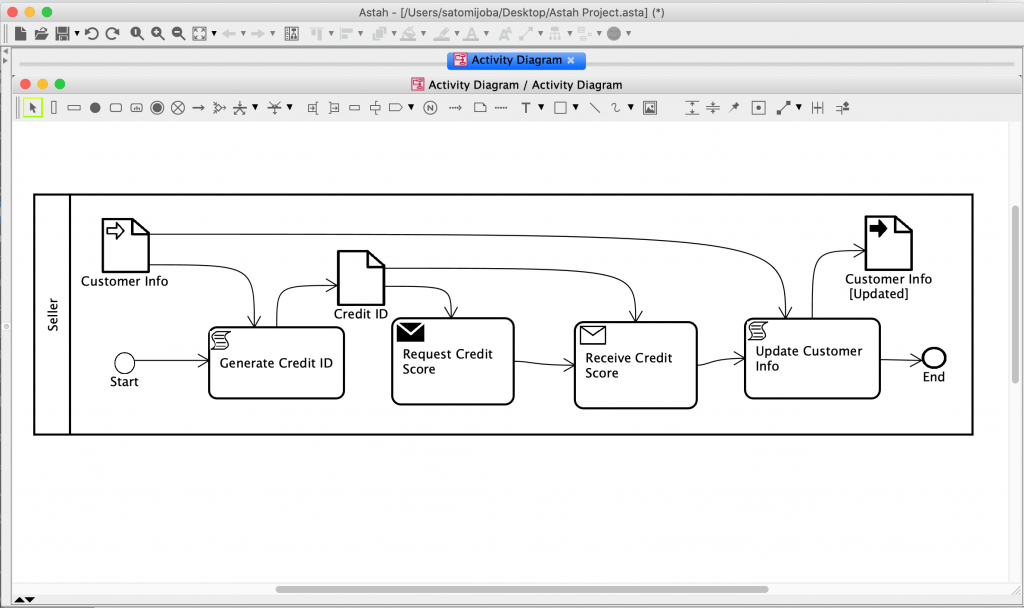
(Diagram reference: Business Process Model and Notation, v2.0 by OMG | Figure 9.32)
- Create an activity diagram with actions.
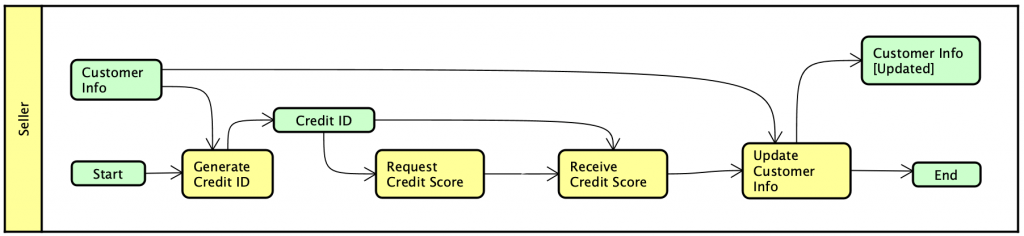
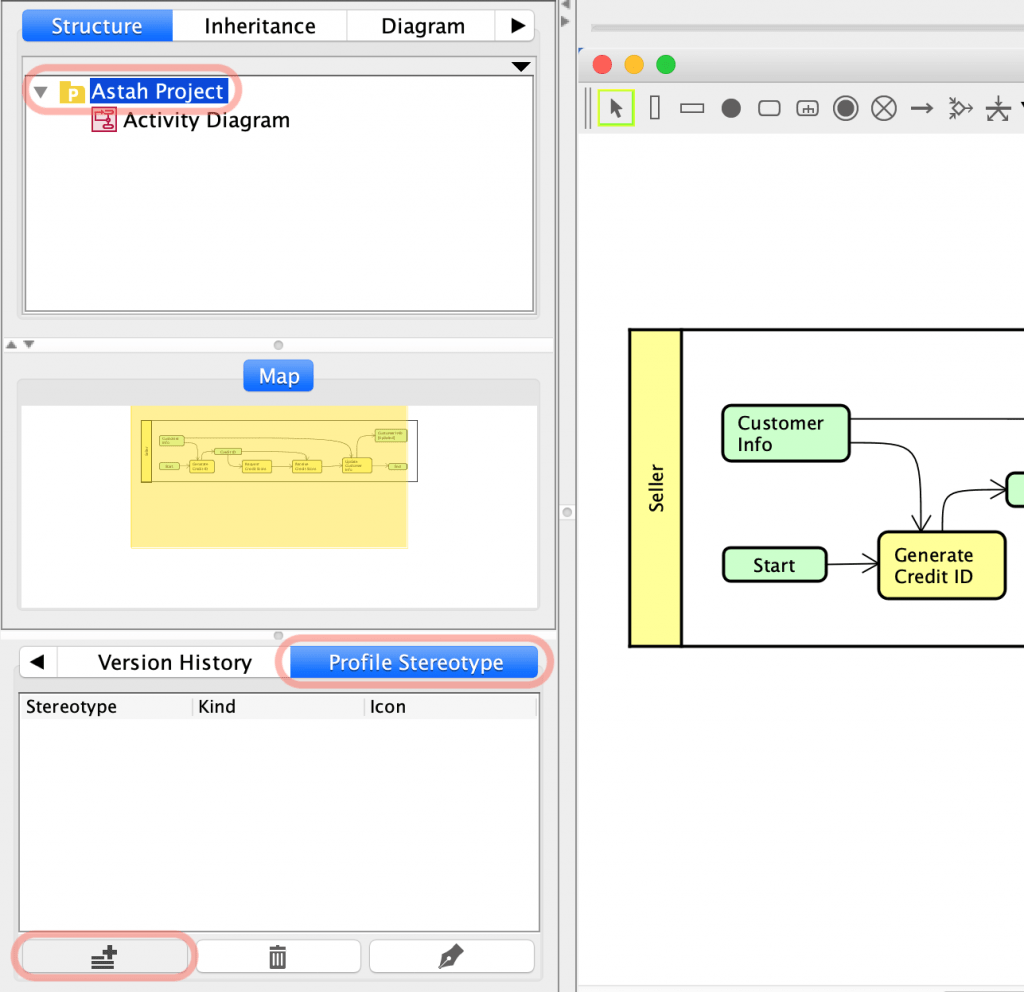
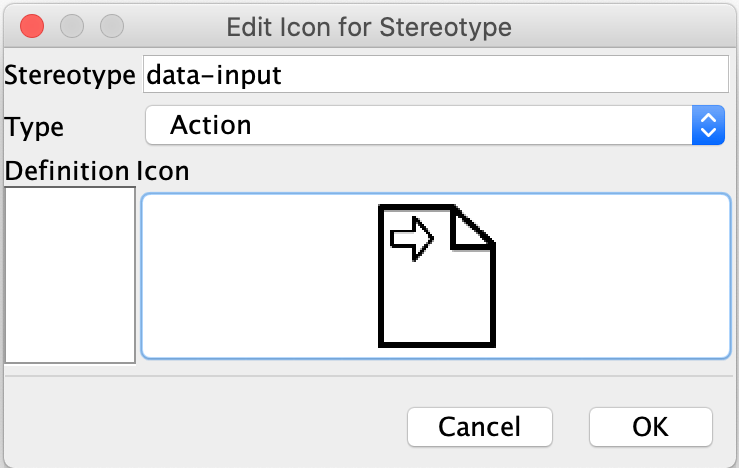
- Select a root package in the tree view and open [Profile Stereotype] tab at the bottom pane, then click [Add] button.
- Upload an image file, enter the stereotype you want this image to be associated with, and choose [Action] as a type.
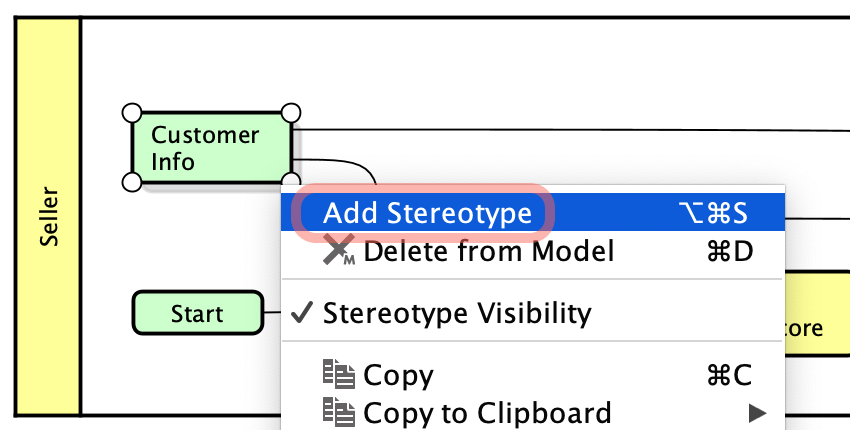
- Add a stereotype to an action.
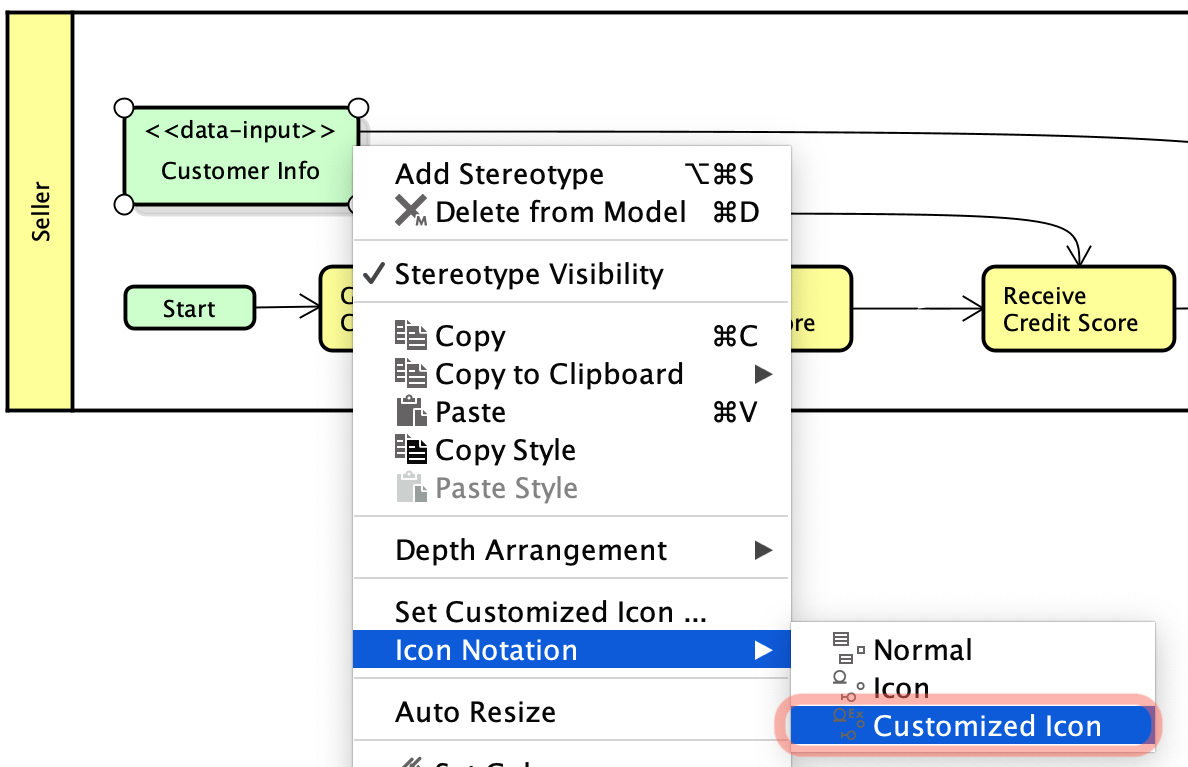
- Right-click the action and select [Icon Notation] – [Customized Icon].
- Then the action will be switched to an image.
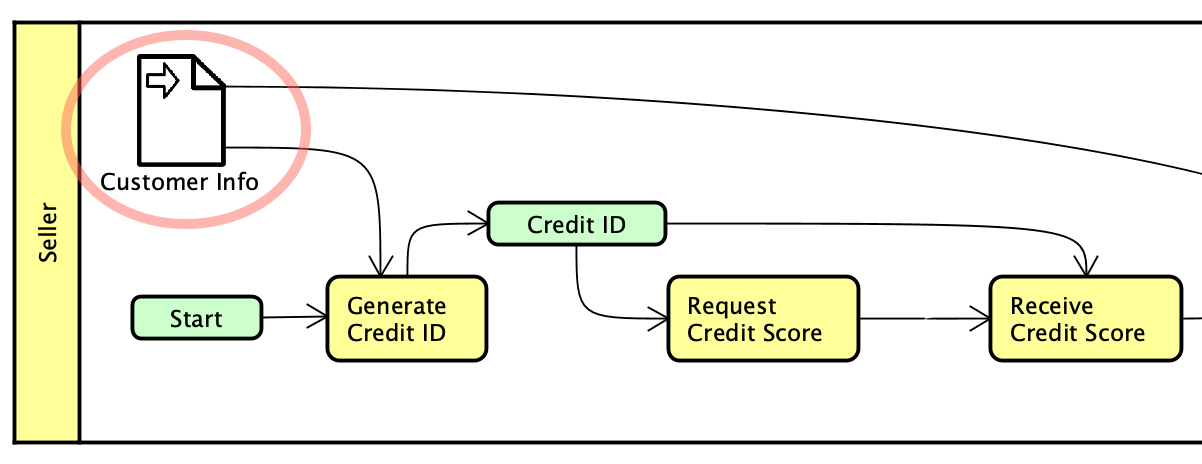
You can add as many icons as you need. Also, you can access the stereotype profile from [Tools] – [Project Settings] – [Set Icon for Stereotype].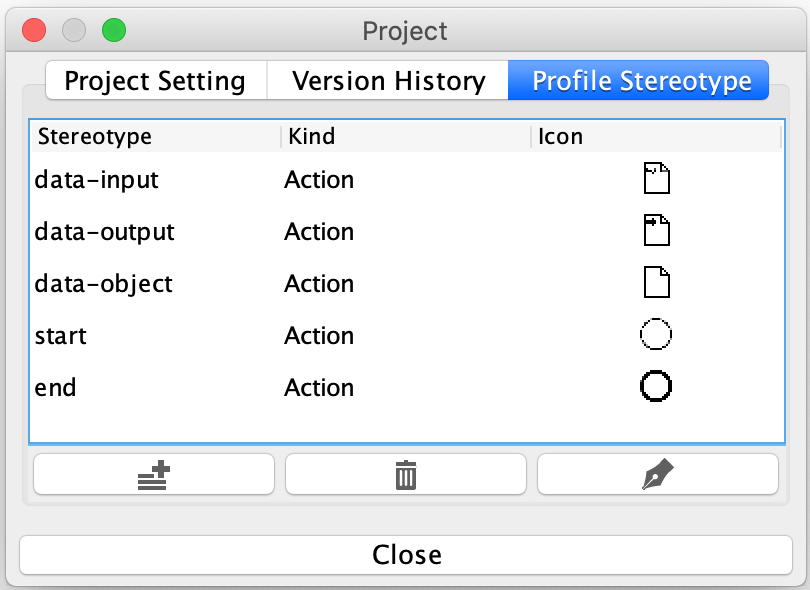
* Currently, you cannot embed an image inside the action.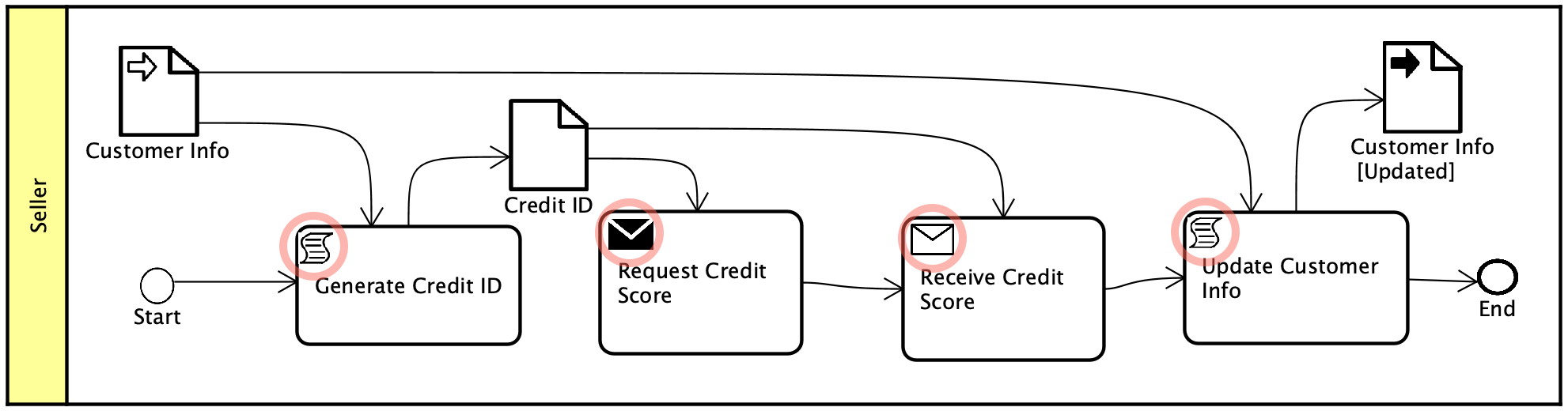
What you can do is drag & drop an image file to a diagram, select [Insert the image file] option and place it to where you want it to be.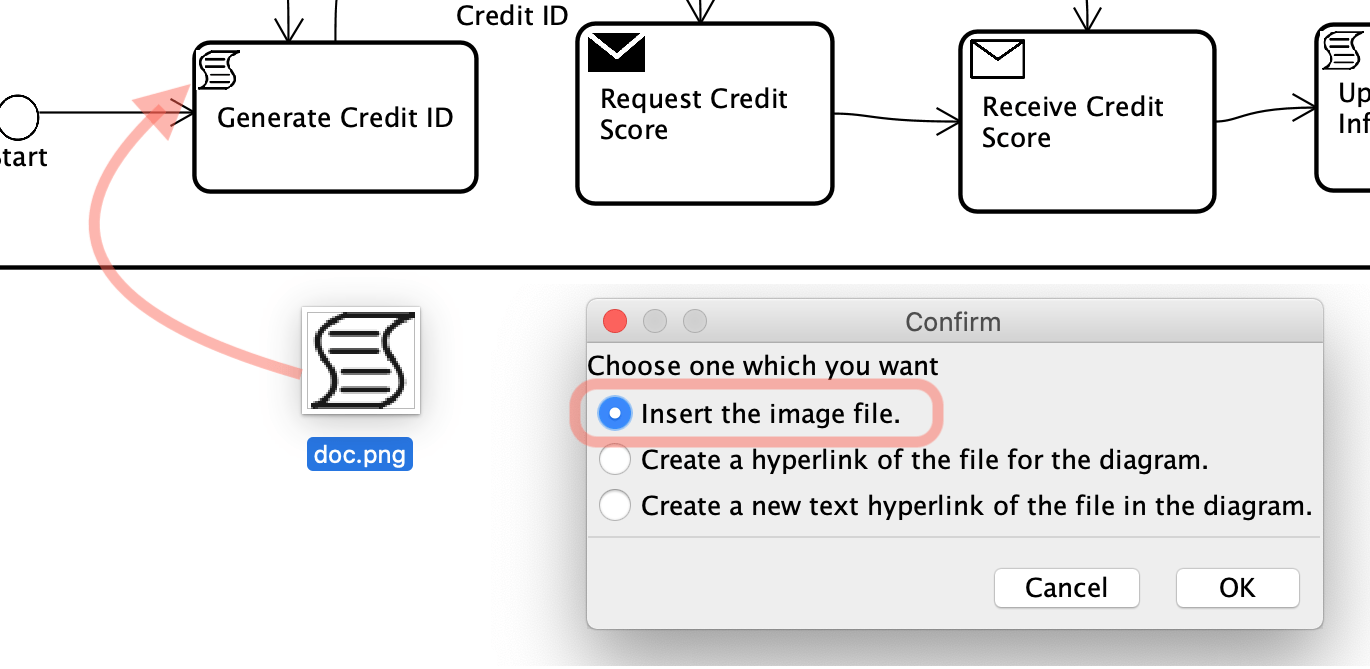
Call Behavior Action
Call Behavior Action is a call action that invokes a behavior directly rather than invoking a behavioral feature that, in turn, results in the invocation of that behavior. The argument values of the action are available to the execution of the invoked behavior. The execution of the call behavior action waits until the execution of the invoked behavior completes and a result is returned on its output pin. In particular, the invoked behavior may be an activity.
How to create a Call Behavior Action
- Click on a “Call Behavior Action” on a toolbar and click a diagram.
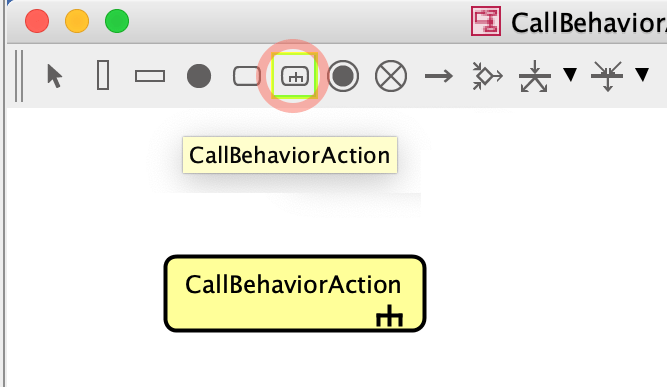
- Double-click on a Call Behavior Action, then you will be asked if you’d like to create a new Activity diagram. Click [Yes].

If you already have an Activity diagram you’d want it to turn to Call Behavior Action
From the tree view, drag the Activity diagram to another opened Activity diagram to insert the Activity diagram as a call behavior action.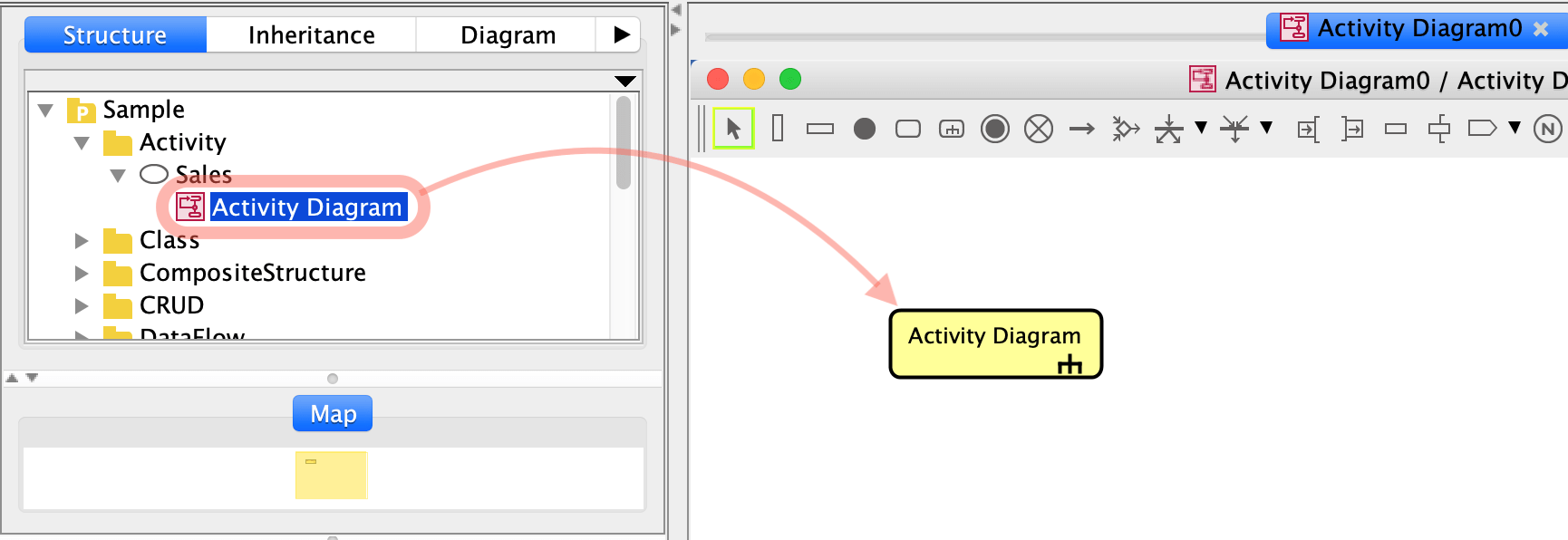
Or, you can select which Activity diagram to be associated with a call behavior action from the [Action] tab on its property view.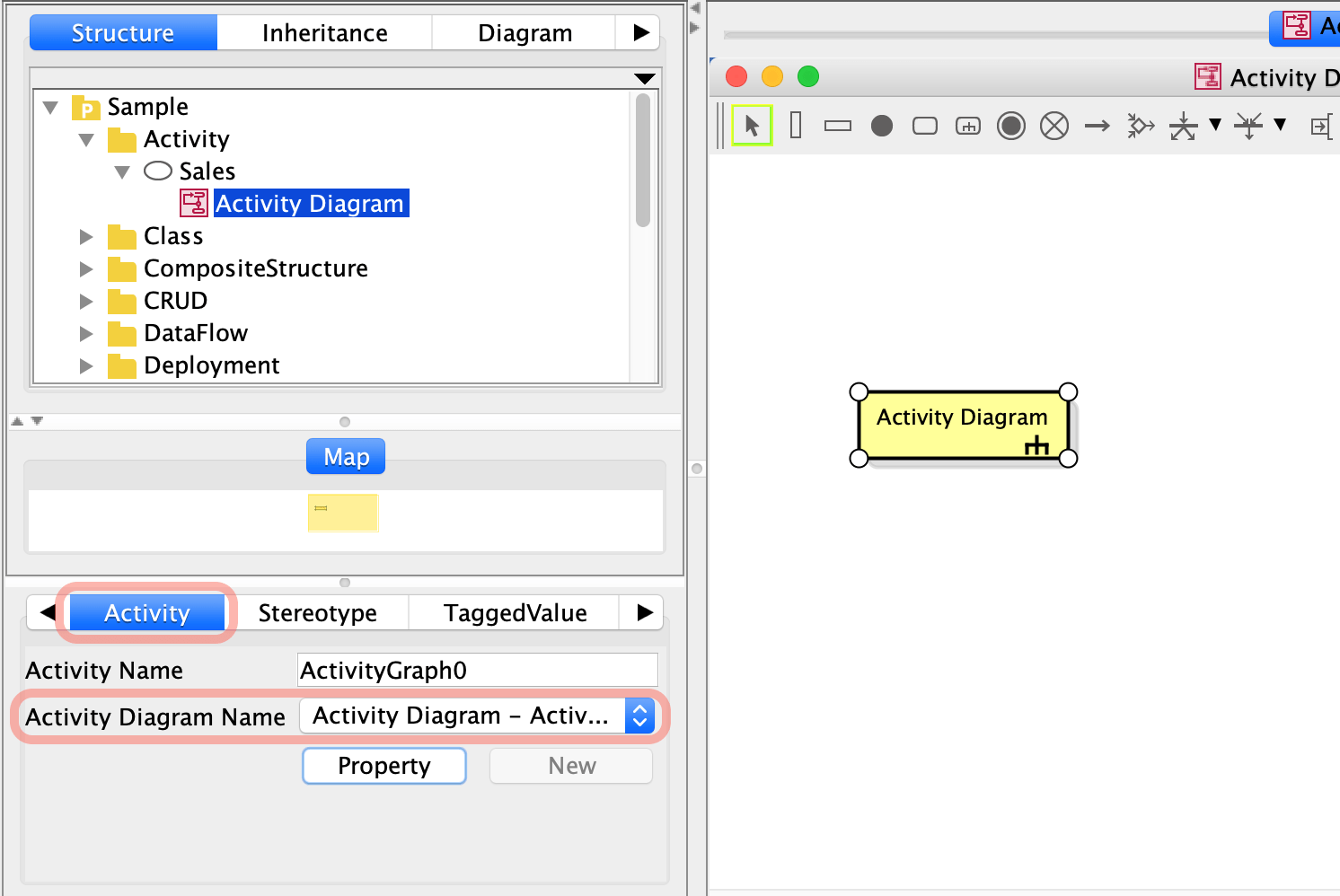
Eriksson-Penker Notation
You can use Eriksson-Penker notations in Activity diagrams in Astah Professional and UML Editions.
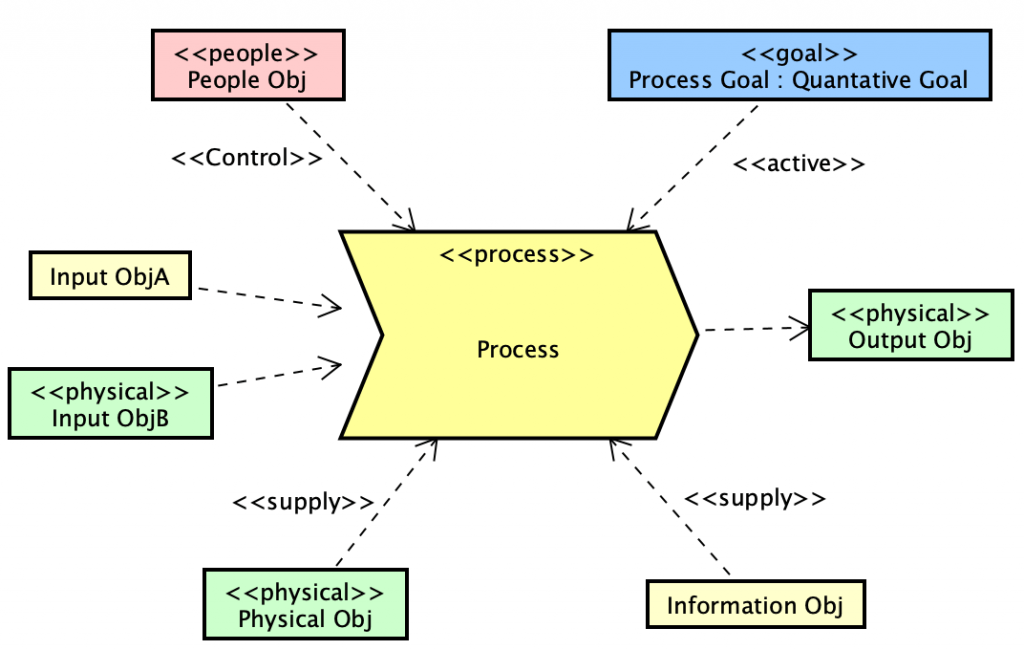
Process, Signal Receipt, Signal Sending
Create an Action, and adding <<process>>, <<signal receipt>> or <<signal sending>> stereotypes to the action will automatically change the notation.
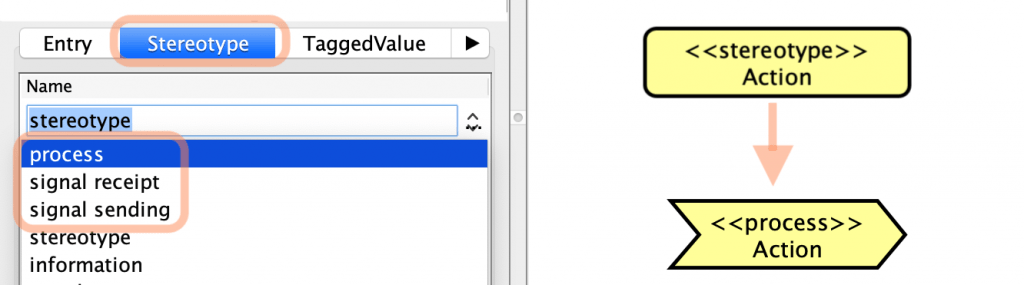
This is available in Astah Professional and UML Editions only.
Information Class
- This is available in Astah Professional Edition only.
- Create an ObjectNode.
- Add a Class with <<information>> stereotype as its base class to the Object Node.
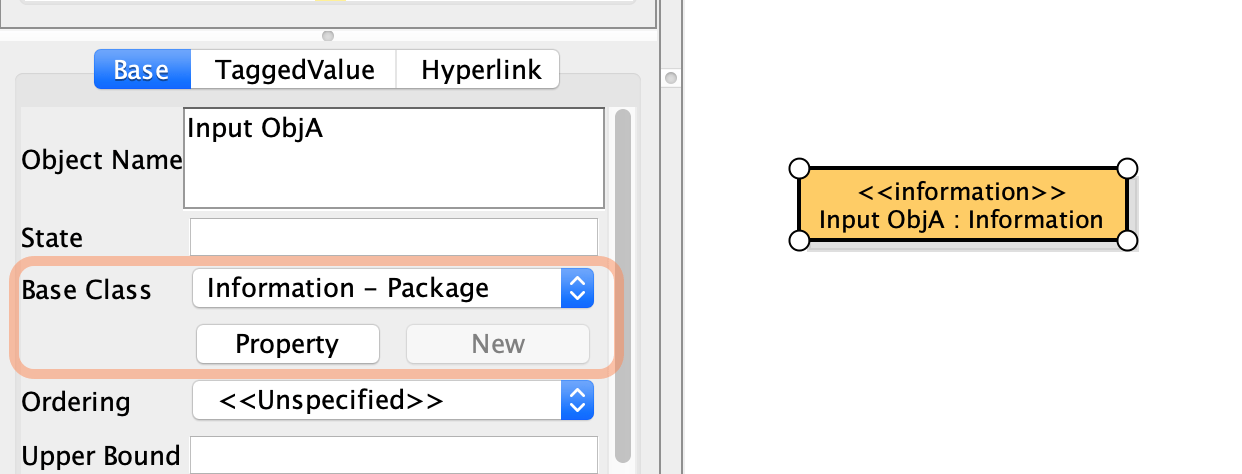
- Select the ObjectNode and choose [Icon] from the top main menu.

- Then the ObjectNode will turn into the notation below.
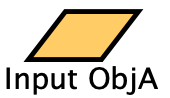
We will be updating this page with more content soon!
We will be adding more contents soon!
Please let us know if you have any questions about Activity diagrams and if you’d like to know any TIPS about Activity diagrams!