
Quick SysML Diagram Tutorial With Astah
- Statemachine Diagram


This is the final page of the Quick SysML Diagram Tutorial. The last diagram is a state machine diagram that shows the operational states of the hybrid SUV. It is the same as the “HSUVOperationalStates” diagram in the sample project file included with the installer.
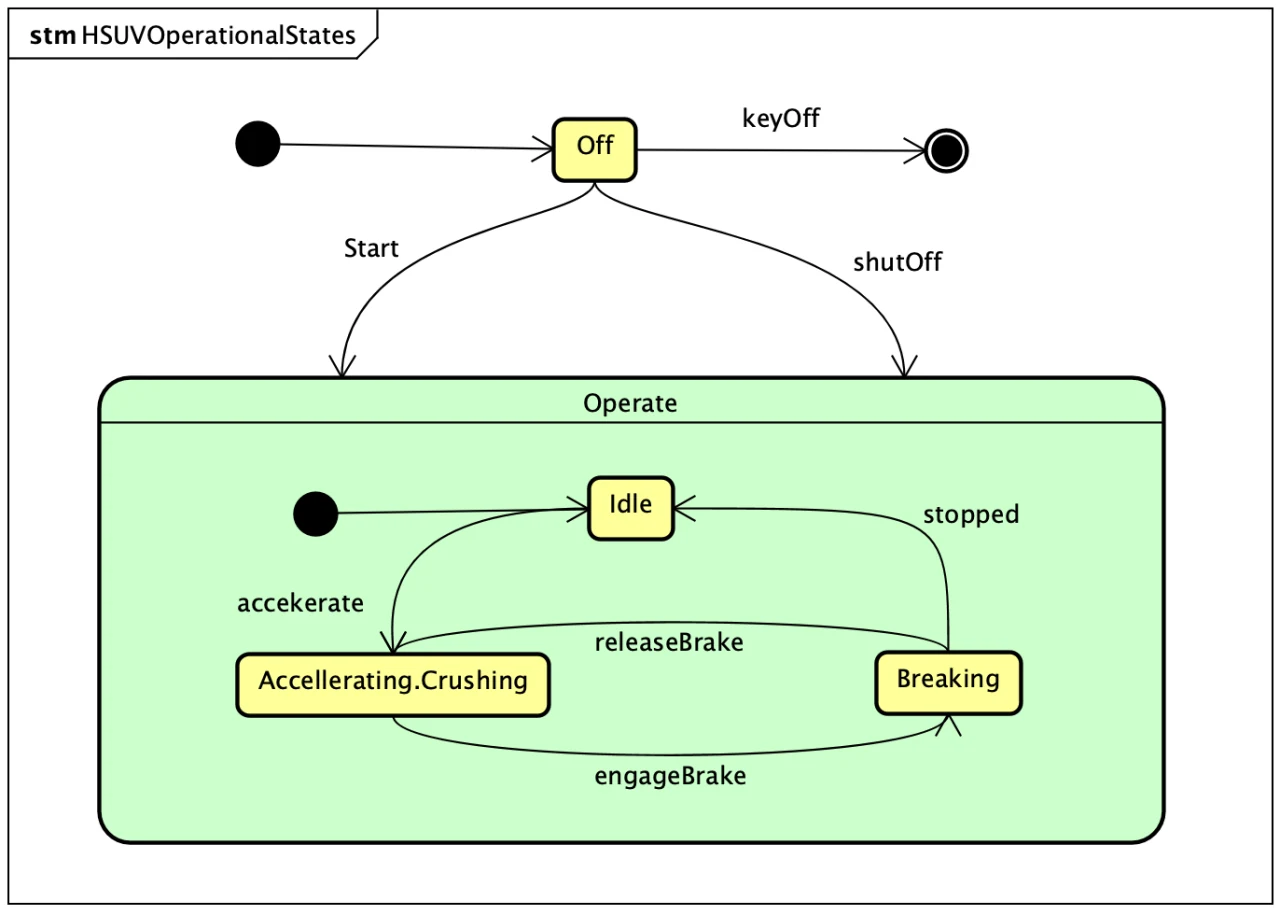

Statemachine Diagram
If you are starting the tutorial from this page, download Astah SysML and the sample file, which contains all the diagrams from the previous chapters.
- Right-click the “HSUV” block in the Structure Tree.
- Select [Create Diagram] – [Statemachine Diagram] from the pop-up menu. A blank statemachine diagram opens in the Diagram Editor.
- Rename it “HSUVOperationalStates”.
Create Objects
Now let’s create the states. As in the earlier diagrams, select an element on the tool palette and place it on the diagram. In a statemachine diagram, you can also double-click on the diagram to create a state.

To hide the compartment inside a state, use [Action Visibility] in the state’s pop-up menu.

Transitions
Connect the states with transitions. Select the [Transition] button on the tool palette, then click the source state and the target state.

The labels next to the transition lines are triggers. You can type a trigger right after you create the transition, or set it later in the Property View.
You have created the statemachine diagram. You can also download the complete file with all the diagrams created in this tutorial.
This is the end of the Quick SysML Diagram Tutorial. We hope it has helped you create SysML diagrams with Astah. If you have any questions about the tutorial, please contact us.