
FAQs

Get answers to your frequently asked questions about Astah UML.

Setup and Uninstall
How can I install Astah UML?
#
The screenshots below show Astah Professional, but the steps and screens are the same for Astah UML except for the product name. If you are installing Astah on Linux, please read this page instead.
- Download the Astah UML installer from the download page.
- When the download is complete, double-click the installer.
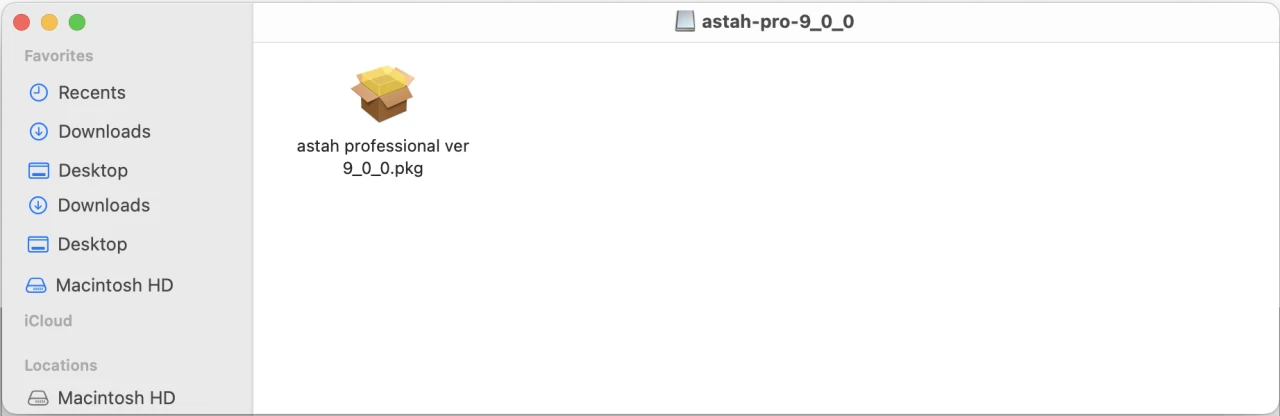
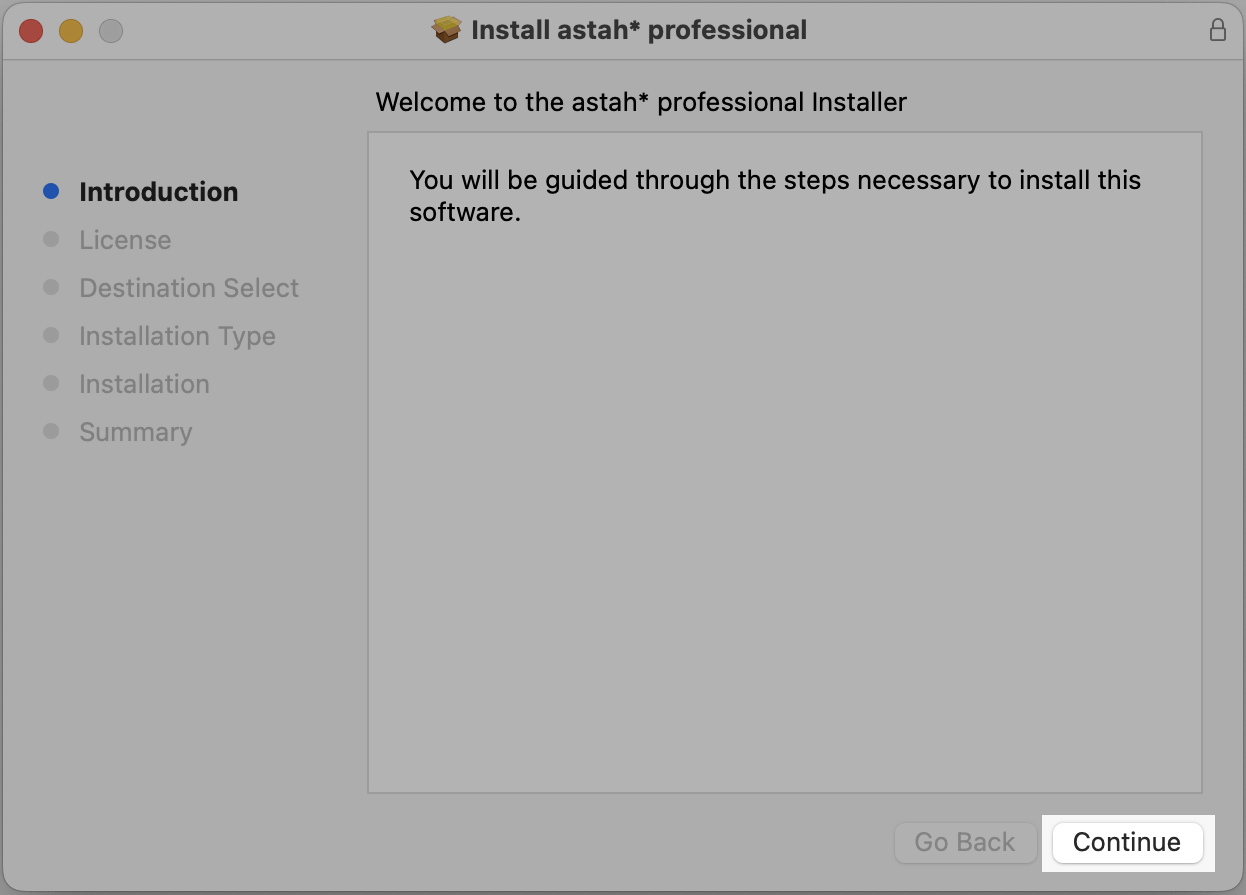
- The installer launches. Click [Continue].
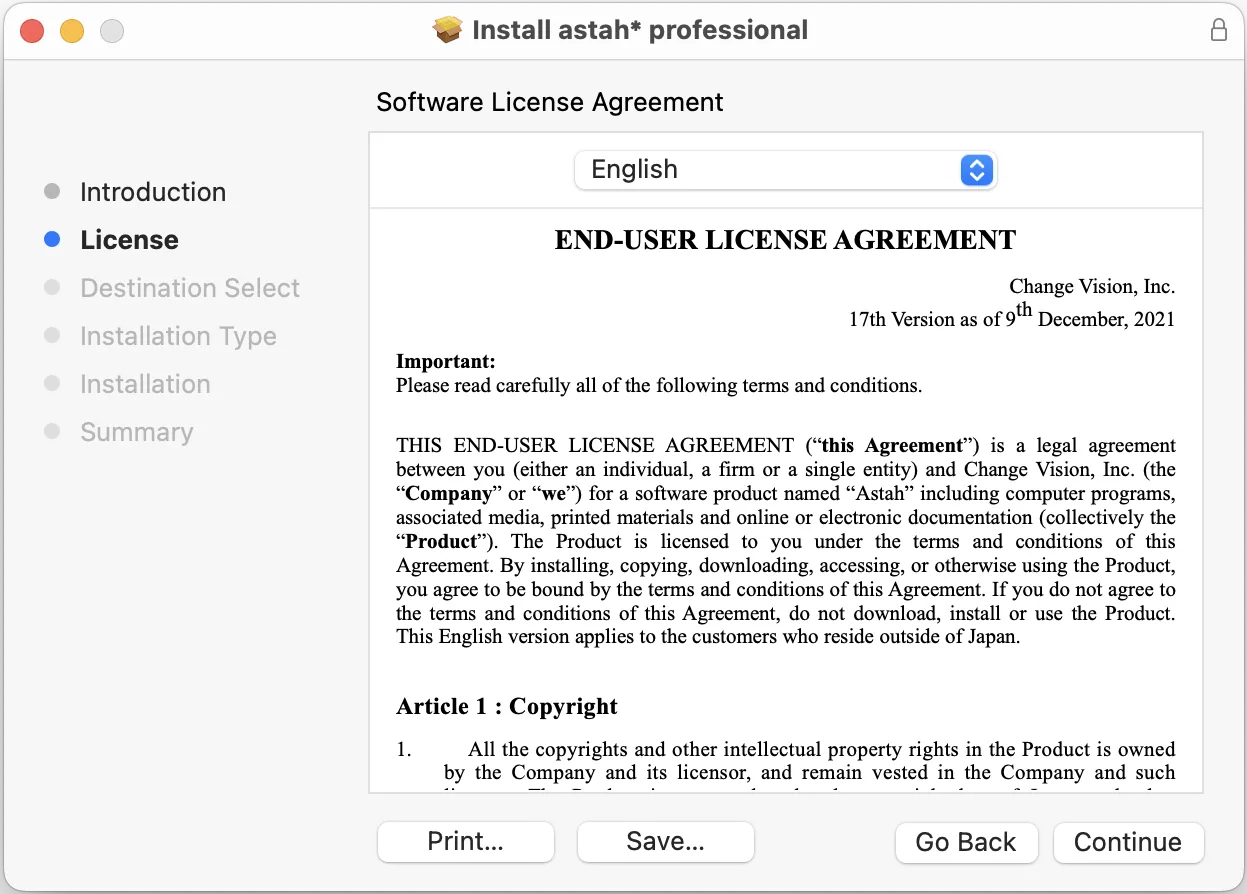
- Astah’s EULA appears. Please read it through and click [Continue].
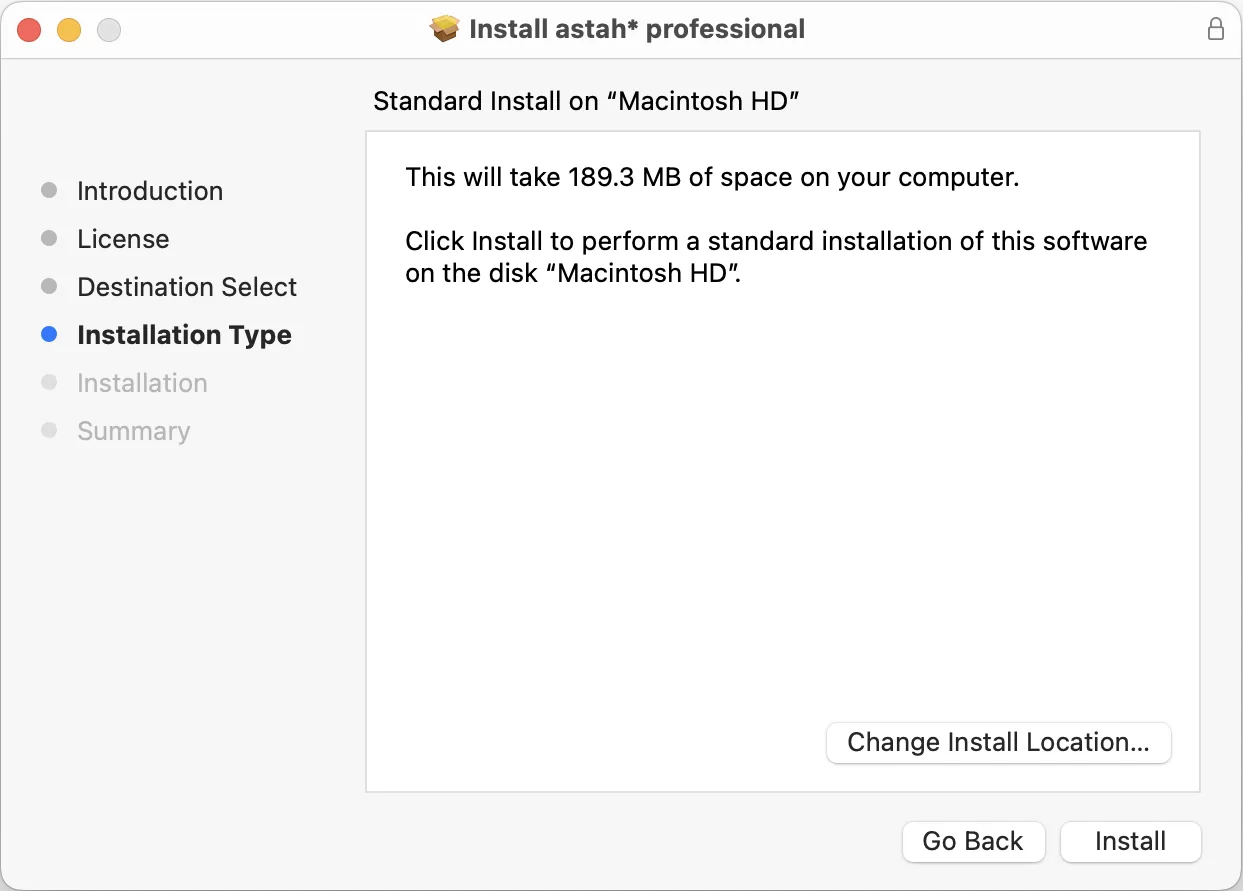
- The installer shows where Astah will be installed. If the default location is fine, click [Install]. To change it, click [Change Install Location] and choose a folder.
- The installation starts. Wait until it completes.
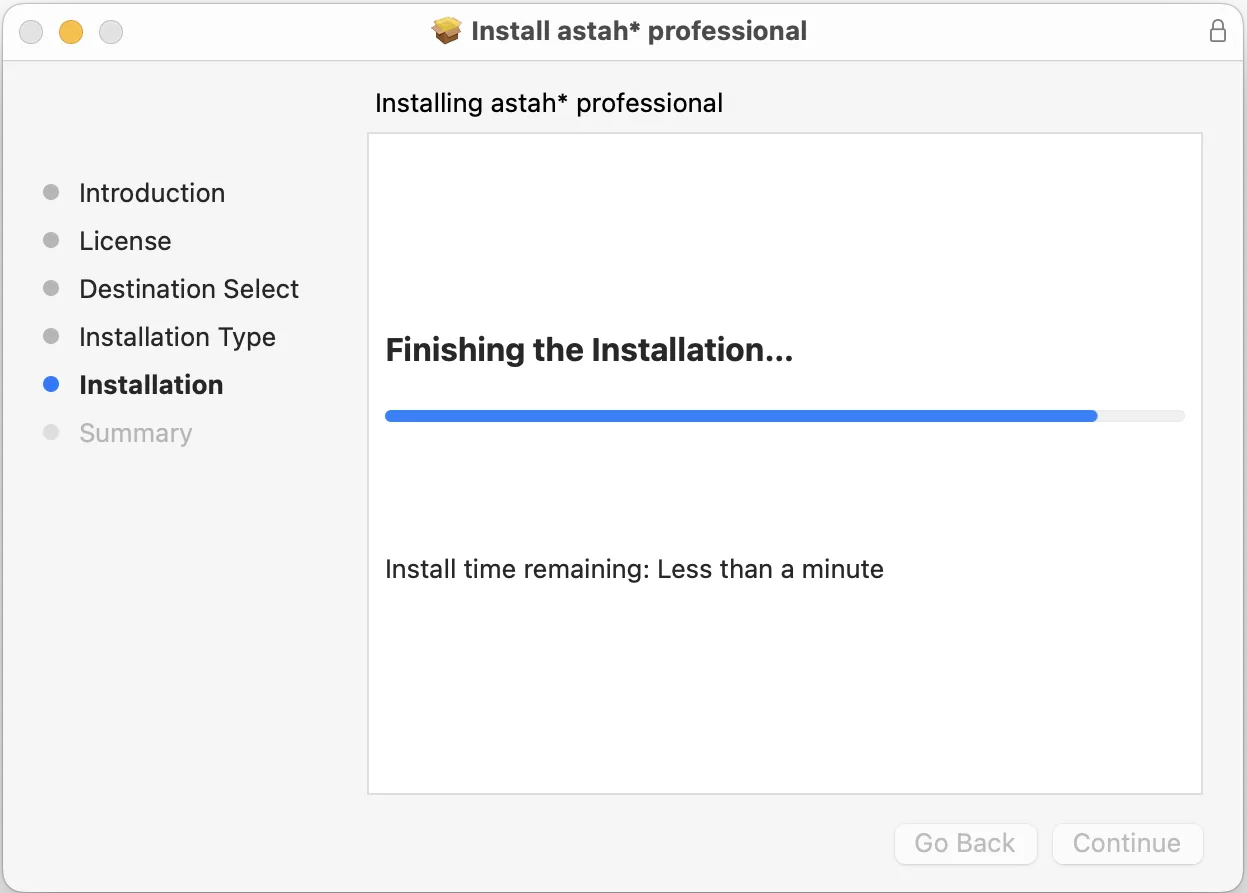
- When the installation completes successfully, you will see the following message.
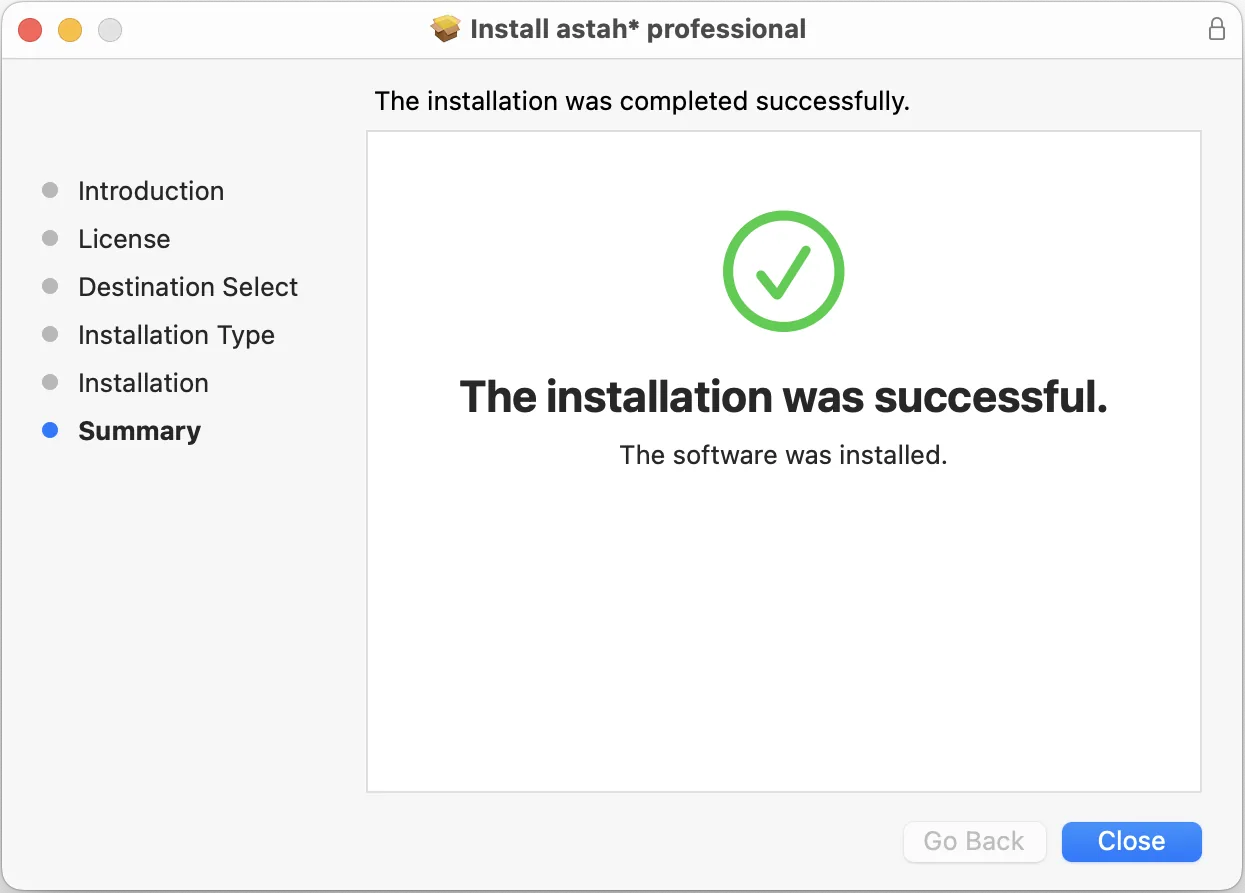
- The Astah UML application icon appears in the installation folder. Double-click it to launch Astah UML.
How can I install Astah UML in silent mode?
#
Use the /verysilent option. For example, to install Astah UML 12.0:
astah-uml-12_0_0-4fa570-jre-64bit-setup.exe /verysilent
To install Astah UML to a specific folder, add the /DIR option:
astah-uml-12_0_0-4fa570-jre-64bit-setup.exe /verysilent /DIR="the destination folder"
Where can I see the system requirements?
#
Please see the Astah UML system requirements.
How can I move Astah UML to a new machine?
#
- Before uninstalling Astah UML, back up the following files and folders on your current machine, if you have them:
- Plugins: Userhome/.astah/uml/plugins
- User templates: Userhome/.astah/uml/template
- Customized system properties: Userhome/.astah/uml/JudeU.properties
- Customized use case description template: Userhome/.astah/uml/UCDescriptionProp.properties
- Uninstall Astah UML completely from your current machine.
- Download and install Astah UML on your new machine.
- Copy the backed-up files to the same locations on the new machine.
- Log in to ChangeVision Members and download your license file from [My Licenses].
- Launch Astah UML, go to [Help] – [License] – [Set License Key], and specify the license file.
How can I improve the performance of Astah UML?
#
The performance of Astah depends on the memory (RAM) of your machine. If you have not tried them yet, try the following:
1. Use the latest Java environment
See How can I use a specific version of Java? and use the latest version of Java.
2. Hide the title bar (Mac only)
On Mac, hiding the title bar helps in some environments. Go to [Tools] – [System Properties] – [Diagram Editor], uncheck [Hide title bar of the Diagram Editor (Restarting Astah is required)], and restart Astah.
3. Change the look and feel (Mac only)
On Mac, changing the look and feel may help. Go to [View] – [Look & Feel] and choose any option except [Mac OS X].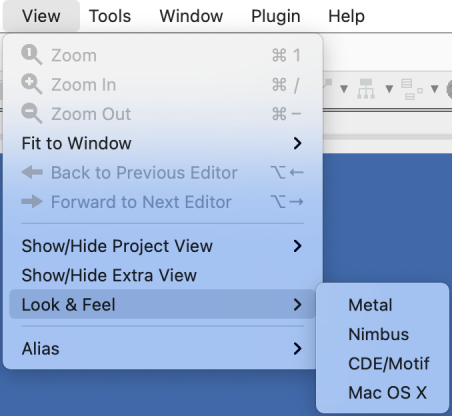
4. Turn off the mouse cursor tracing option
In some environments, this option makes rendering slower.
5. Tune the memory (heap size) settings
When INITIAL_HEAP_SIZE is set to 16m, garbage collection does not work fully unless Astah uses more than 16 MB of memory. To tune it, change the -Xmx size as follows:
Windows: open the astah-uml.l4j.ini file in the Astah UML installation folder with a text editor and change the heap size, for example -Xmx2048m.
Mac: open Terminal and run the command below (this example sets the heap size to 2048m).
defaults write com.change-vision.astah.uml /com/change-vision/astah/uml/ -dict-add JVMOptions/ '{ "Xmx" = "-Xmx2048m"; }'
Linux: open /usr/lib/astah_uml/astah-uml with a text editor and change the line JAVA_OPTS="-Xms16m -Xmx384m".
6. Use the latest version of Astah UML
Download the latest version from the download page.
7. Hide the Map View
Please follow these instructions.
8. Turn off Content Assist and the Suggest feature
Turning off Content Assist (the dotted green line that appears when you move and align objects) and the Suggest feature can improve performance a little. Go to [Tools] – [System Properties] – [Diagram Editor] and uncheck both options.
How can I change the display language of Astah UML to Japanese?
#
Astah UML supports English and Japanese. It starts in English unless your PC’s language and region settings are Japanese. To switch to Japanese:
Windows
- Close Astah UML if it is running.
- Open the
astah-uml.l4j.inifile in the Astah UML installation folder with a text editor. - Add the following two lines and save the file:
-Duser.language=ja -Duser.country=JP - Launch Astah UML. It starts in Japanese.
Mac
- Close Astah UML if it is running.
- Open Terminal and run the following command:
defaults write com.change-vision.astah.uml /com/change-vision/astah/uml/ -dict-add JVMOptions/ '{ "language" = "-Duser.language=ja"; "country" = "-Duser.country=JP"; }' - Launch Astah UML. It starts in Japanese.
How can I uninstall Astah UML?
#
Windows
- In the search box on the taskbar, type Control Panel and select it from the results.
- Select Programs > Programs and Features.
- Right-click Astah UML (or press and hold) and select Uninstall or Uninstall/Change. Then follow the directions on the screen.
Mac
- Find Astah UML in the Finder. It is usually in the Applications folder.
- Drag the app to the Trash, or select the app and choose [File] – [Move to Trash].
- If you are asked for a user name and password, enter the name and password of an administrator account on your Mac.
- To delete Astah UML completely, empty the Trash.


Functionalities
Does Astah UML support object diagrams?
#
Yes. Create object diagrams with the class diagram, using [Instance Specification] and [Link] on the class diagram tool bar.
Training and Consulting
Where can I find training services for Astah products?
#
We have partnered with several training and consulting companies that offer training for Astah products, both in person and online. See our partner page and contact a partner directly.
Troubleshooting
My Astah file does not open.
#
Astah project files (.asta) are upward compatible: files saved in a newer version of Astah cannot be opened in an older version. Read about model versions.
If a file does not open in the right version of Astah, change the stack size in [Tools] – [System Properties] – [File].
I copied objects, but when I edit one, the change applies to the other.
#
In that case, clone the model instead of copying it. A cloned model is an independent model.
I was asked to correct invalid models. What are invalid models, and how can I correct them?
#
Invalid models are broken data caused by a software bug. If you were asked to correct invalid models, your log file indicates that your project file may contain them.
Go to [Tools] – [Correct Model] – [Correct Invalid Models] and follow the messages that appear.
How can I use a specific version of Java?
#
You can run Astah UML with a Java version of your choice by following the steps below. However, technical support is not provided when Astah runs in an environment outside the system requirements.
When you run Astah with an unsupported Java version, an alert appears at launch. To skip this alert, add the -nojvchk option at launch.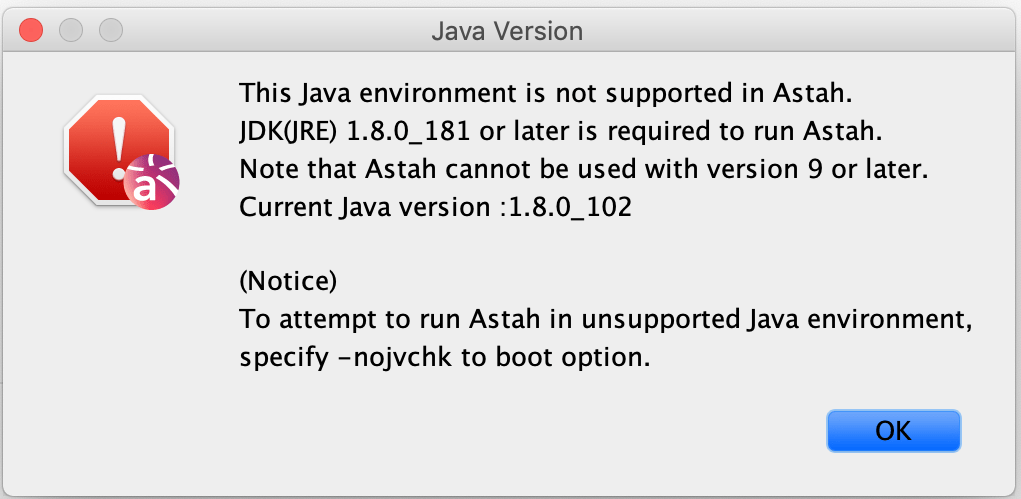
Windows
- Install your preferred JDK on your PC.
- Rename the “jre” folder in the Astah UML installation folder to something else.
- Astah detects the latest Java on your PC (the one you installed in step 1) and uses it automatically.
Mac
- Copy the “jre” folder from the JDK installation folder you want to use.
- Right-click the Astah UML app and select [Show Package Contents].

- Paste the “jre” folder under Contents/PlugIns/Java.runtime/Contents/Home.

Linux
Please see How to run Astah on Linux.