
Floating License Guide - FAQ
FAQ About Astah Floating Licensing
This section addresses common questions about Astah Floating Licensing, including how to retrieve license files, transfer license ownership, and obtain diagnostics files.
Don’t know which license file (.lic) I should use
If you are unsure which license file (.lic) to use – especially after adding multiple licenses—follow these steps:
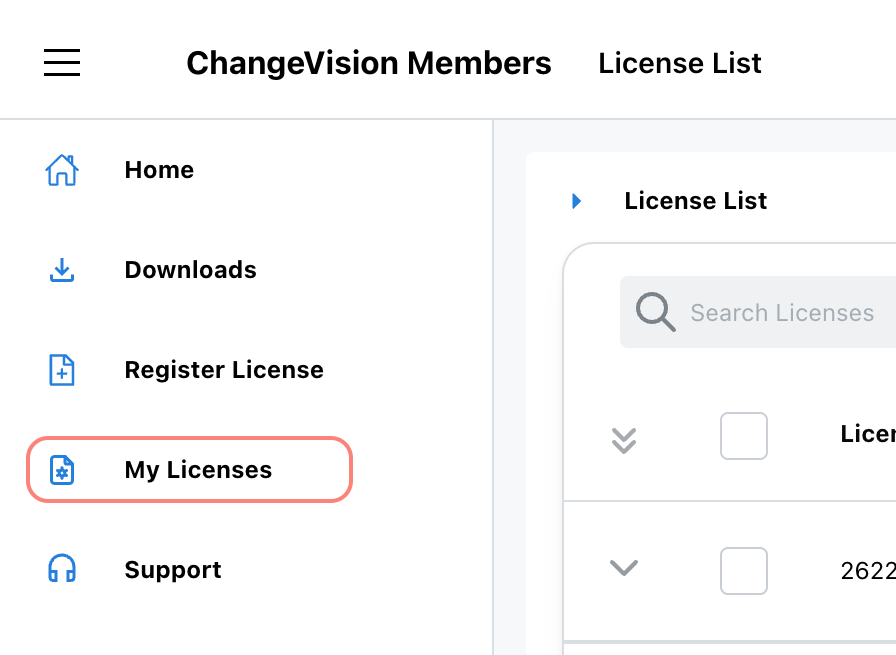
- Log into CV Members
- Go to [My Licenses]
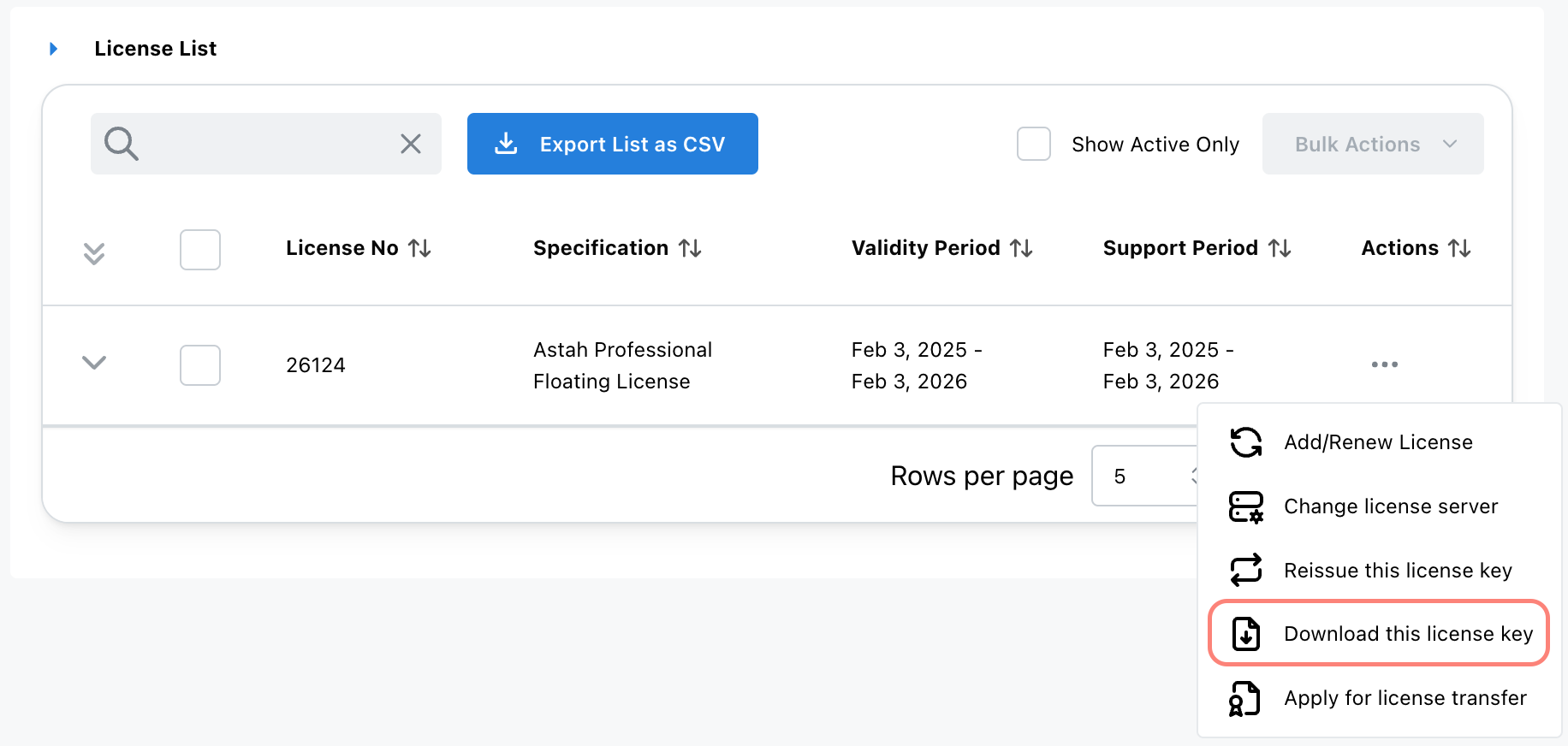
- Choose [Download this license key] from Actions.
- On the next page, click [Download] button to download the latest license file.
- Save this license file (.lic) in the same directory where the license manager module(rlm or rlm.exe) is located.
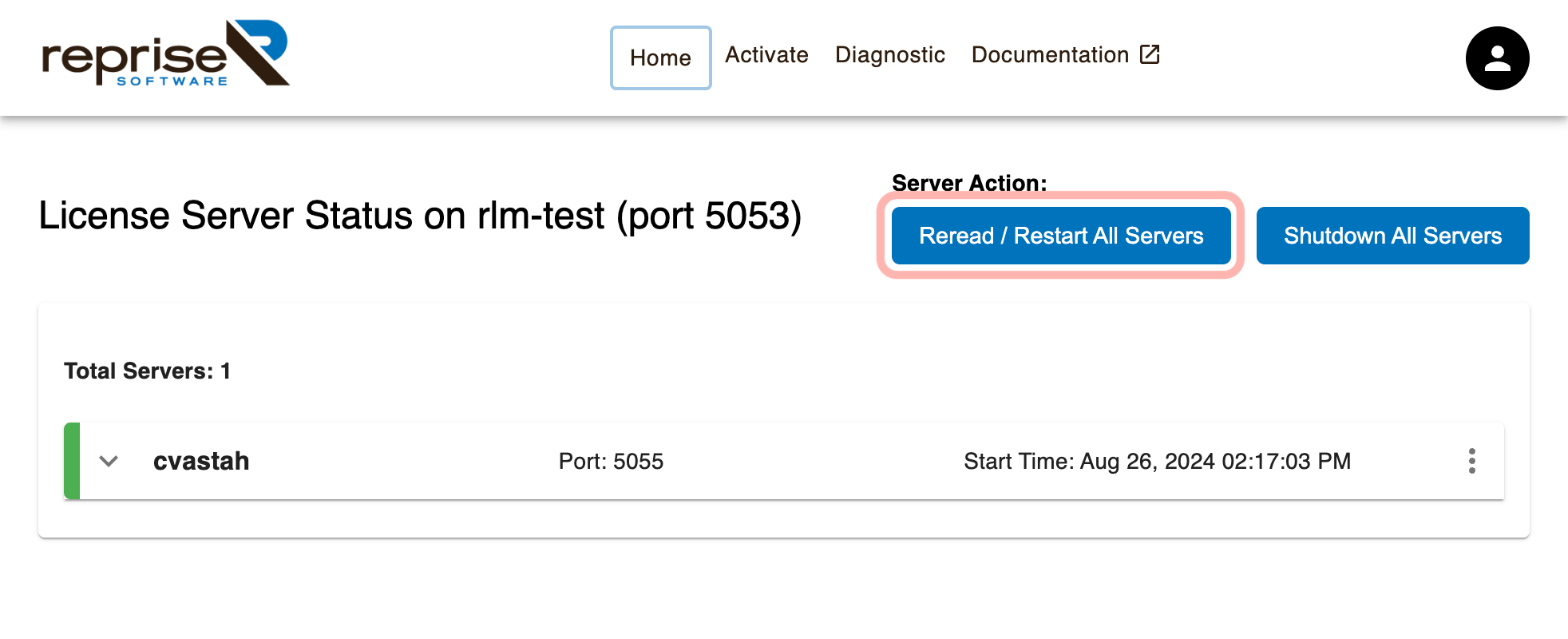
- Access the RLM web interface by typing https://<Hostname>:5054 on your web browser then click [Reread/Restart All Servers] button to apply the new license.
How to Change the License Administrator
If you need to transfer the license admin role to a new person, please follow the steps in the Transfer License Guide.
I was asked to provide a “Diagnostics File”. How do I obtain it?
If you are asked to provide a diagnostics file, follow the steps below based on your RLM version:
For RLM v16.0:
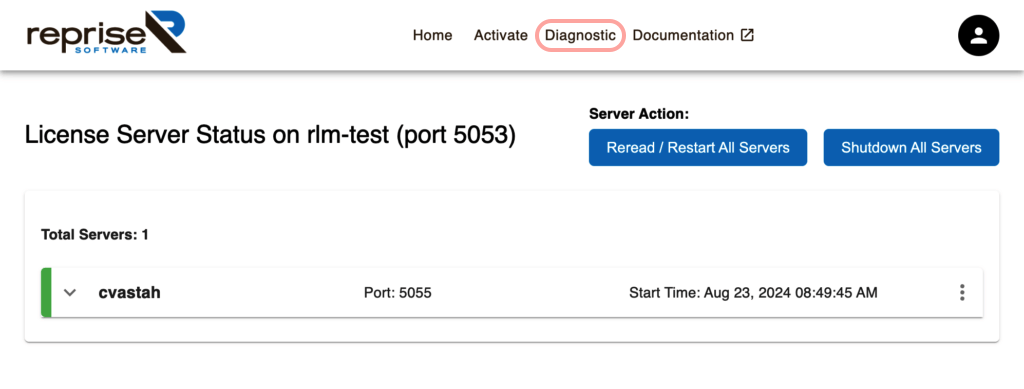
- Access the RLM Web Server by typing https://<Hostname>:5054 on your web browser.
- Click [Diagnostics] from top menu.
- Select [Download] on the Diagnostics page to obtain the file then provide it with us.
For RLM v12.3:
- Open the RLM Web Server by typing http://<Hostname>:5054 on your web browser.
- Navigate to [Diagnostics], then click [Run Diagnostics].
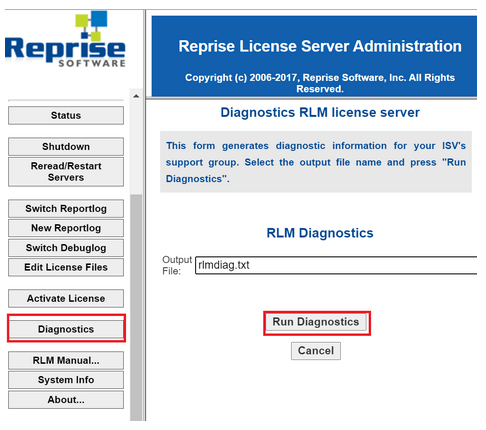
- Send us the resulting output file.
How do I create a client-side log file?
If you are experiencing connectivity issues with the Floating License Server and the server-side logs do not identify the cause, our support team may ask you to generate a Client-side Log.
Please follow the steps below for your operating system.
For Windows Users
- Close Astah if it is running.
- Open Command Prompt.
- Copy and paste the following command to set the log output location to your Desktop, then press Enter.
set RLM_DIAGNOSTICS=%USERPROFILE%\Desktop\rlm_client_log.txt - In the same Command Prompt window, launch Astah by entering the full path to the executable file.
- Astah will launch. Try to connect to the license server (or wait for the error to occur).
- Once the error occurs/persists, close Astah.
- You will find a file named
rlm_client_log.txton your Desktop. Please send this file to our support team.
For macOS / Linux Users
- Close Astah if it is running.
- Open Terminal.
- Run the following command to set the log output location to your Desktop:
export RLM_DIAGNOSTICS=$HOME/Desktop/rlm_client_log.txt - In the same Terminal window, launch Astah by entering the path to the internal executable.
- Astah will launch. Try to connect to the license server.
- Once the error occurs, close Astah.
- You will find a file named
rlm_client_log.txton your Desktop. Please send this file to our support team.