
Merge Project Files | Astah SysML

With Astah SysML, you can merge one project file into another, so you can distribute the work among team members and then combine it into one file.

How to merge
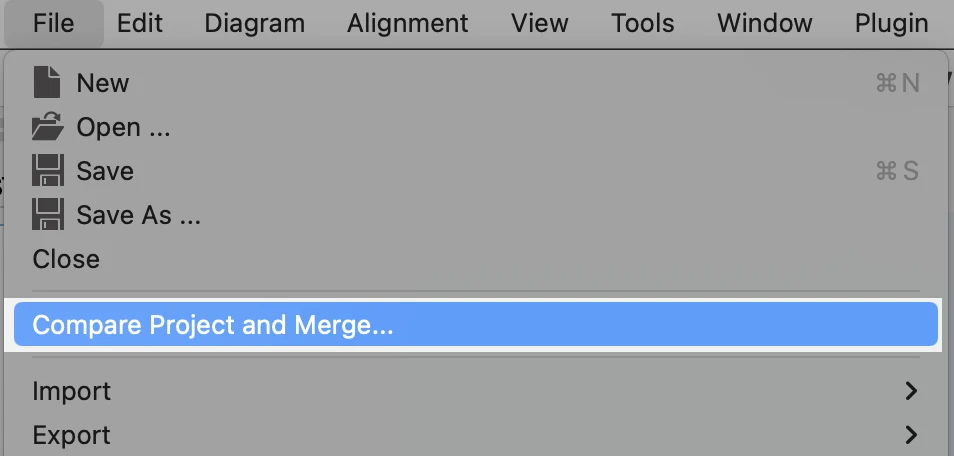
- Open one .axmz file and go to [File] – [Compare Project and Merge].
- Select another .axmz file.
- The [Differences] pop-up opens, showing the diagrams and models of both project files side by side in a tree view.
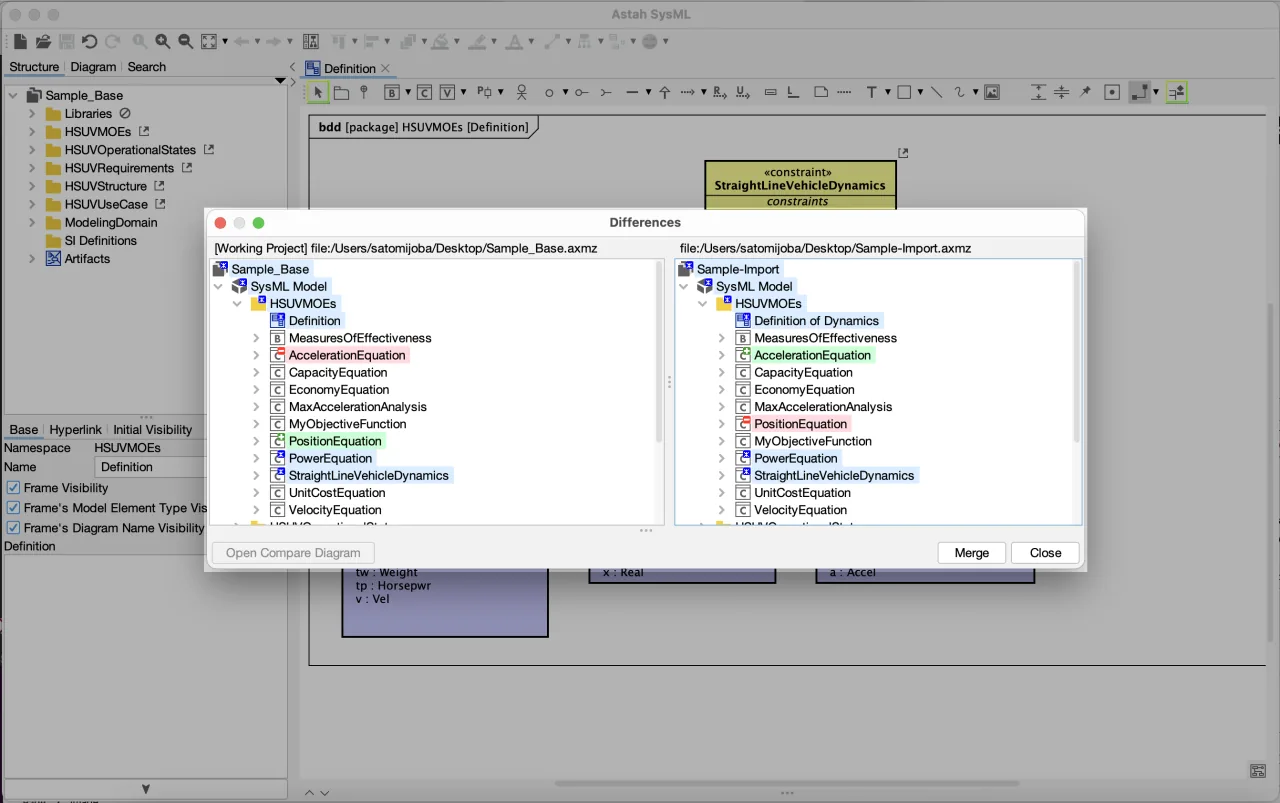
Diagrams and models with differences are indicated by color:- Blue: The model exists in both files, but differs between them.
- Red: The model does not exist in this file but exists in the other file.
- Green: The model exists only in this file and not in the other file.
- Click the [Merge] button.
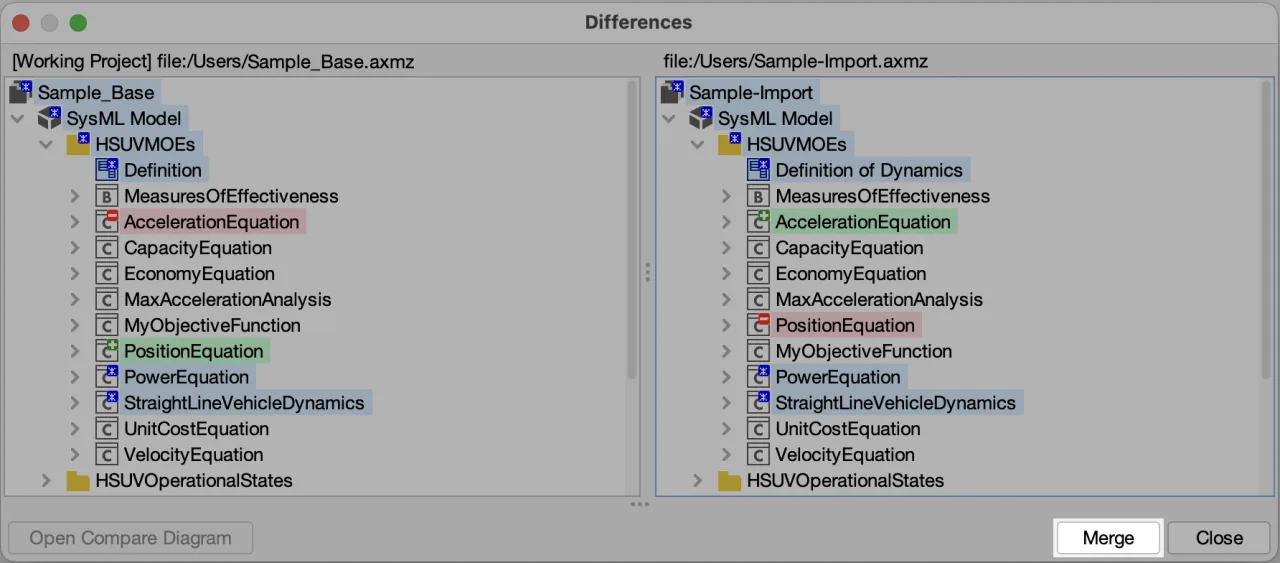
- Two merge options appear. Choose which file to prioritize, and click [OK]. All the models that exist in only one file are merged. If the same model exists in both files but differs, the one in the file you chose is kept.

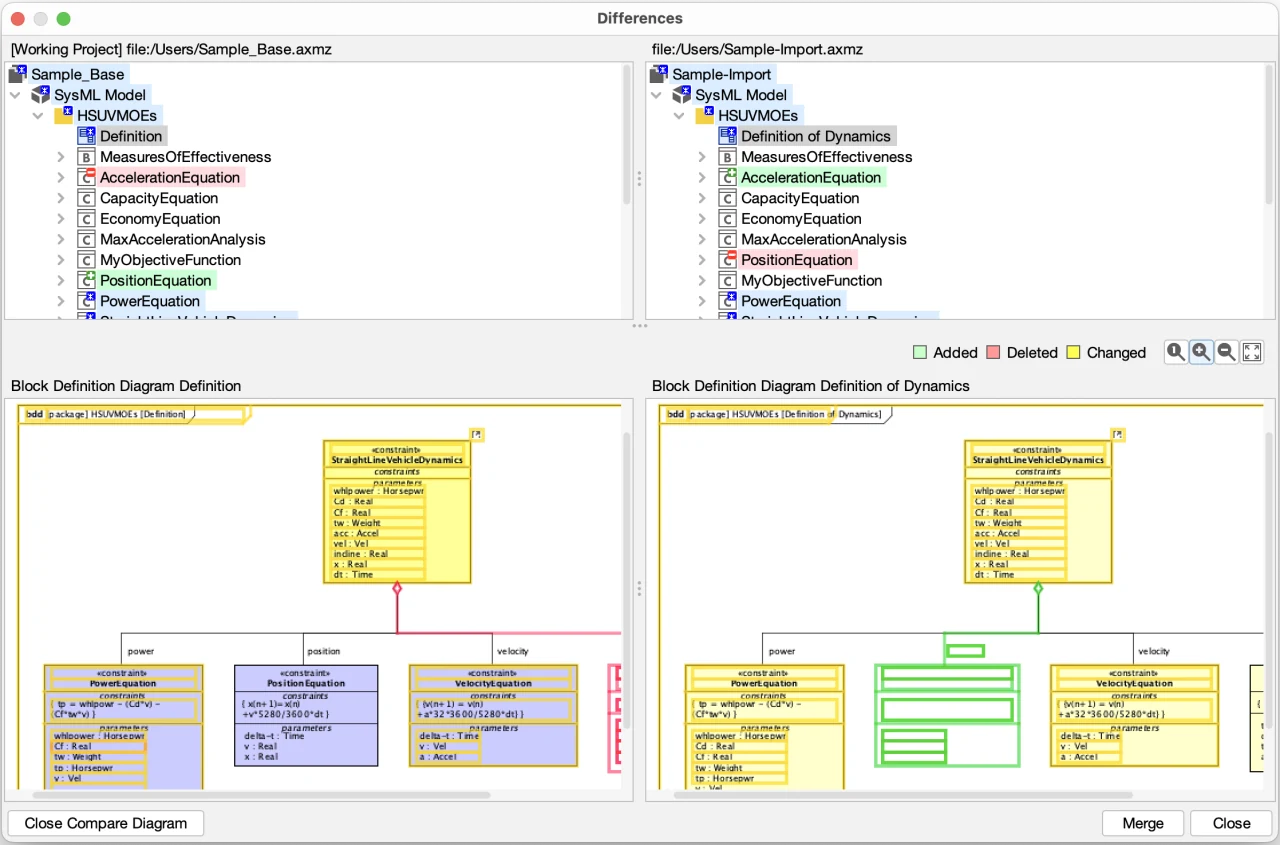
To see the differences visually, click the [Open Compare Diagram] button. The two diagrams open side by side with the differences marked up.
How to compare models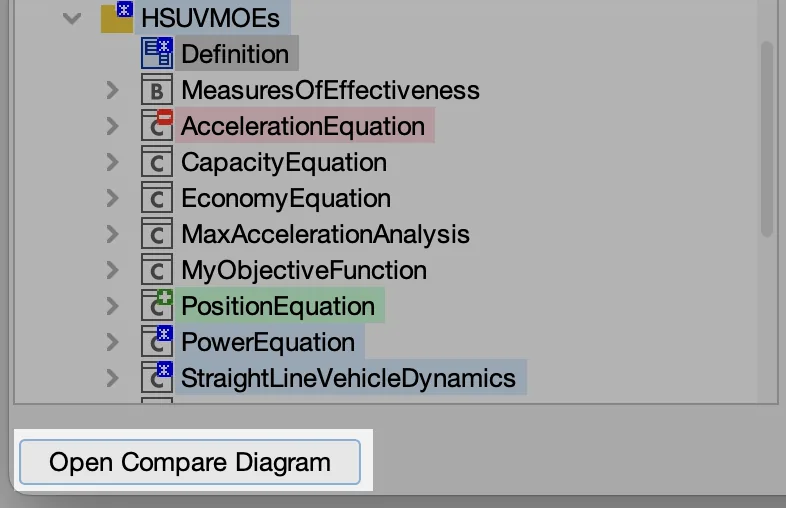
Notes
Detailed merging does not work for the following diagrams. If both project files have a diagram of one of these types with the same name, the one in the file you chose in step 5 is kept.
- Activity diagram
- Statemachine diagram
- Sequence diagram
Reset Model ID
Every model you create in Astah SysML has an internal ID, called the “Model ID”. When you merge files, Astah matches models by their Model ID.
When you copy (clone) an .axmz file, the Model IDs are not regenerated, so the models keep the same IDs as the original. If you merge a file with a copy of it, reset the Model IDs in one of the files first to avoid unintended results.
To reset the Model IDs, go to [Tools] – [Correct Model] – [Reset All Models’ ID].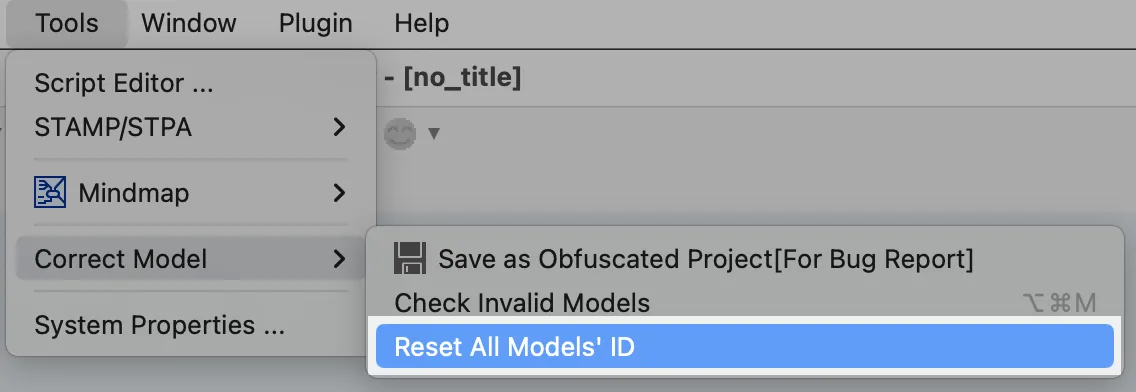
Read before you reset Model ID
- You cannot [undo] after resetting the Model ID.
- We recommend creating a backup file before you reset the Model IDs.