Start Astah


How to Download and Install Astah
You can download the installers for Astah Professional and Astah UML directly from the official Download page.
- Navigate to the Download page and select your product.
- Enter your name and email address when prompted.
- Submit the form, and your download will start automatically.
Student Licenses: If you are a student, you can apply for a completely free student license for Astah UML edition by submitting this form.
Java Requirements
- Windows and macOS: The installers include the required Java. No separate setup is required.
- Linux: Java is not bundled. You must install Java separately. Please refer to the Required Java page and follow the custom setup instructions.
How to Start Astah
You can launch Astah using any of the following methods:
- Select Astah from the Start menu (Windows).
- Double-click the Astah application icon.
- Double-click any existing .asta project file.
Managing Automatic Update Checks
By default, Astah automatically checks for software updates over HTTP upon launch. If you want to disable or change this setting:
Go to Tools → System Properties → Other and adjust the update settings.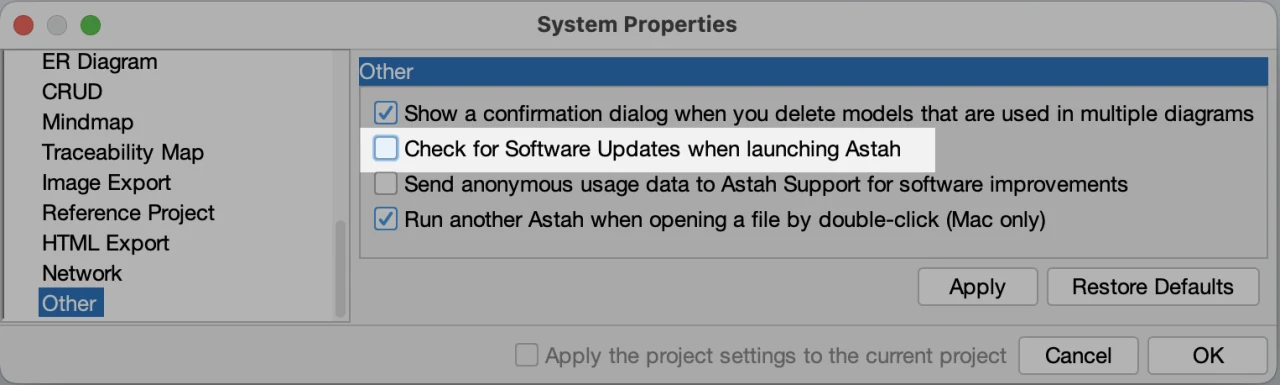
Evaluation Trial Period
Your initial installation includes a free 20-day trial. The trial begins automatically the first time you launch the software.
How to Set Your Astah License
When your evaluation period ends, Astah will automatically prompt you with a license configuration dialog. You can also access this window manually at any time by navigating to Help → License.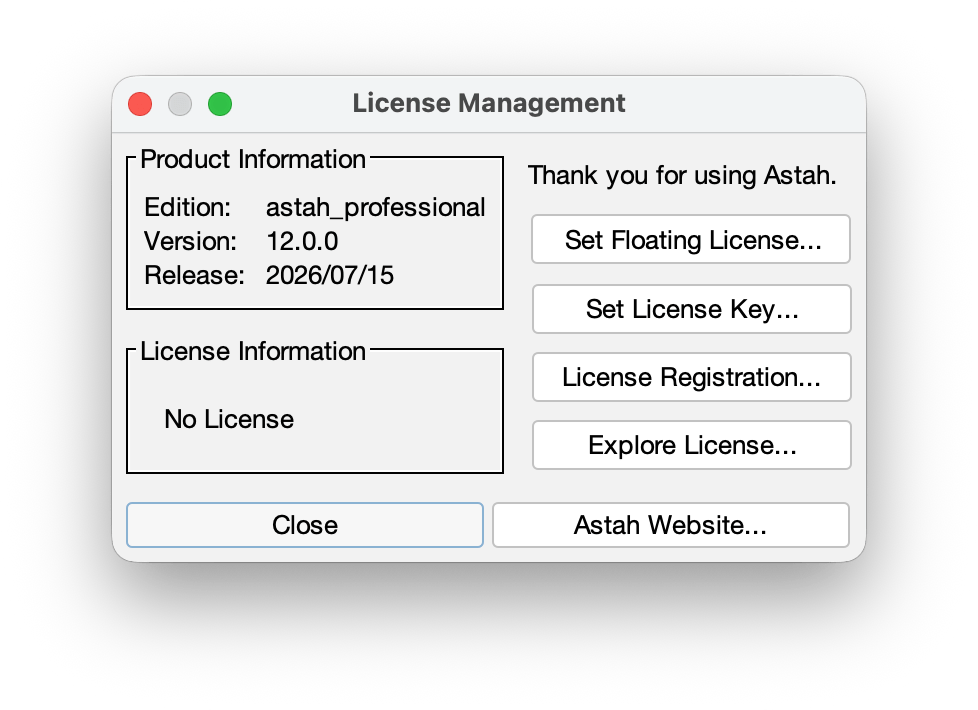
Choose the setup method that matches your license type:
- Floating license: Click Set Floating License, then follow the step-by-step instructions in the the Floating License Guide.
- Non-floating license: Click Set License Key and select your license file (.xml).
- Don’t have a license yet? Purchase a license – see Pricing page.
Creating a New Project File
To start a new project from scratch, go to File → New or click the New icon on the toolbar.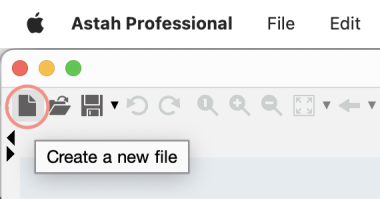
Open a pre-installed Template File
Astah includes pre-configured template project files in your local installation directory:Astah Installation Folder/template/project
To open one of these files, go to File → New from Template, then select the specific file you want to use.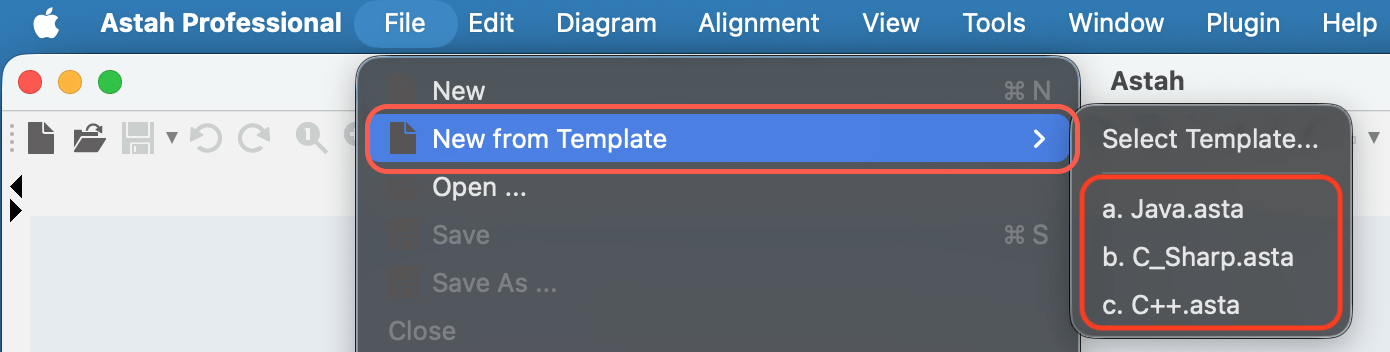
Create a Custom Project Template
You can create a personalized project and set it as your default template for all new files:
- Create a project file and save it to the following folder path:
Astah Installation Folder/template/project - In the main menu, open Tools → System Properties → Project.
- Under User Template, select your custom template file from the drop-down menu.
- Click Apply, then click OK.
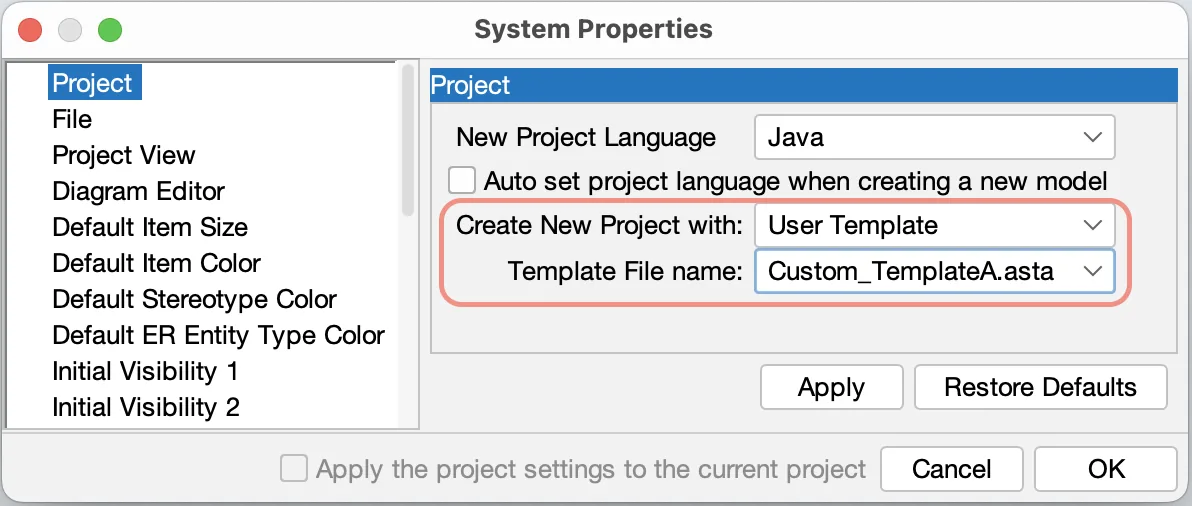
Your custom template will now load automatically whenever you generate a new project.
Create a New Diagram
To create a new diagram, open the Diagram menu and select the specific diagram type you need. 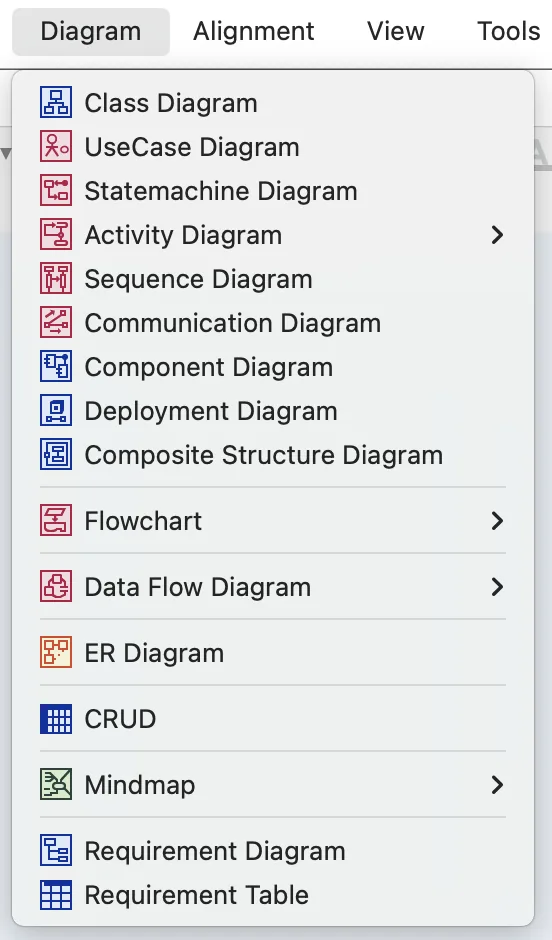
Open Diagram Thumbnails
You can quickly view visual layout previews in two ways:
1. View All Diagrams in Package:
Right-click the root package (or any specific package) in the structure tree, then select Show Diagram Thumbnails.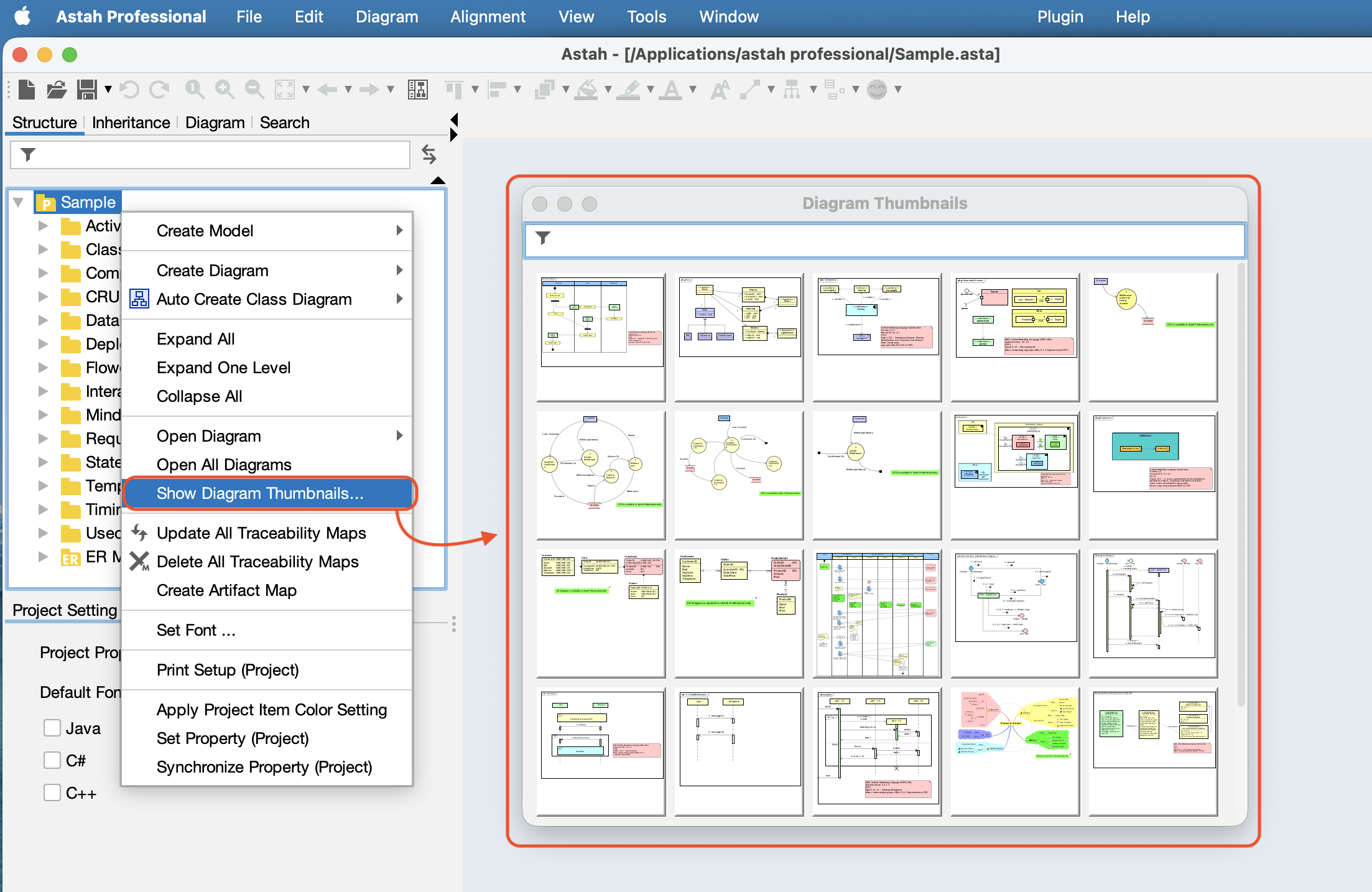
2. Show Related Diagram Thumbnails
If a specific model element is utilized across diagrams, right-click the element and select Show Related Diagram Thumbnails to preview all connected diagrams .

How to Enable Auto-Save for .asta Files
To prevent data loss, you can configure Astah to automatically back up your project files while you work.
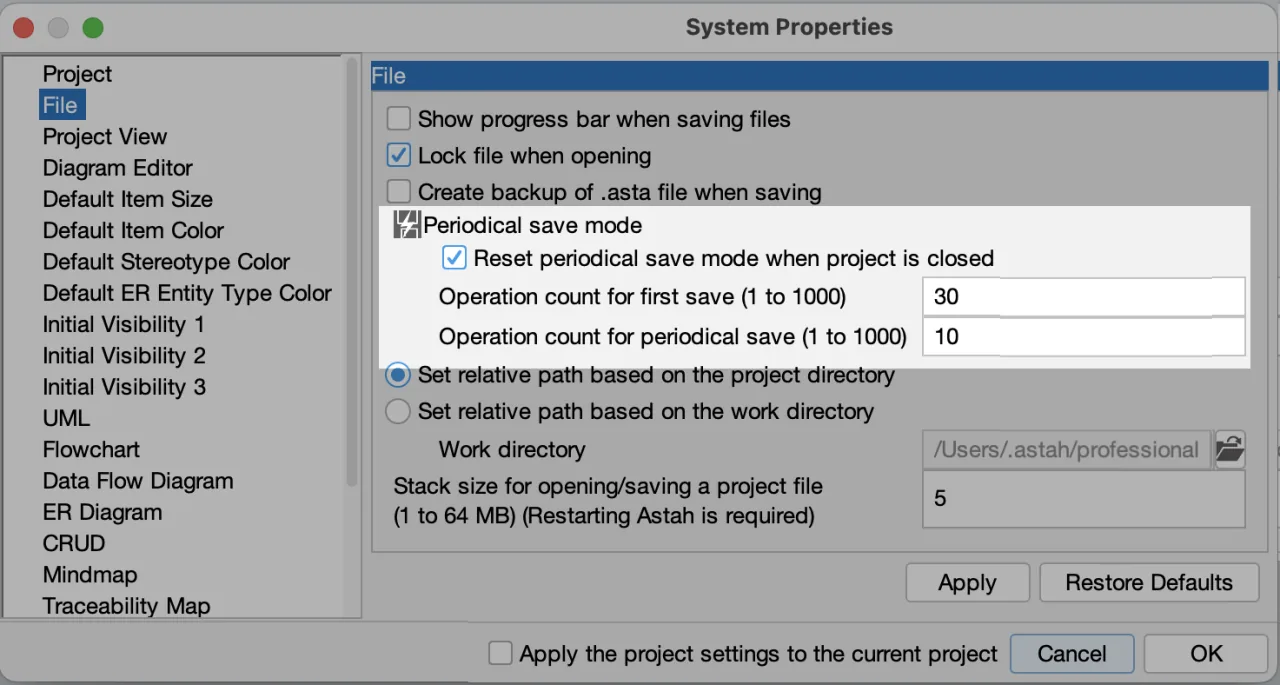
- Turn on Auto-save mode and Turn on
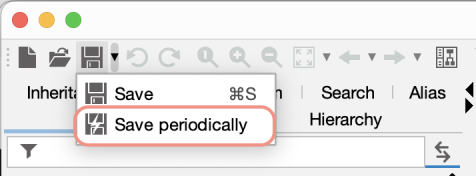
- You can define your preferred background saving internal (in minutes) from Tools → System Properties → File.