
Compare Project

Compare projects
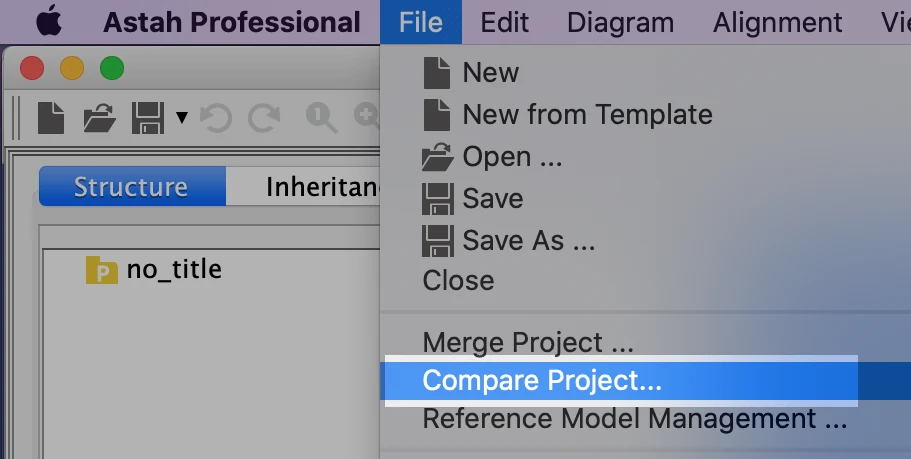
You can compare another project file with the project you are working on:
- Go to [File] – [Compare Project].
- Select the project to compare and click [Open].
- The [Compare Project] dialog opens.

[Compare Project] Window
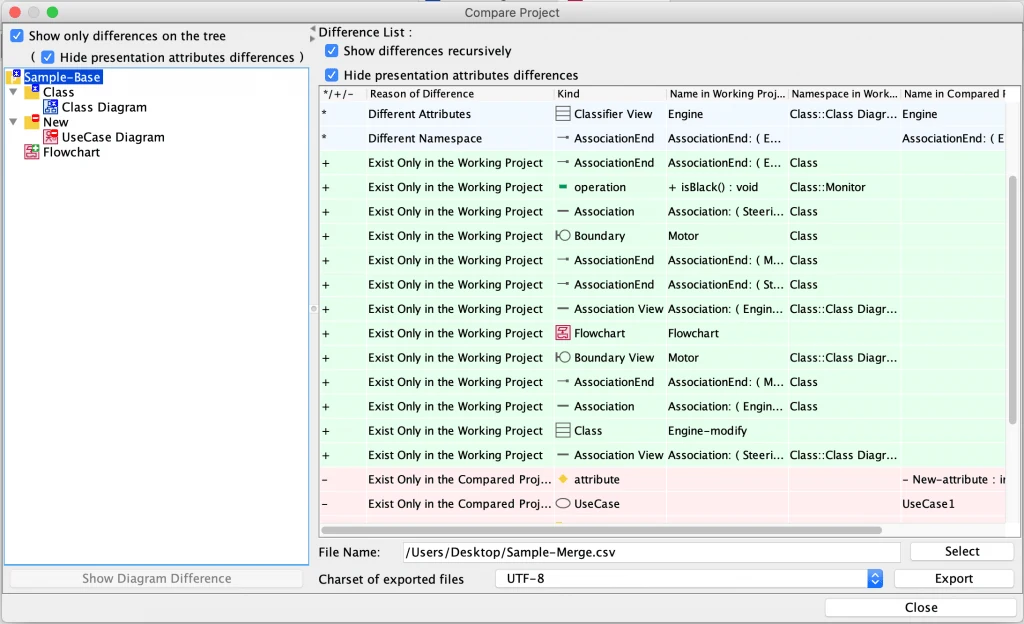
Conflict Tree
The Conflict Tree shows the differences between the working project and the compared project.
Icon | Description |
|---|---|
 | This indicates that these diagrams/models exist only in the working project. |
 | This indicates that these diagram/models exist only in the compared project. |
 | This indicates that these diagrams/models exist in both projects. |
Compare Diagrams Visually
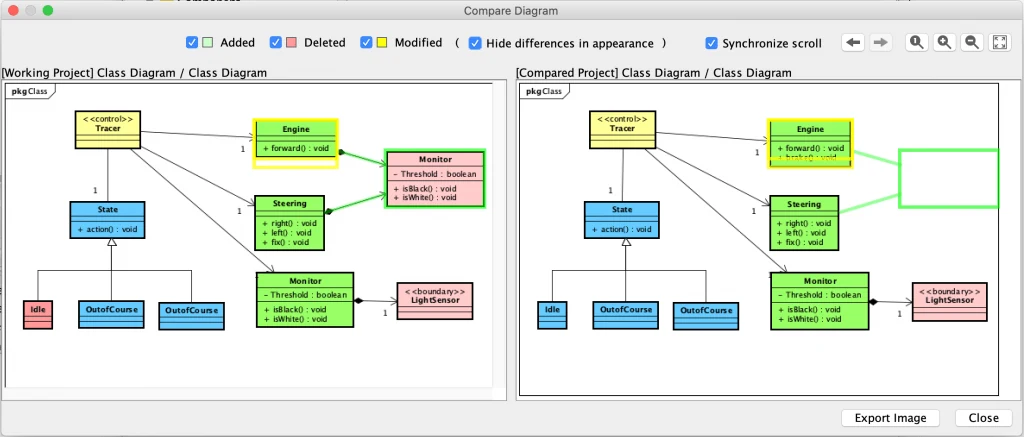
You can compare two diagrams visually by clicking the [Show Diagram Difference] button.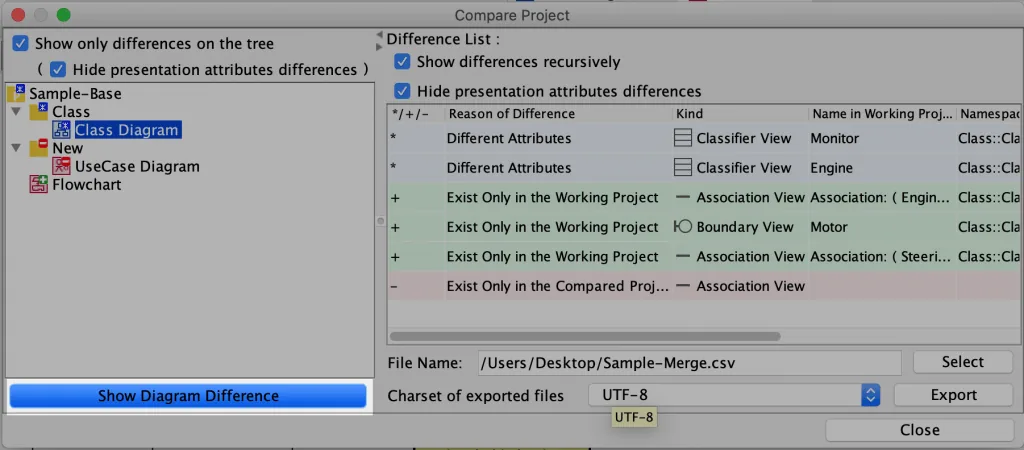
A new window opens, showing the two diagrams side by side with the differences marked. You can filter the marks by type of change, such as “Added”, “Deleted” and “Modified”.
Since version 8.2, you can check the “Hide differences in appearance” option to mark only models that were actually modified. Changes in presentation only, such as color changes or small position changes, are then not shown as differences.
Export Result of Comparison

- Click [Select] in the [Compare Project] dialog and specify the file to export to.
- Click [Export] to export the result of the comparison.