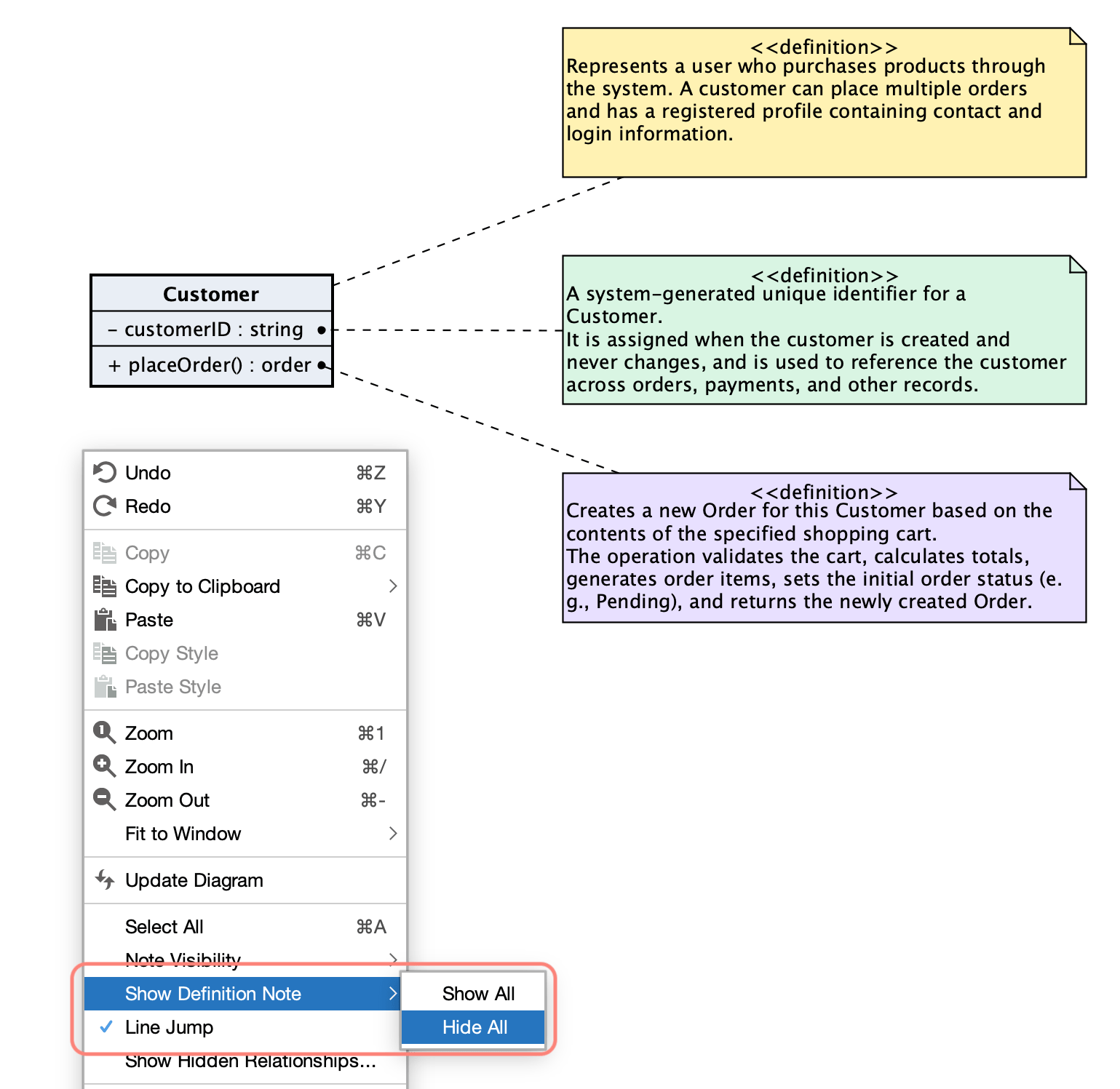
Display Definitions as Notes on Diagrams


Display Definitions as Notes on Diagrams
You can display model definitions as notes directly on diagrams.
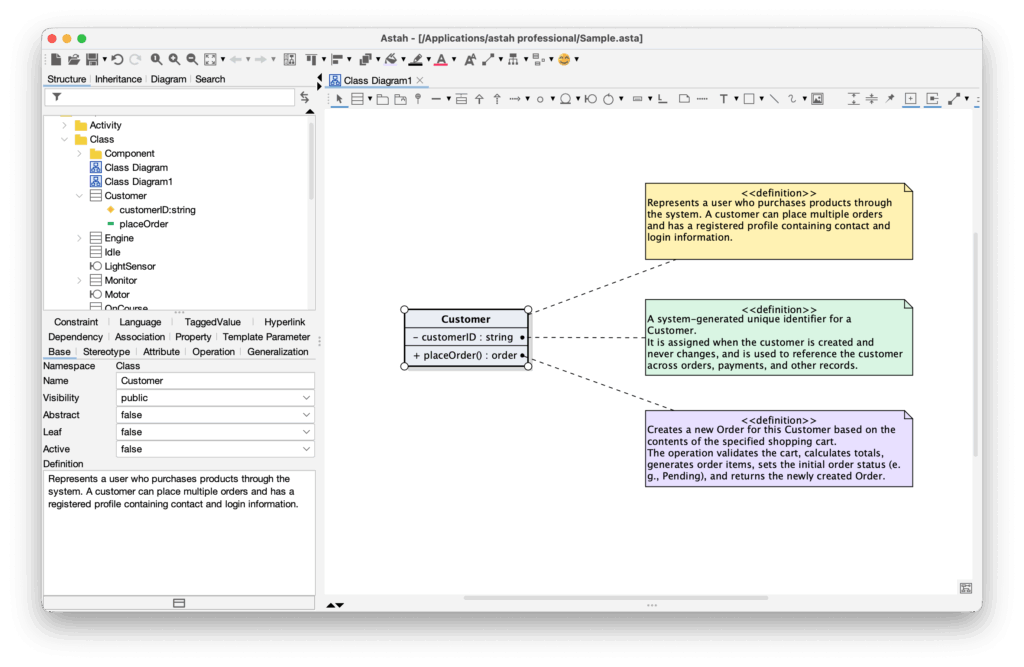
In Astah Professional and Astah UML editions, you can add a definition to each diagram and model element in the [Base] tab of the Property View. However, definitions are not shown on diagrams by default.
To check a definition, select an element and open the [Base] tab to view the Definition field.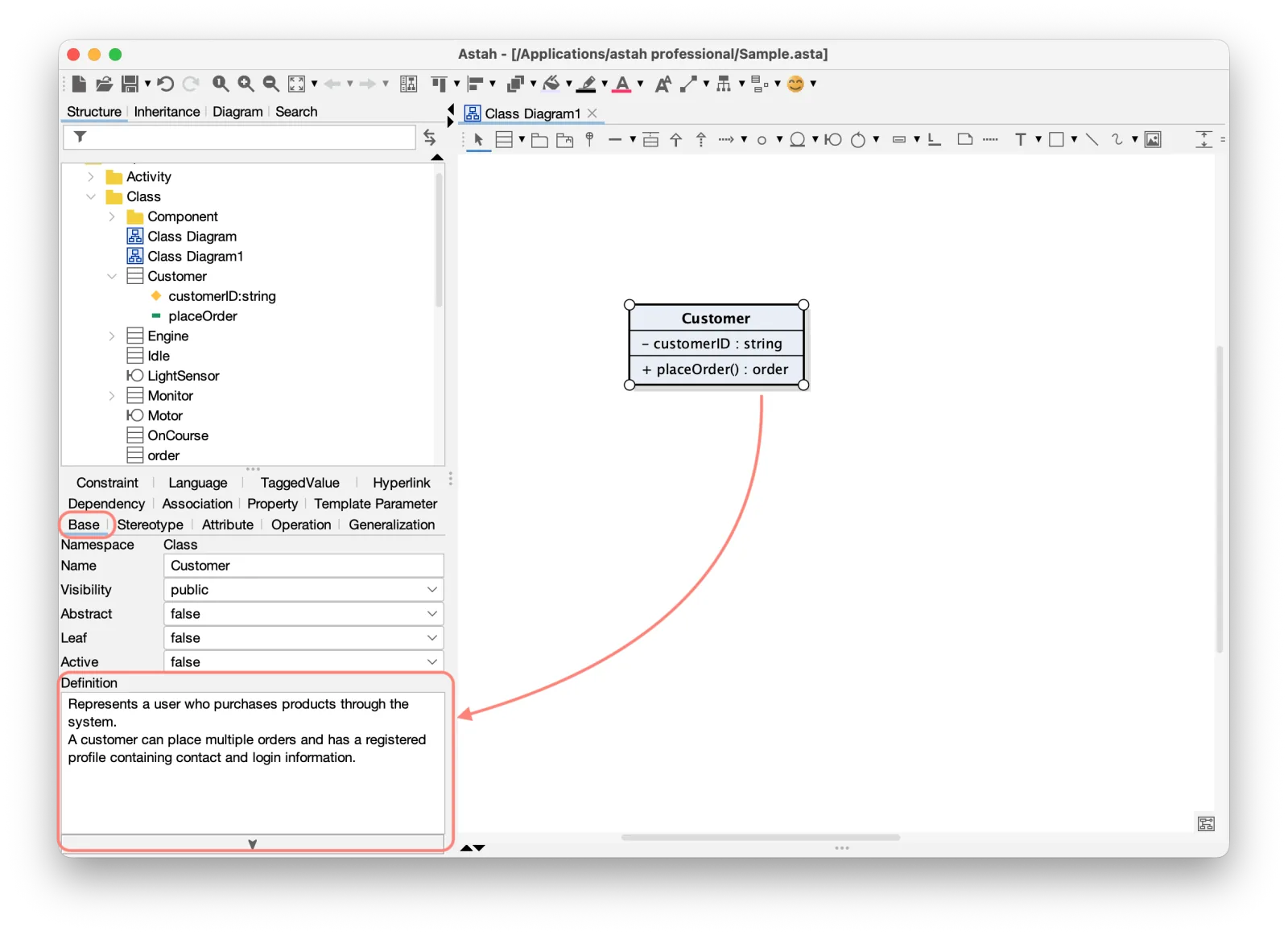

Why use this functionality?
- You can view model definitions directly on diagrams without opening the Property view.
- Diagrams become easier for reviewers and teammates to understand because key details are visible at a glance.
- Definitions remain linked to model elements, so changes to a definition are reflected in what you share.
How to use this functionality
Per model elements
You can display definitions for specific model elements as notes on the diagram.
- Select a model element on the diagram.
- Right-click the element, then choose [Show Definition Note].
- Select the element whose definitions you want to display.
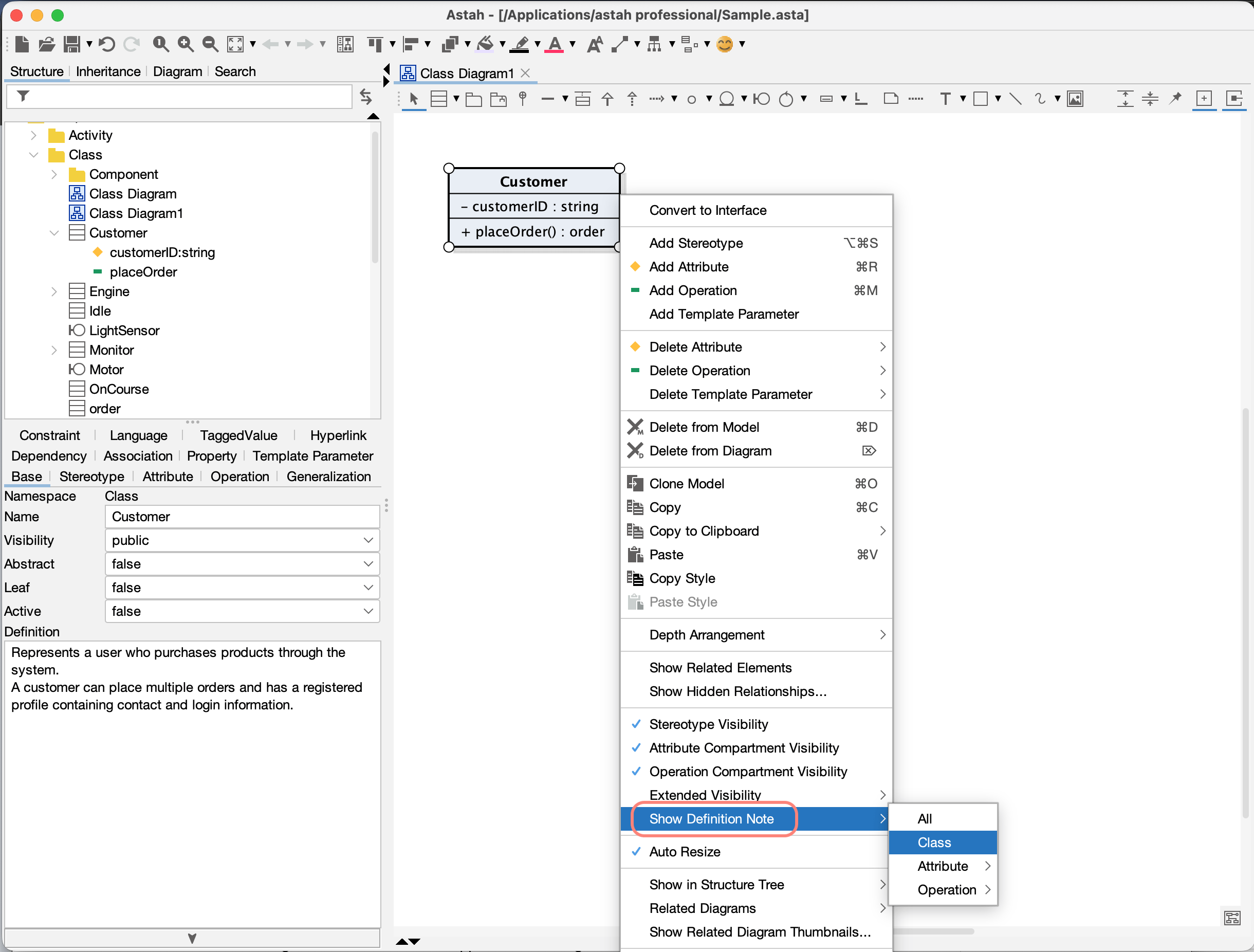
- A note containing the element’s definition appears on the diagram.
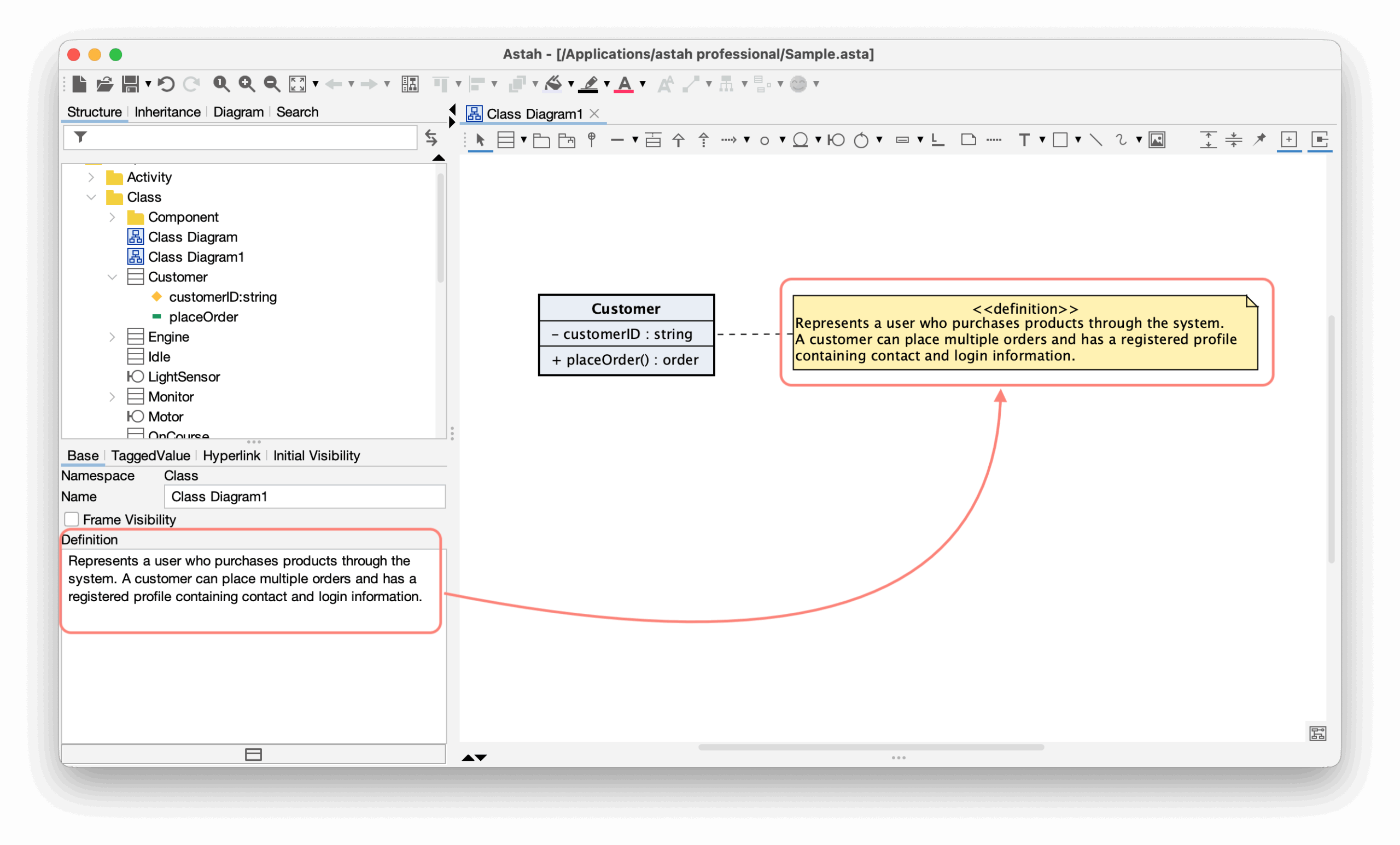
- To display definitions for all elements inside a Class, select [Show Definition Note] – [All].
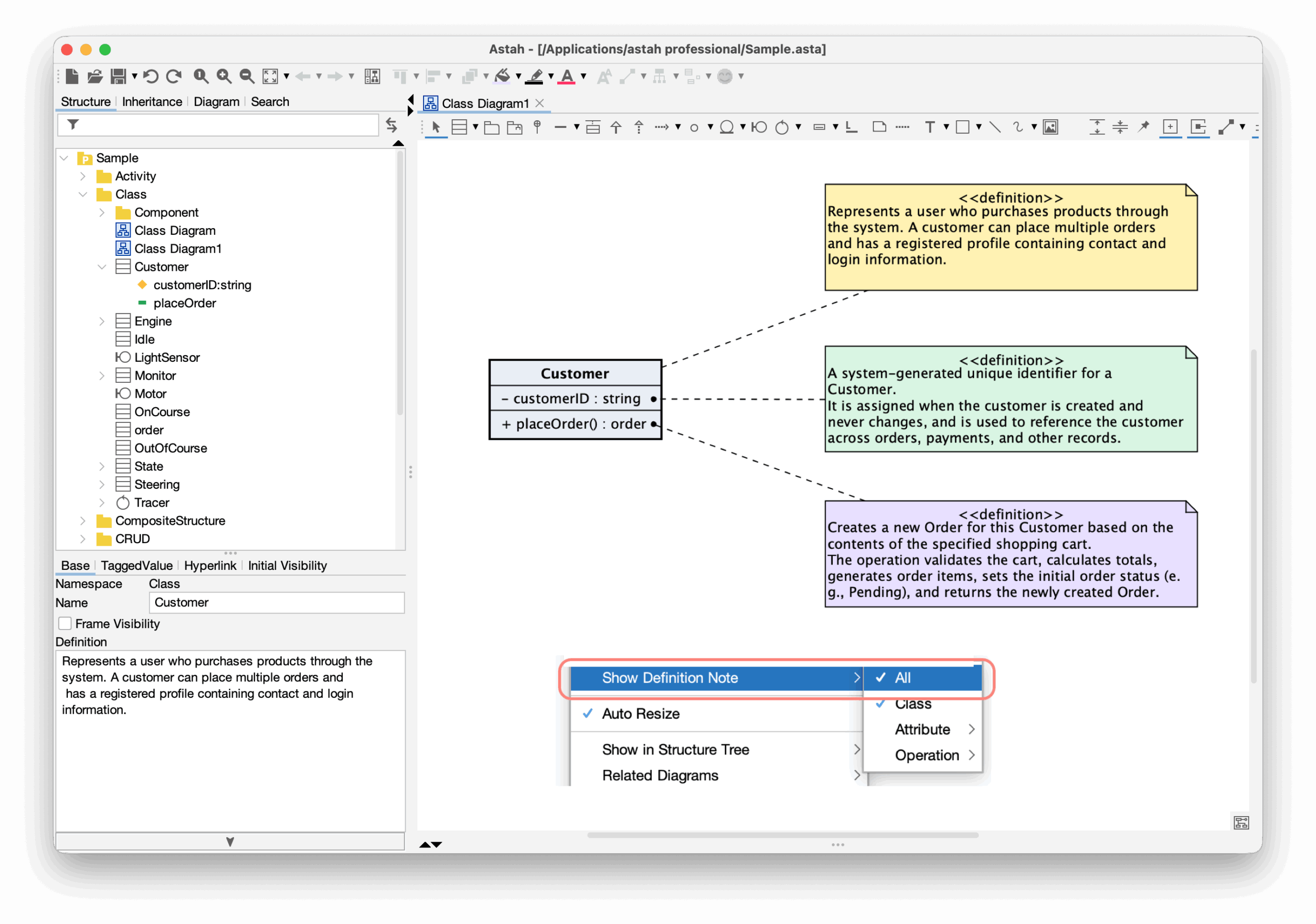
NOTE: Definitions notes are attached to model elements.
When you update the definition in the Definition field in the Property View, the text in the notes is updated as well. Likewise, editing the note updates the definition field.
Per diagrams
If you want to display definitions for all elements on a diagram:
- Right-click a blank area of the diagram.
- Select [Show Definition Note] – [Show All].
How to hide Definition Notes
If you want to hide all definition notes on a diagram:
- Right-click a blank area of the diagram.
- Select [Show Definition Note] – [Hide All].