
Astah MCP Server




Connect Astah to external AI clients
The MCP server is built into Astah Professional, Astah UML, Astah SysML, and Astah System Safety, starting with version 11. It ships with Astah as part of AI Chat Copilot, so there is nothing extra to install. It is developed by Change Vision, Inc. and is separate from the third-party Astah Pro MCP plugin. To use it, you need your own API key for a supported AI service.
With the MCP server, AI clients such as Claude Code, GitHub Copilot, Codex, and Claude Desktop can read and edit your Astah models via MCP (Model Context Protocol). For an overview of what this makes possible, see Use AI Clients with Real UML Models: Astah’s MCP server.
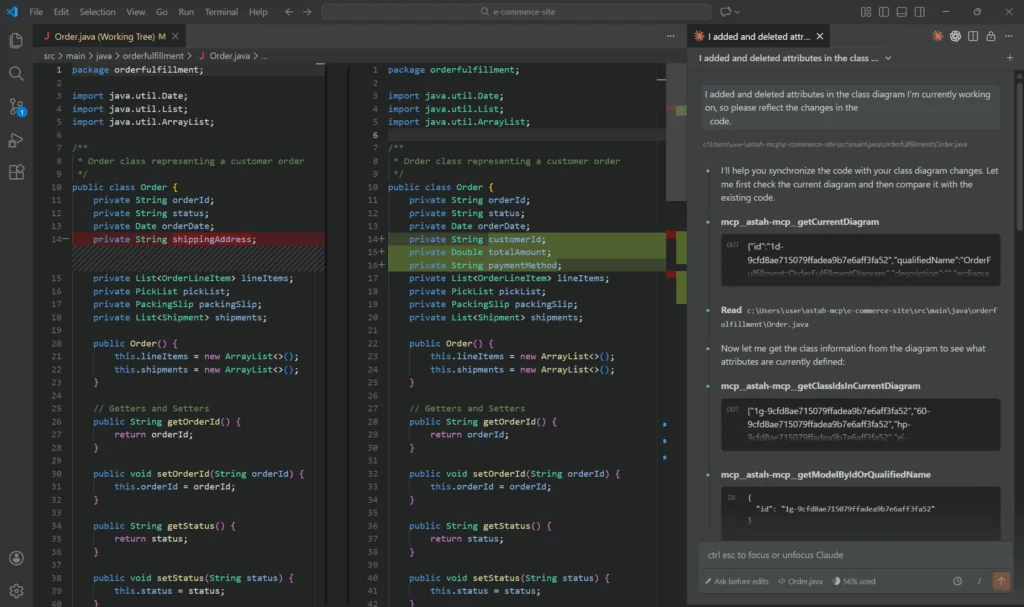
What is MCP?
MCP (Model Context Protocol) is a standard protocol for connecting AI clients to tools and applications. For more details, see the official MCP documentation.
What you can do with an MCP server
You can:
- Use your preferred AI client to work with Astah models
- Generate, update, and analyze diagrams from outside Astah
- Bring external context such as documents, specifications, or files into AI-assisted modeling
- Combine diagram operations with documentation, code, and review workflows
For scenarios and prompt examples for design workflows, model analysis, documentation generation, and code integration — see: Detailed Scenarios & Prompt Examples (Currently for Astah Professional and UML only)
Configure Astah
You can enable the MCP server in a few minutes.
- Launch Astah version 11 or later.
- Open the Chat Copilot pane
Select the Chat Copilot tab in the Extra view which you can open from [View] ▸ [Show/Hide Extra View].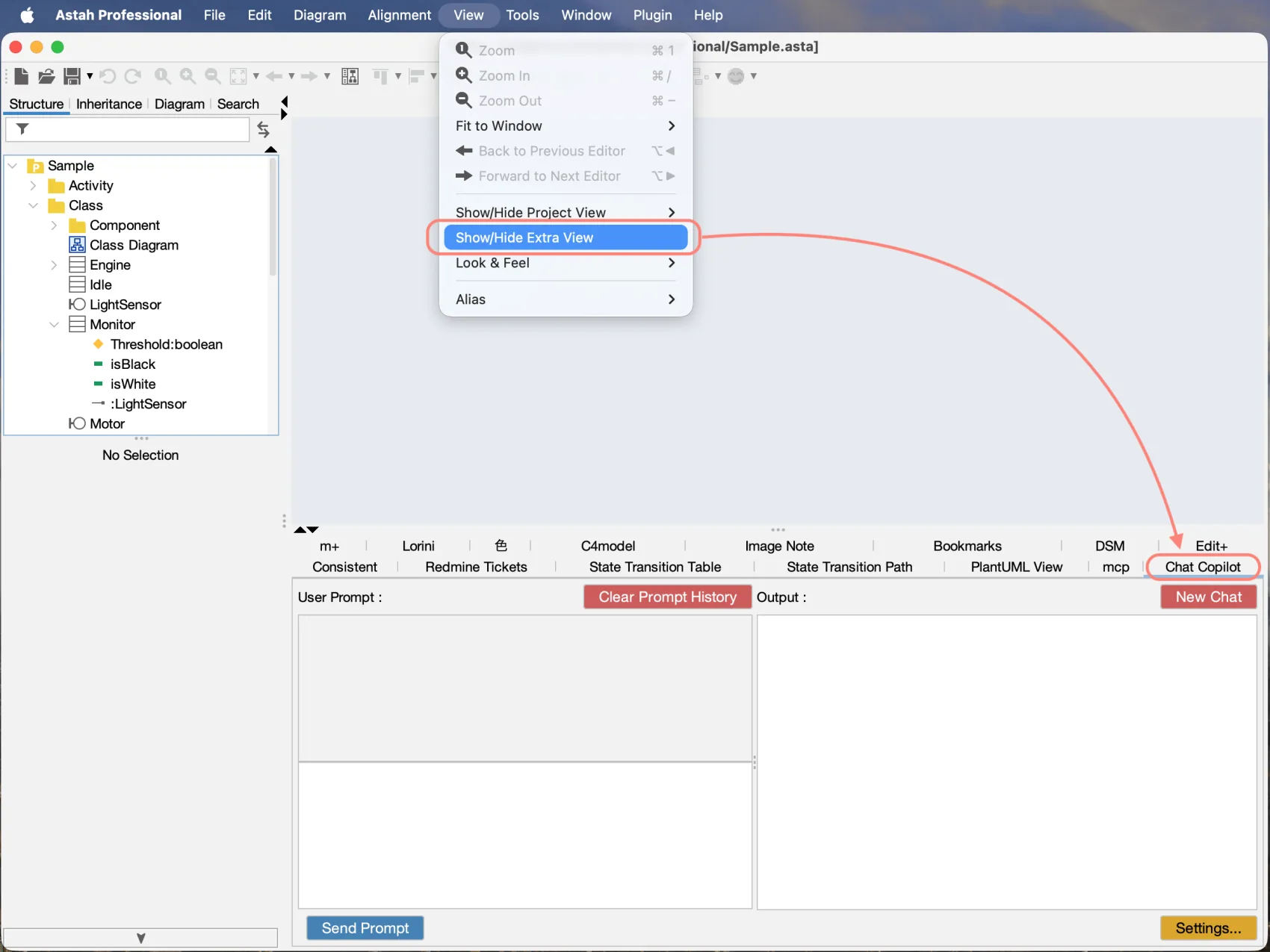
- Settings
Click Settings to configure the setting to connect Astah with AI service.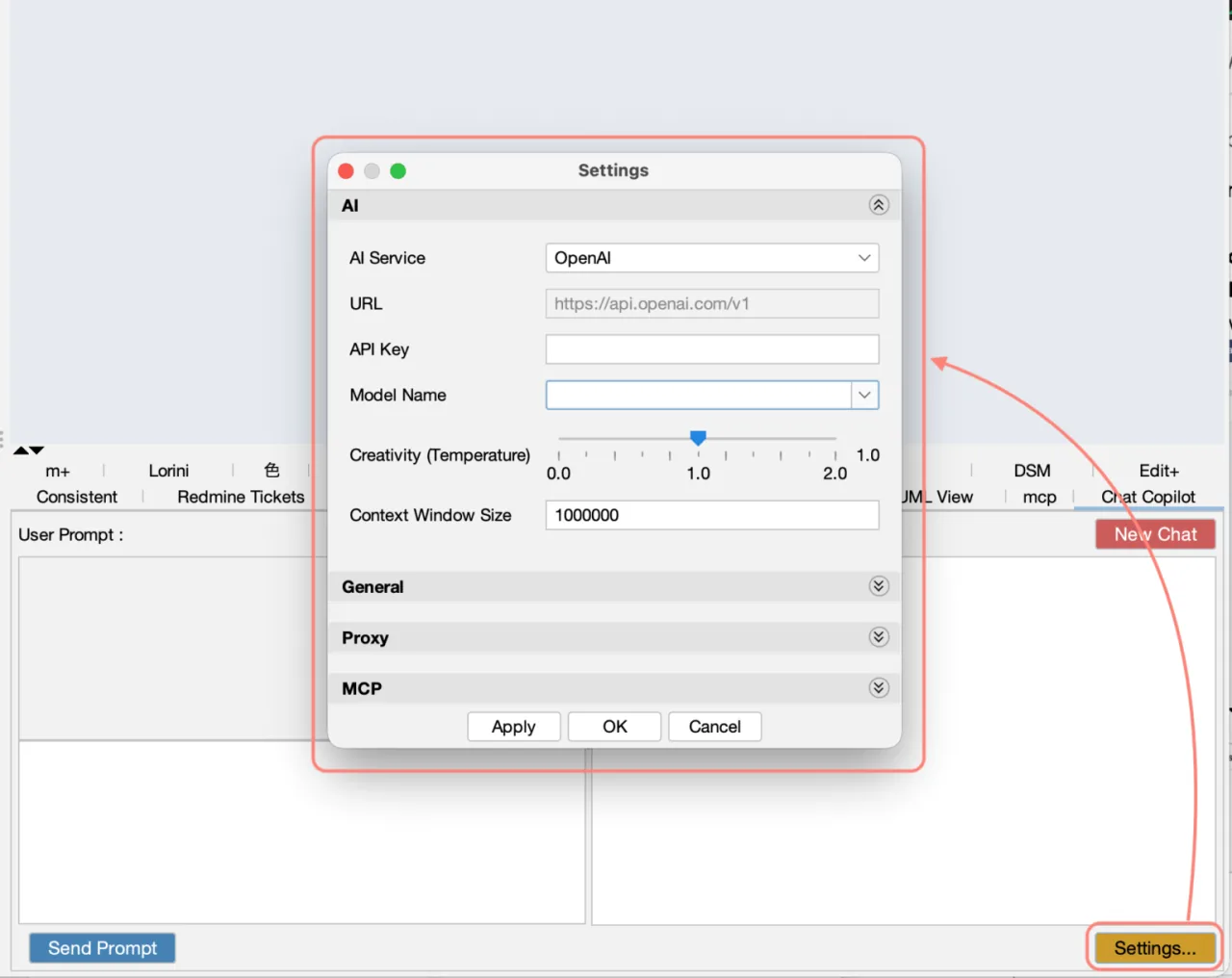
- Open MCP section to enable integration with MCP-compatible AI clients.
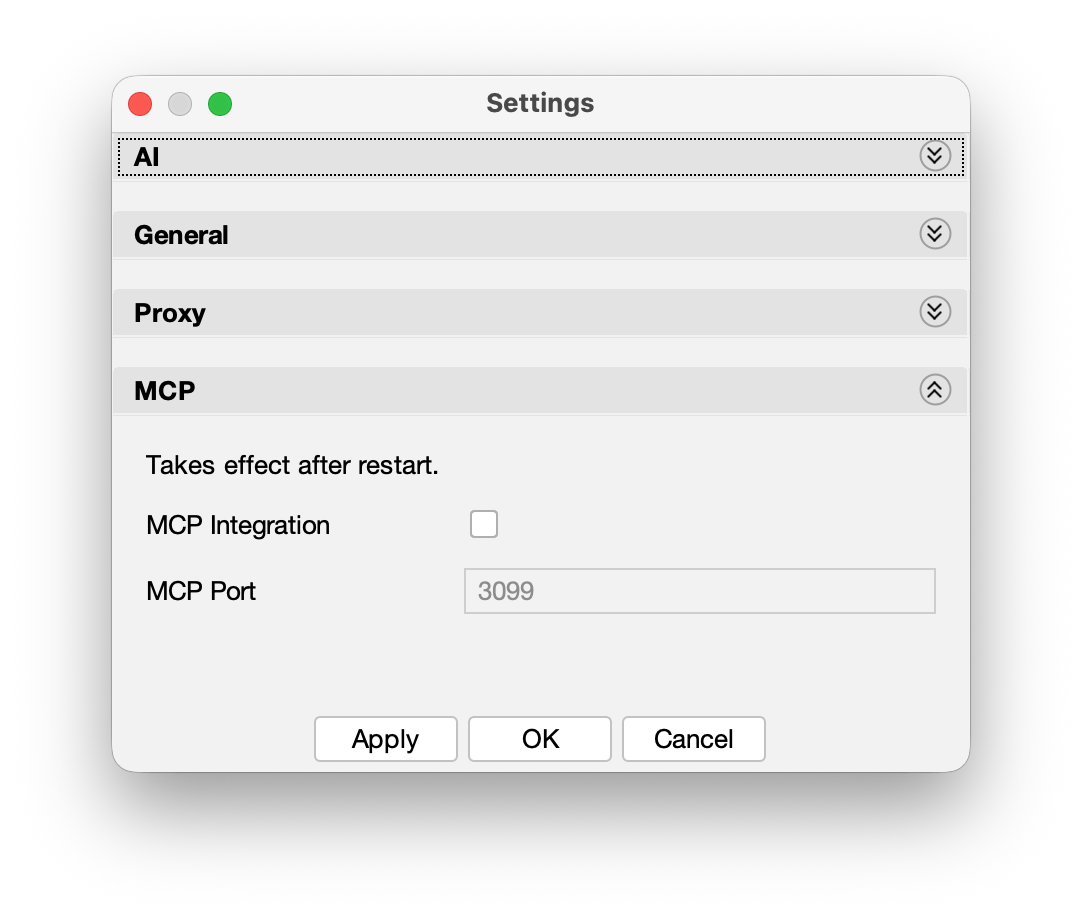
- MCP Integration:
Enable this option to allow external AI clients to connect to Astah via MCP.
You must separately register the MCP server in the external tools or agents you use. - MCP Port:
Specify the port number used by the MCP server.
If you change this value, update the port setting in your AI client as well.
NOTE:
MCP integration requires an API key for a supported AI service. Configure the AI service and API key in the Settings, then enable the MCP section. The in-app AI Chat Copilot uses the same settings.
Configure Clients
Verified Clients you can connect with Astah via MCP
The following MCP-compatible clients have been verified to work with Astah:
- Claude Code – VS Code
- GitHub Copilot Chat – VS Code
- Cline – VS Code
- Copilot CLI
- Codex
- Claude Desktop
Other MCP clients
You can also use other clients that support MCP. If your preferred client is not listed above, configure it using the MCP server URL and port.
Connection Information
- Communication method: HTTP Streamable (SSE)
- Default port: 3099
- Endpoint: http://localhost:3099/mcp
Claude Code – VS Code
On a computer where Claude Code is installed, run the following command:
claude mcp add --transport http --scope user astah-mcp http://localhost:3099/mcp
The --scope option supports three types:
- local: Enabled only for the current working folder (local workspace). Default
- project: Saved per project. You can include .mcp.json in your repository to share the configuration with your team.
- user: Enabled for the entire user account on this PC. The same MCP server can be used from any folder.
GitHub Copilot Chat – VS Code
- Open VS Code (with the GitHub Copilot Chat extension installed).
- Open the Command Palette:
- Windows/Linux: Ctrl + Shift + P
- macOS: Cmd + Shift + P
- Search for and run MCP: Add Servers.
- Configure the following items:
- Server type: Select HTTP
- URL: Enter http://localhost:3099/mcp
- Server ID: Enter astah-mcp
- Where to install the MCP server setting: Choose either
- Local (current workspace only), or
- Global (all workspaces)
Cline – VS Code
- Open VS Code.
- In the Activity Bar on the left, select the Cline extension tab.
- In the Cline panel, click the settings icon to open the MCP settings.
- Click Configure MCP Servers.
- Add the following to the configuration file:
{
  "mcpServers": {
    "mcp-remote": {
      "url": "http://localhost:3099/mcp",
      "type": "streamableHttp",
      "disabled": false
    }
  }
}
Copilot CLI
- Launch Copilot CLI.
- Run the /mcp add command.
- Set the following items:
- Server Name: astah-mcp
- Server Type: [2] HTTP
- URL: http://localhost:3099/mcp
When you set Server Type to HTTP, you will be able to edit the URL.
You do not need to configure HTTP Headers.
Configure Tools only if necessary for your use case.
Codex
On a computer where Codex is installed, run the following command.
- Windows: run it in Command Prompt
- macOS/Linux: run it in Terminal
codex mcp add astah-mcp npx mcp-remote http://localhost:3099/mcp
Claude Desktop
- Launch Claude Desktop and open the menu in the top-left.
- Select Settings → Developer → Edit Config.
- Add the following to the configuration file (claude_desktop_config.json) and save it:
{
  "mcpServers": {
    "astah-mcp": {
      "command": "npx",
      "args": [
        "-y",
        "mcp-remote",
        "http://localhost:3099/mcp",
        "--allow-http"
      ]
    }
  }
}
- Quit Claude Desktop completely via Quit.
- Restart Claude Desktop.
⚠️ If you close the window using the “×” button, the app may keep running in the background. Please make sure to quit it from the menu.
Start
- Launch Astah
- Launch AI Service
⚠️ Important: Start Astah before launching the AI client. If the AI client starts first, it may fail to connect to the MCP server.
For prompt examples for design workflows, model analysis, documentation generation, and code integration — see: Detailed Scenarios & Prompt Examples (Currently for Astah Professional and UML only)
Troubleshooting
Issue: Astah Cannot Connect to MCP server
Checks:
- Is Astah running?
- Is MCP integration enabled in the Settings?
Solution:
- Confirm the MCP integration is enabled in the Settings.
- Restart Astah.
- Restart the AI Client.
Issue: Port is already in use
Cause:
Another application is using the same port number.
Solution:
- Change the port number in the Settings (e.g., to 3010).
- Restart Astah.
- Update the port setting in the AI client as well.
Issue: AI Client does not detect Astah
Cause:
The startup order is incorrect, or the settings have not been applied.
Solution:
- Fully quit the AI client, including any background processes.
- Launch Astah and confirm that the MCP server is enabled in the Settings.
- Start the AI client.
- Check the connection status by sending new prompts.
Issue: Node.js Version Error (Claude Desktop)
Cause:
A version of Node.js older than 18 is installed.
Solution:
- Download and install the LTS version from the official Node.js website.
- After installation, run
node --versionin Command Prompt / Terminal to confirm the version. - Restart Astah.
- Restart Claude Desktop.
Notes and Limitations
- Astah MCP server relies on an external AI service.
- AI-generated results may be incomplete or inaccurate.
- Always review and validate diagrams before use.
- Do not enter confidential or sensitive information unless permitted by your organization’s policies.
Token Limitations
- AI services have an upper limit on the number of tokens they can process.
- Sending or receiving very large specifications or model data in a single request may:
- Reduce response quality
- Cause timeout or errors
- Make processing unstable
- Try to adjust your prompts so that the exchanged information does not become excessively long.
Updating Astah MCP server
Astah MCP server is part of the AI Chat Copilot plugin that ships with Astah. When you update AI Chat Copilot, the MCP server is updated at the same time.
For the latest version for each Astah edition, download links, update steps, and how to check your installed version, see Version & Update Information on the AI Chat Copilot page.