User Guide
CRUD
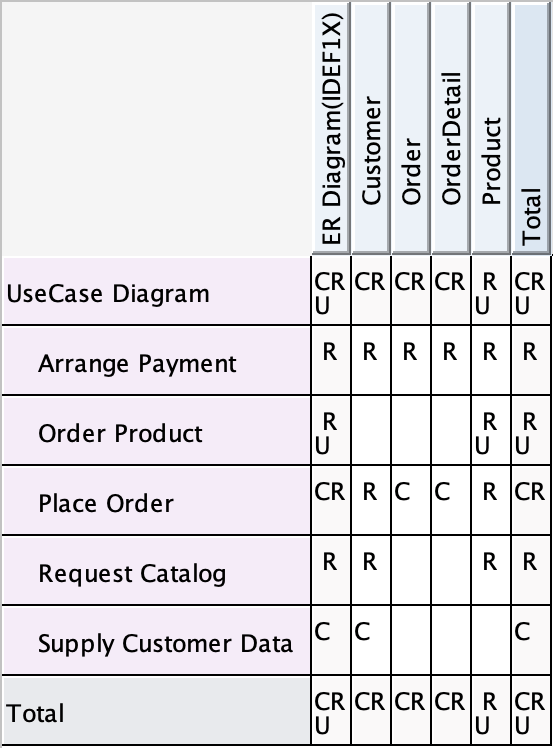
With Astah Professional, you can create CRUD table which shows functions Create, Read, Update or Delete which model elements. It helps you confirm responsibility, coverage, and gaps in your design.
Create a CRUD
You can create a CRUD table from the main menu:
Diagram → CRUD
A new CRUD diagram is added to the project and appears in the Structure Tree.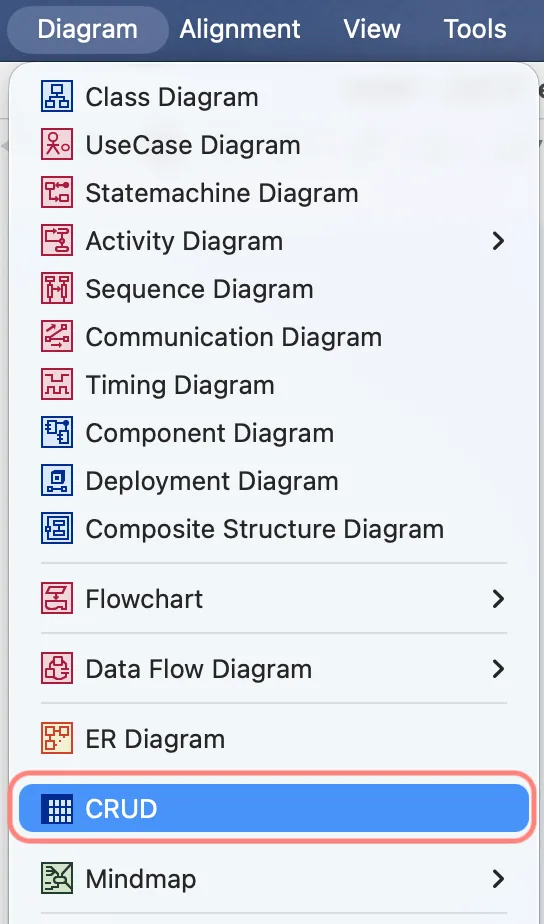
Edit a CRUD table
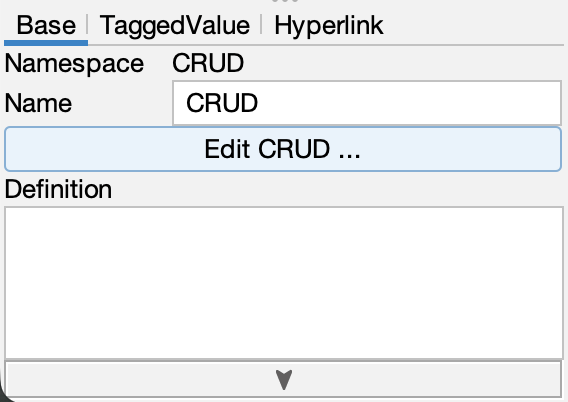
You can open the CRUD edit window in either of these ways:
- Right-click the CRUD diagram in the Structure Tree → Edit CRUD
- Select the CRUD diagram and click Edit CRUD in the Property View

CRUD Edit Window
In the edit window, you configure which items appear in the table:
- Functions (left): operations extracted from selected diagrams
- Models (right): model elements extracted from selected diagrams
- Options (bottom): grouping and display settings
After you finish selecting items, click OK to update the table.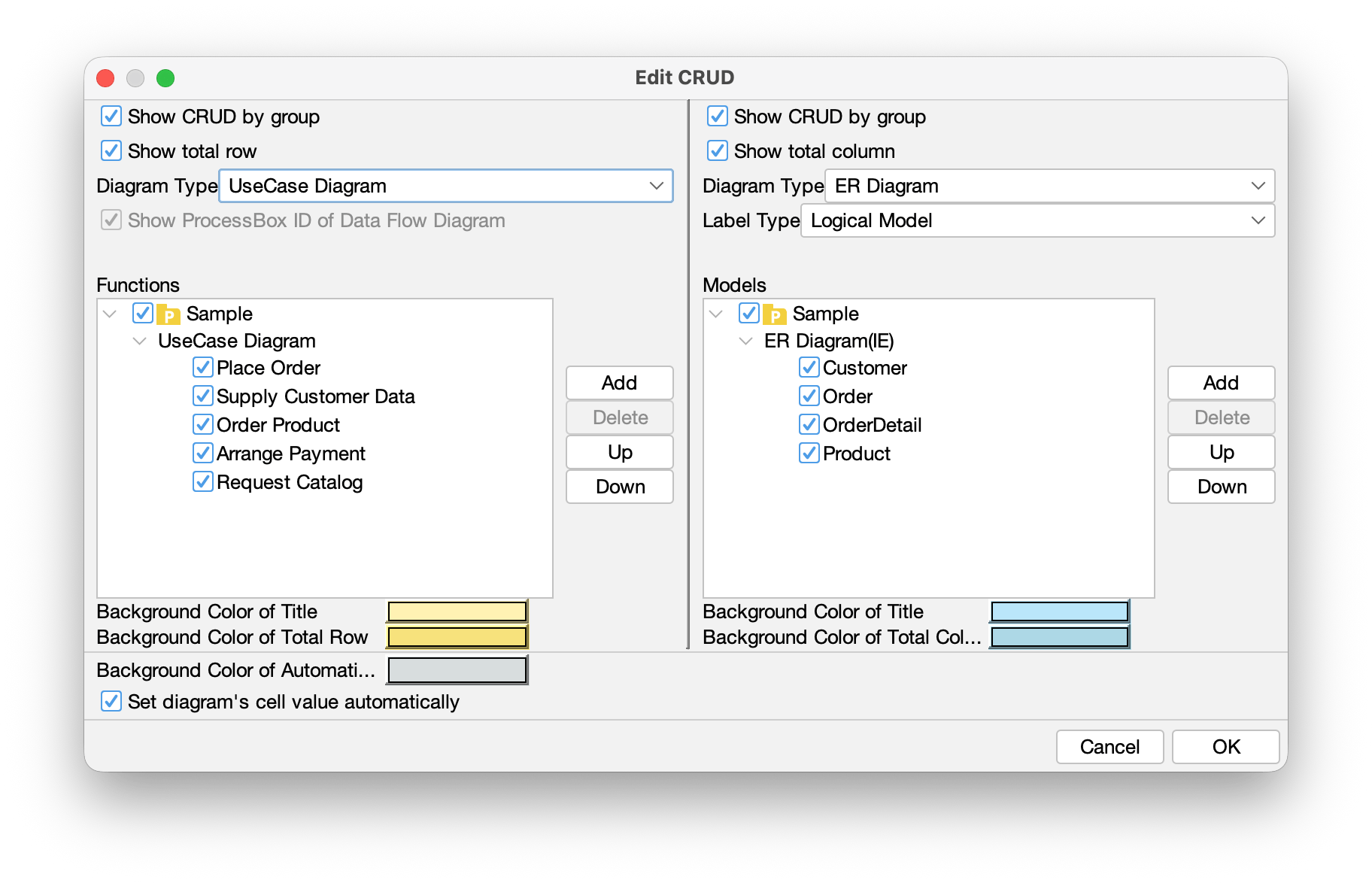
Set Functions
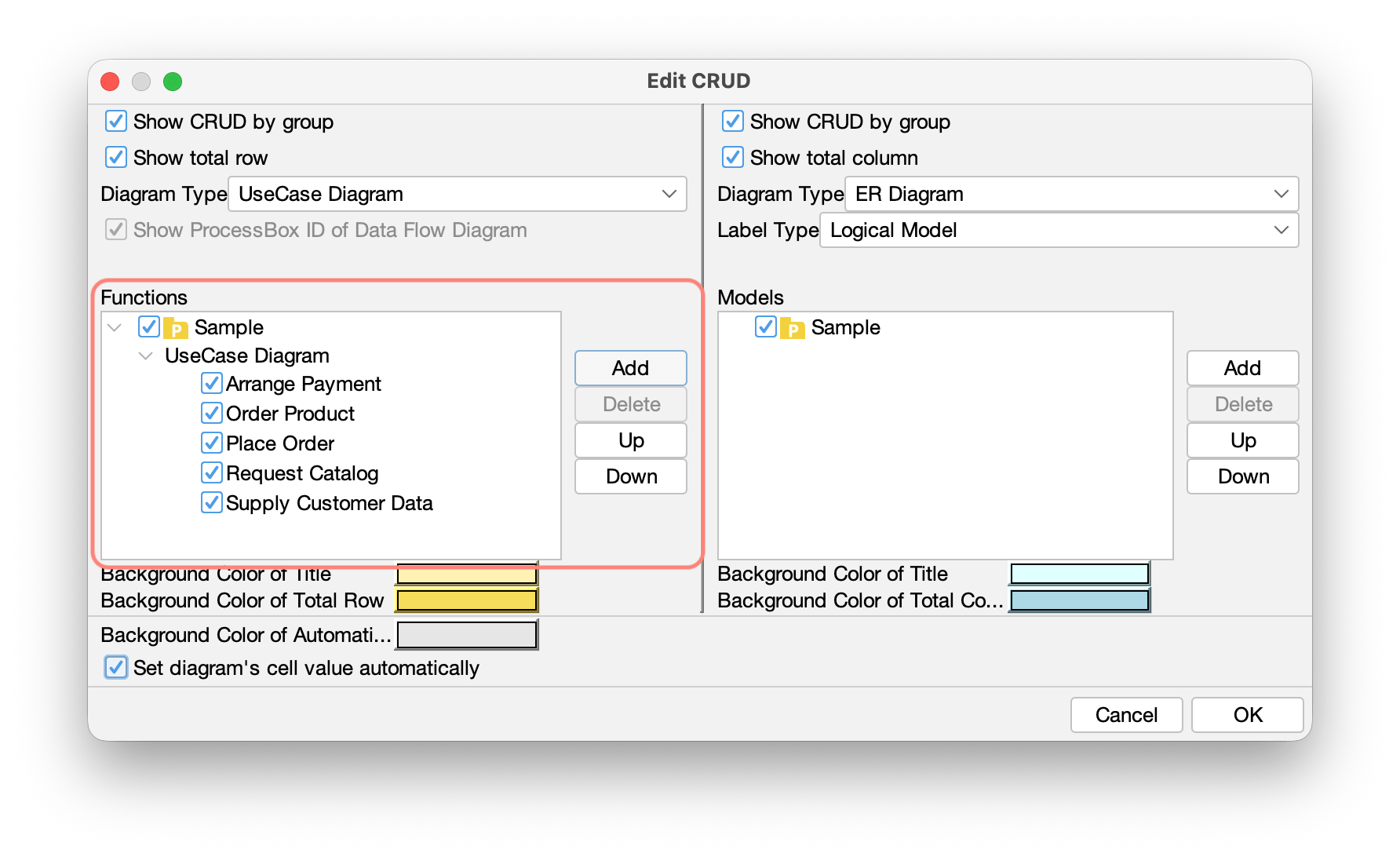
Functions are listed on the left side of the edit window.
Show CRUD by group
Turn on Show CRUD by group to display functions grouped under their diagram names.
Turn it off to show all functions in one flat list.
[ON]
[OFF]
Select diagram types to include
- Click [Add] next to Functions.
- Select the diagrams you want to include, then click OK.
- In the Functions tree, check the functions you want to display.
NOTE:
– You can add functions from Use Case, Activity, Data Flow, or Flowchart diagrams.
– Only one diagram type can be added per CRUD table.
Set Models
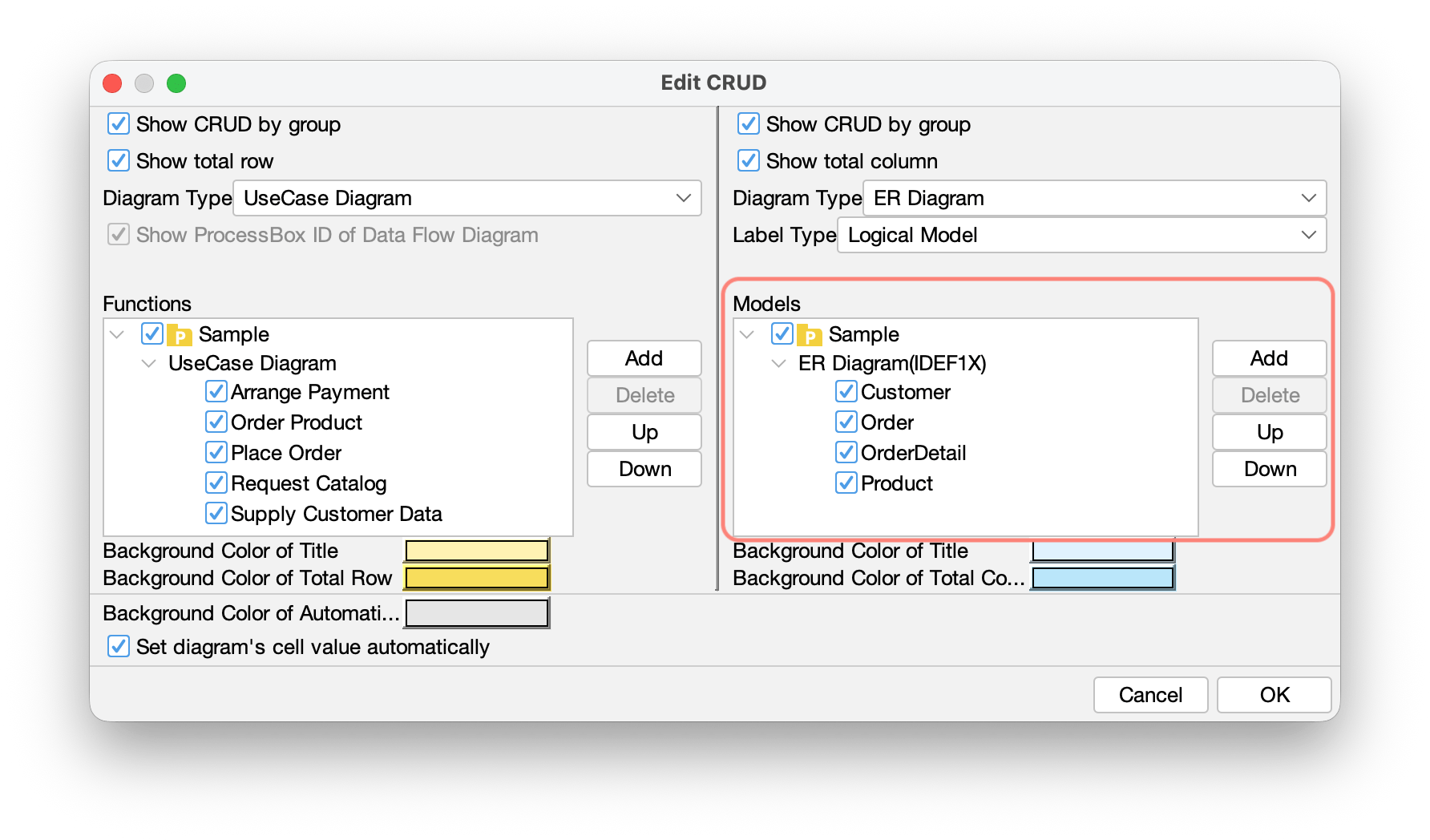
Model elements are listed on the right side of the edit window.

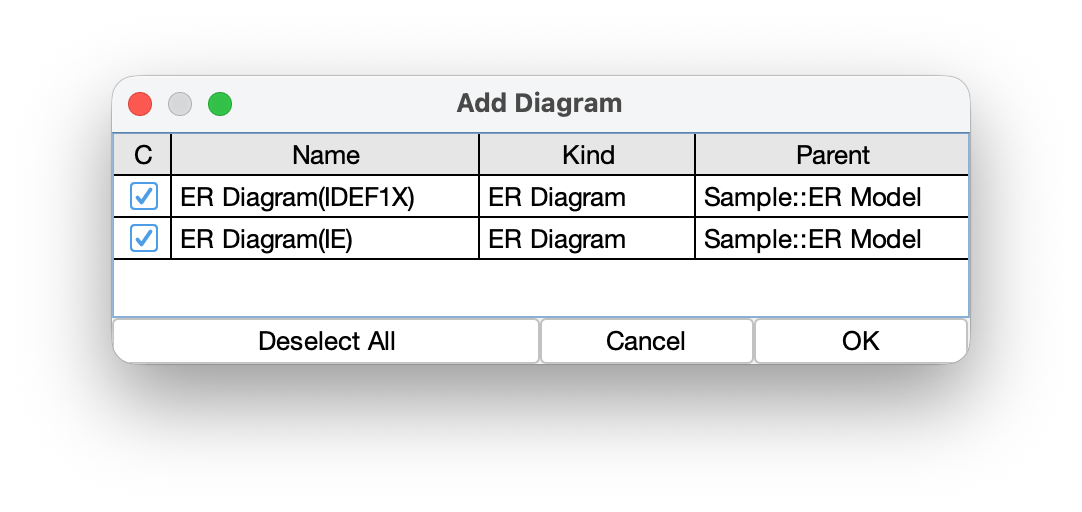
Select diagrams to include
- Click [Add] next to Models.
- Select the diagrams you want to include, then click OK.
- In the Models tree, check the model elements you want to display.
Set CRUD Values
You can set CRUD values in three convenient ways:
- Type directly into a cell (C, R, U, D).
- Select a cell and press C / R / U / D on your keyboard.
- Right-click or double-click a cell → Set CRUD Value.

You can update values anytime; the table refreshes immediately.
Export CRUD to Excel
To export the current CRUD table:
Tools → CRUD → Export CRUD to Excel
Choose a location and file name, then click Save.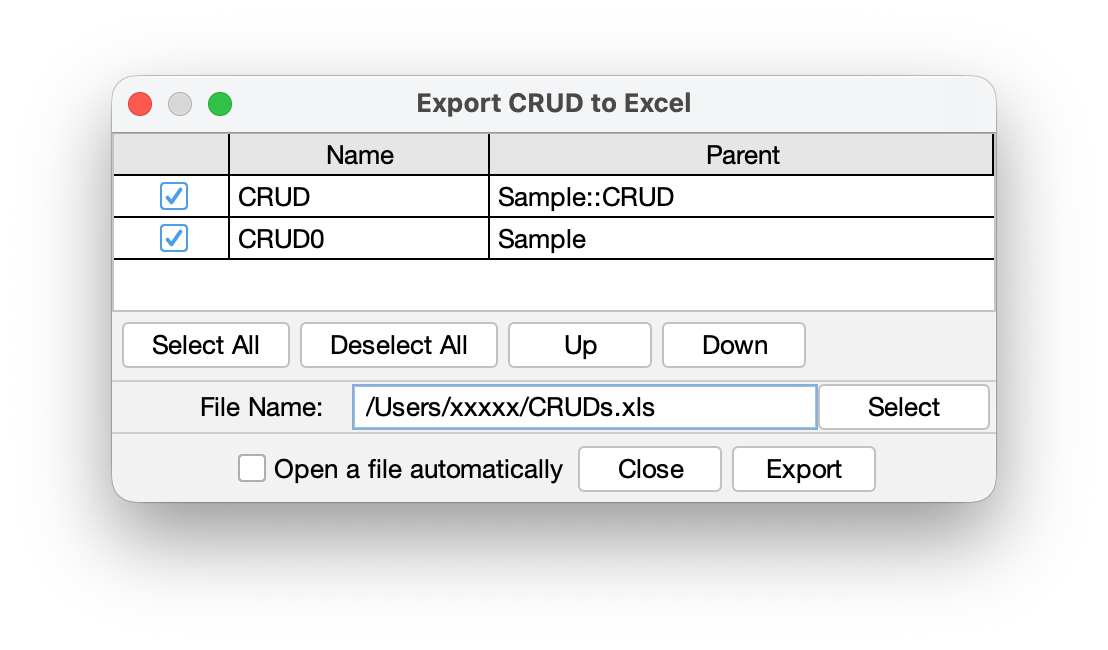
Export CRUD statistics to Excel
To export a project-wide summary of CRUD coverage:
Tools → CRUD → Export CRUD Statistics to Excel
This export includes statistics for all CRUD tables in the project.
System Properties
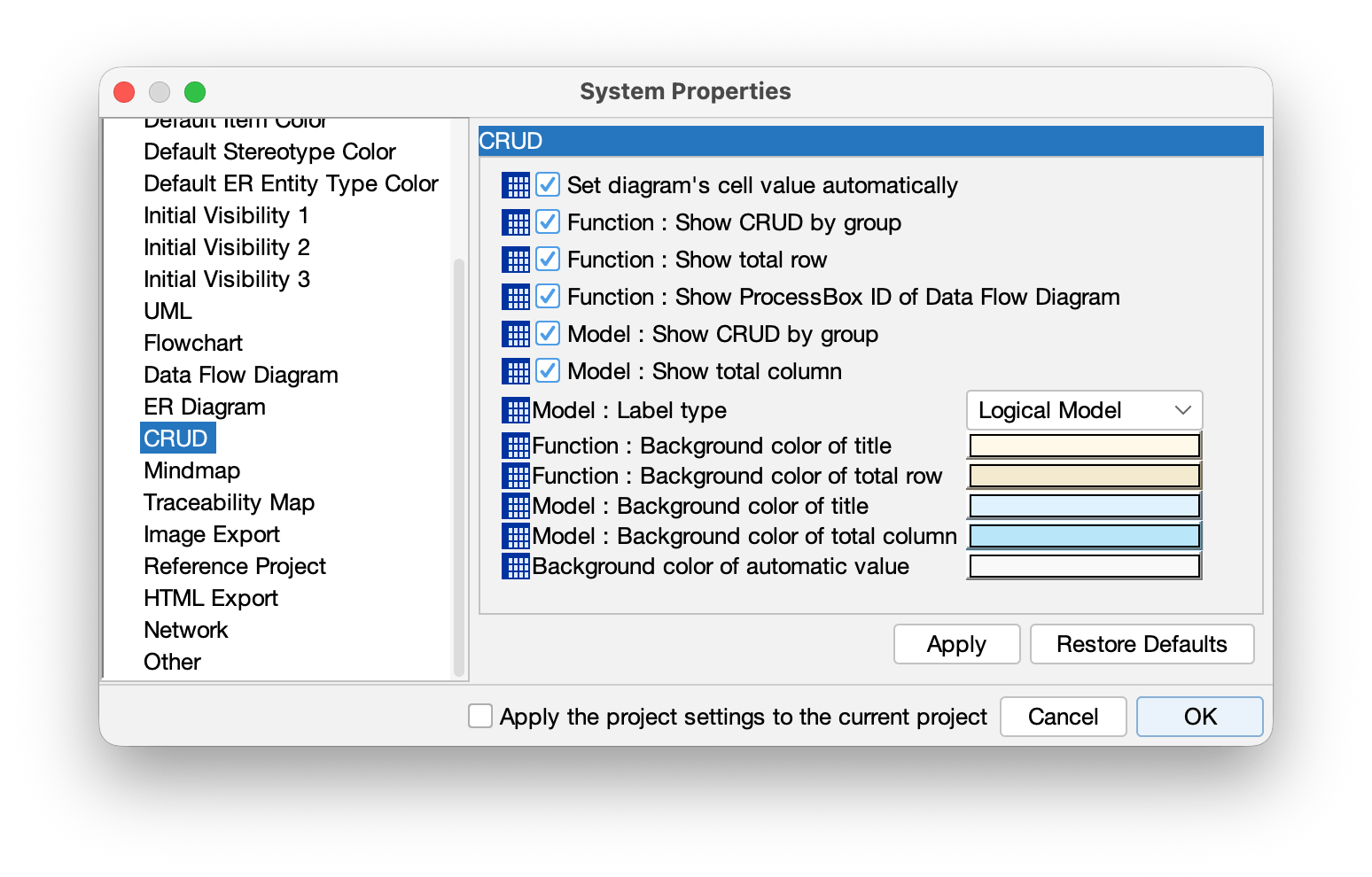
You can configure CRUD behavior in: Tools → System Properties → CRUD
Here you can adjust default display options.