
Drawing Lines
This page explains how to draw, edit, and style lines between diagram elements in Astah. You’ll learn how to:
- Draw lines using Draw Suggest
- Switch line styles (including shortcuts)
- Use and configure line jumps
- Move connection points
- Jump to related model elements
- Bundle Generalization lines with Shared style
Draw lines
- Hover over the source object. The Draw Suggest icons appear near the object.
- Click the line type you want to draw.
- Click the target object to complete the connection.
Cancel drawing: Press ESC or right-click.
Line style
Astah offers four line styles:
1. Line (Straight line)
A single straight segment.
2. Line (Right Angle)
A line made of one or more orthogonal (90°) segments.
3. Curve
A smooth curved line.
4. Curve (Right Angle)
A curved line that includes right-angle corners.
Default line style
Default styles vary by diagram type:
- Data Flow Diagram: Curve
- ER Diagram: Line (Right Angle)
- All other diagrams: Line (Straight)
To change the line style while drawing, select a style from the diagram toolbar.
Change line style
To change the style of an existing line:
- Right-click the line.
- Select the new style from [Line Style].

TIPS: Use shortcut keys Switching styles is faster with shortcuts:
- Line (Right Angle): Ctrl/⌘ + E
- Line (Straight): Ctrl/⌘ + L
Line Jumps
Line jumps are available in Astah 8.2 and later, for the Line (Straight) and Line (Right Angle) styles only. When enabled, Astah shows a visual cue where lines cross, to improve readability.

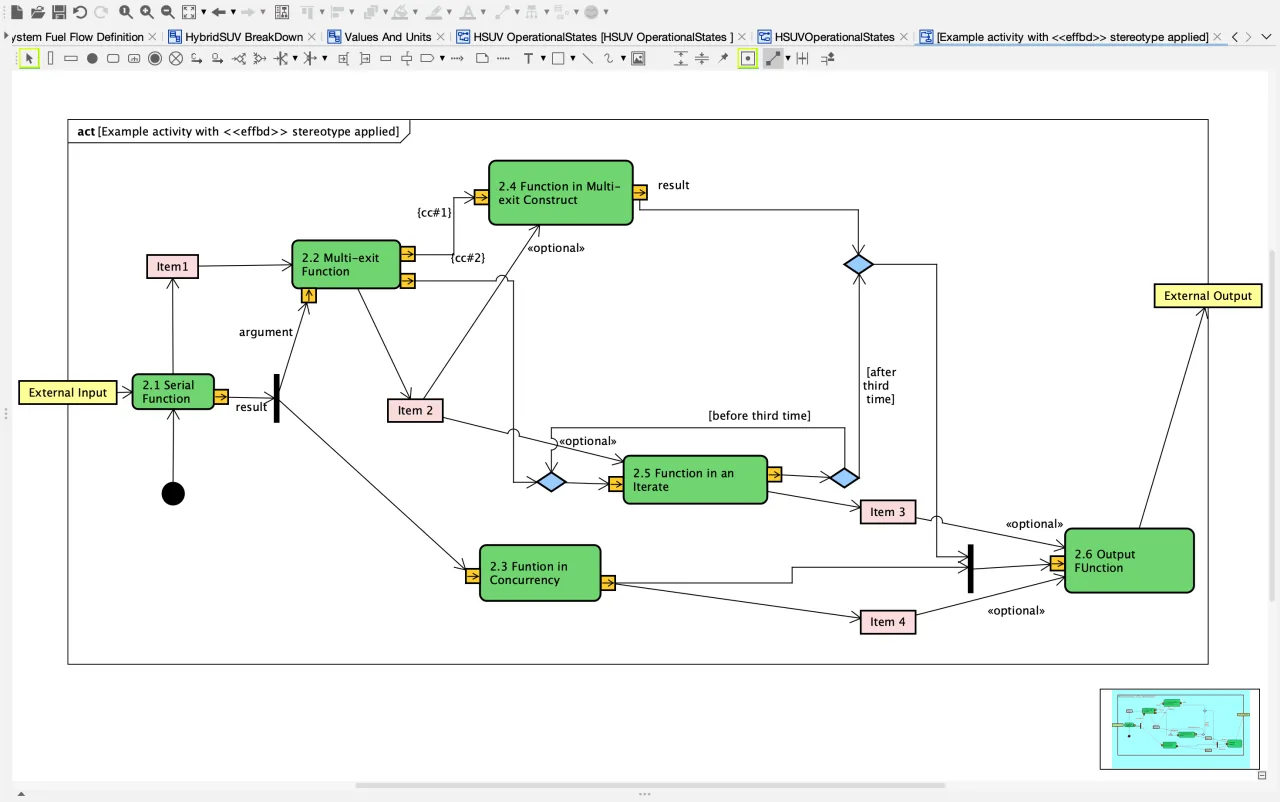
Change line jump style
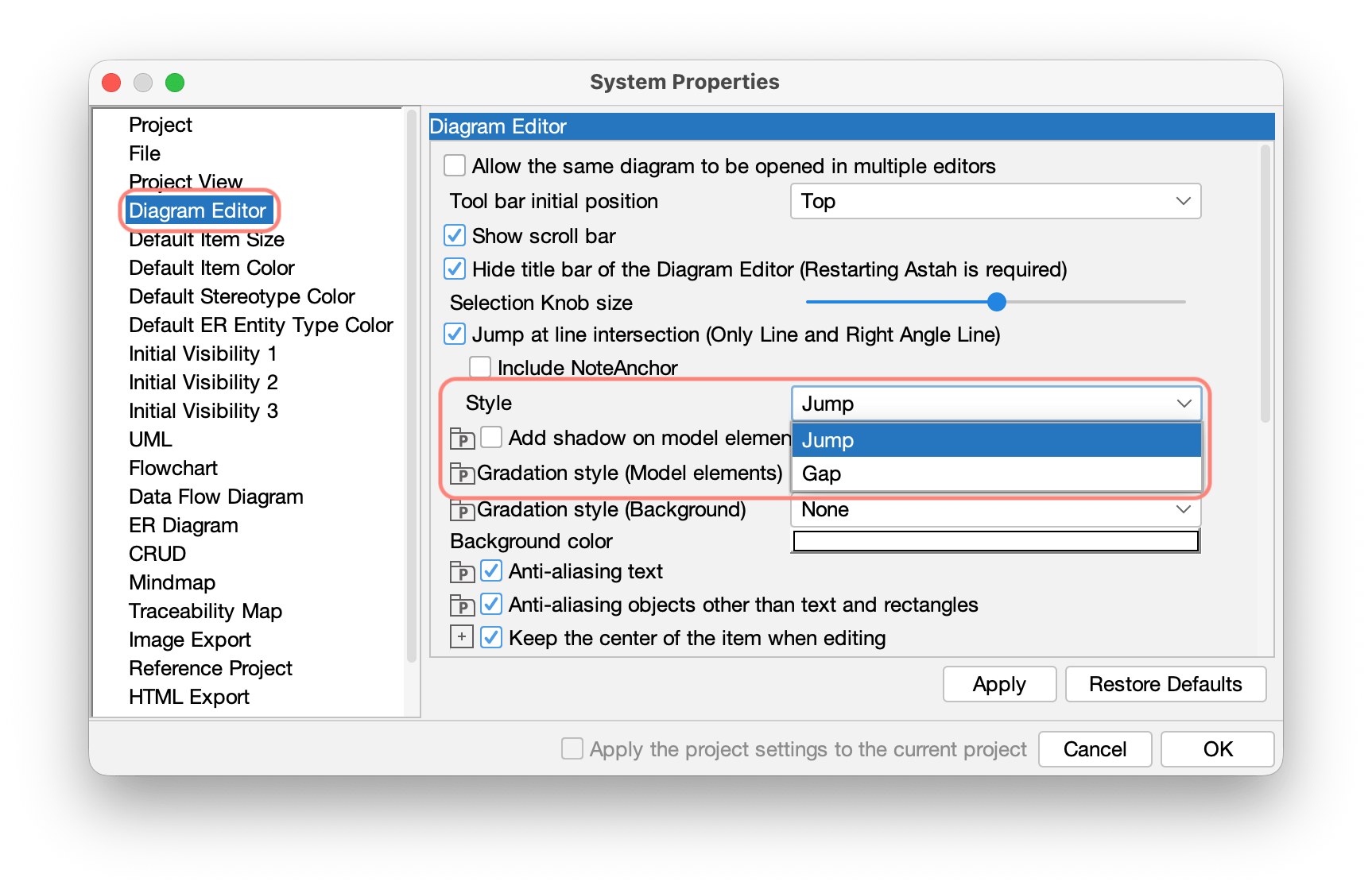
You can switch the jump appearance here:
- Go to Tools → System Properties → Diagram Editor → Style.
- Choose the jump style you prefer, then click Apply → OK.
Turn line jumps on/off
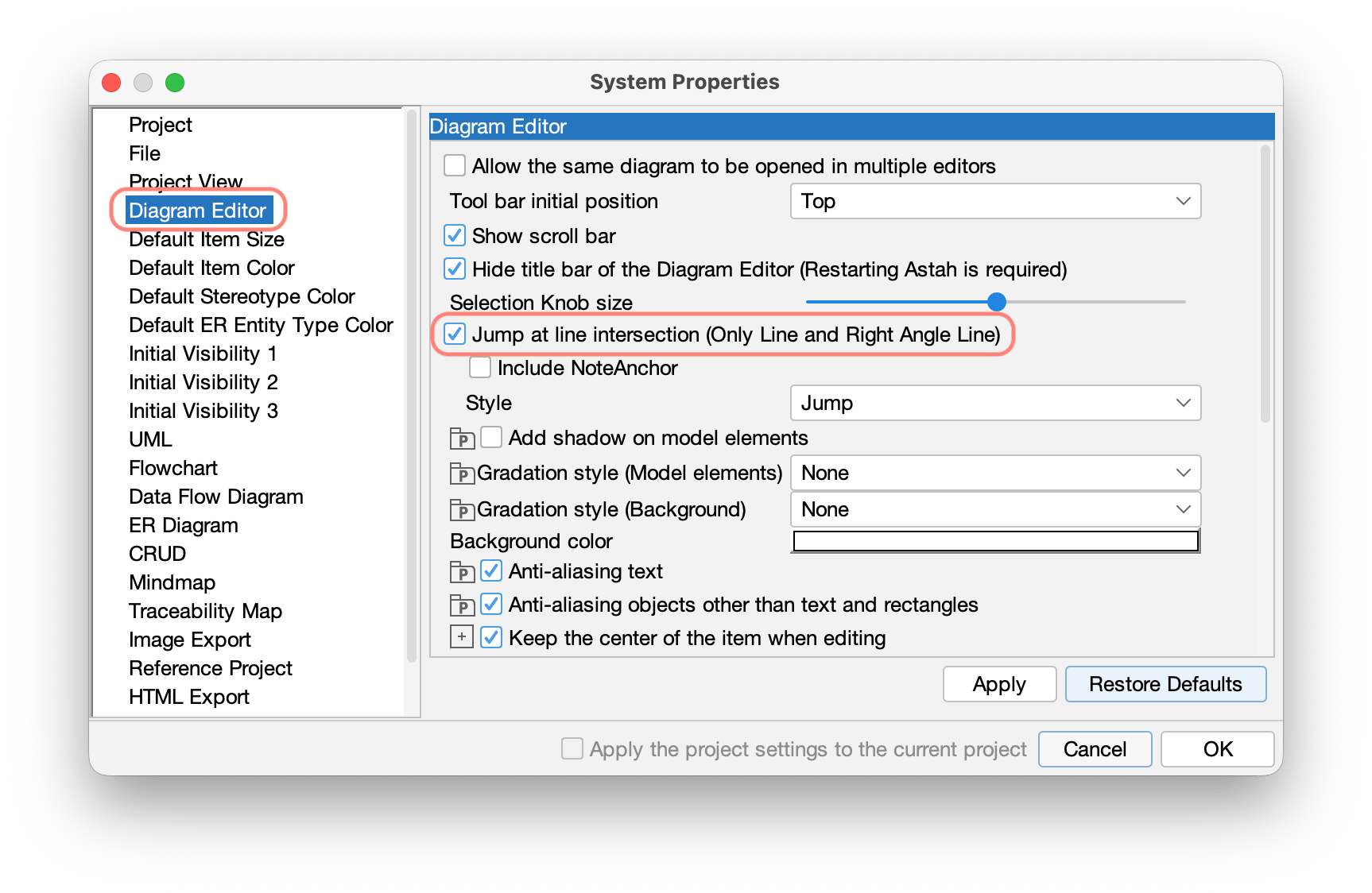
1. Globally (all diagrams)
- Go to Tools → System Properties → Diagram Editor → Style.
- Turn [Jump at line intersection (Only Line and Right Angle Line)] on or off, then click Apply → OK.
2. Per diagram
Right-click the diagram background and choose [Line jump].
3. Per line
Right-click the line and choose [Line jump] from the context menu.
If you can’t click “Line jump”: If the Line jump menu is disabled, line jumps are turned off in System Properties or for the current diagram. Enable both settings first.
Moving a connecting point
By default, lines connect to the center of an object.
To connect off-center:
- On the diagram toolbar, turn off [Connect line to the center of the object].

- Drag the connecting point to the desired position on the object border.

This helps you avoid overlaps and keep diagrams readable.
Jump to related model elements
Since Astah version 8.5, you can jump from a line to its related model elements.
- Right-click on a line.
- Select Move to related element.
- Choose the element you want to open.

This is especially useful in diagrams with many overlapping elements.
Shared Style (Generalization)
Shared Style lets you bundle multiple Generalization lines into a shared trunk for a cleaner hierarchy.
There are two ways to apply Shared Style:
Option 1: From the Edit menu
- Select all Generalization lines you want to bundle.
- Choose Edit → Shared Style → Vertical.

Option 2: Drop onto an existing Generalization arrow
- Start drawing another Generalization line.
- Drop its target end onto the arrowhead of an existing Generalization. The lines merge into Shared Style automatically.