
Merge Projects


You can merge projects with Astah Professional. There are two levels of merge:

Easy Merge
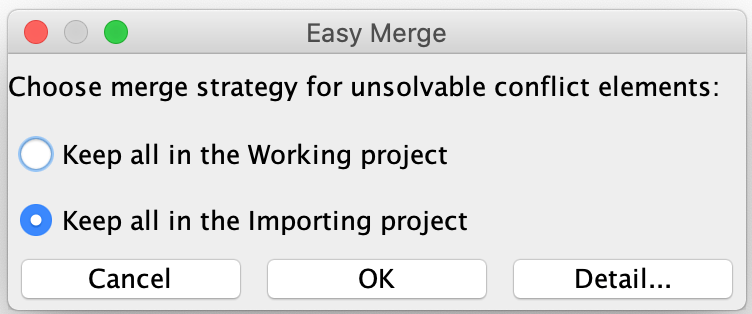
[Easy Merge] is relatively simple. When there are conflicts between two projects, Astah imports the contents of one project into the other.
- Open a .asta file.
- Go to [File] – [Merge Project…].
- Select another .asta file to merge.
- Choose which file to prioritize, and click [OK]. When there are conflicts, the models in the file you select overwrite those in the other file.
Detail Merge
With [Detail Merge], you can choose which to prioritize in the “conflict list” when there are conflicts between two project files.
- Go to [File] – [Merge Project…].
- Select a file to merge.
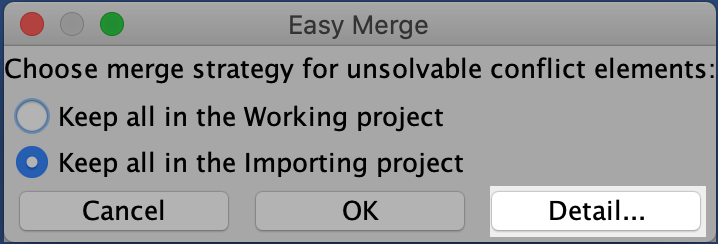
- Click the [Detail] button to open another window.
Merge Window
Left pane: Conflict tree
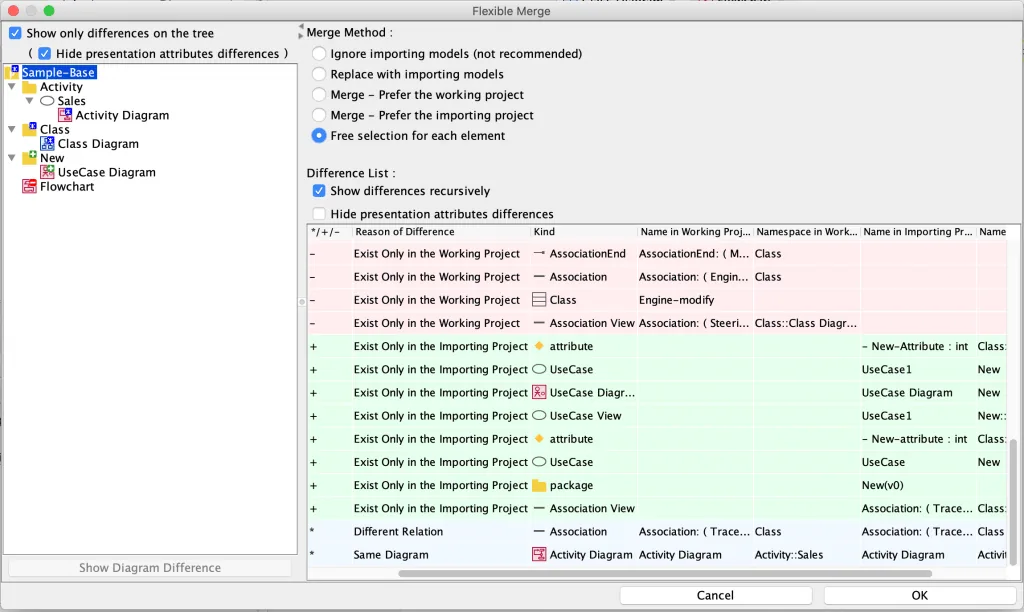
The differences between the working project and the importing project are displayed in the Conflict Tree.
Icon | Description |
|---|---|
 | This indicates that these diagrams/models exist only in the working project. |
 | This indicates that these diagram/models exist only in the compared project. |
 | This indicates that these diagrams/models exist in both projects. |
Filter in tree
Since version 8.3, you can filter the tree. To hide models whose only changes are in presentation, such as color changes or small position changes, check [Hide presentation attributes differences]. Those models are removed from the tree.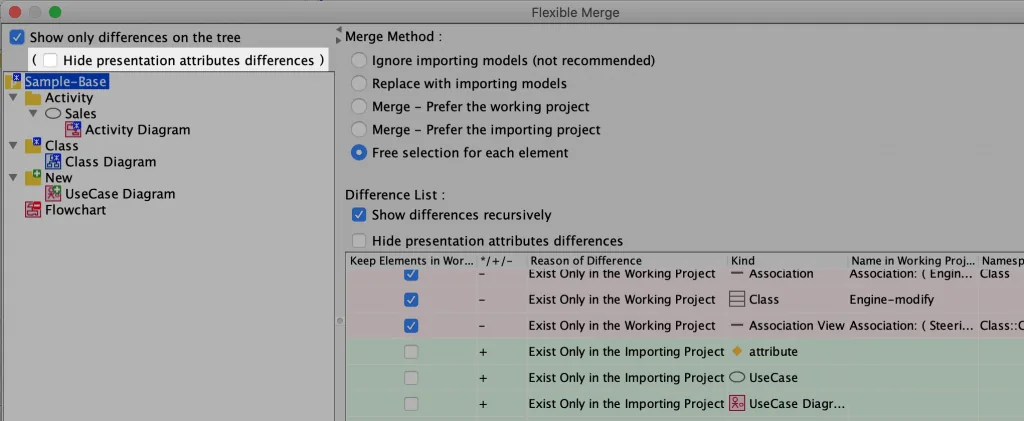
Filter in the list
Check [Hide presentation attributes differences] to remove models whose only changes are in presentation, such as color changes or small position changes, from the list. The list then shows only the models that were actually modified.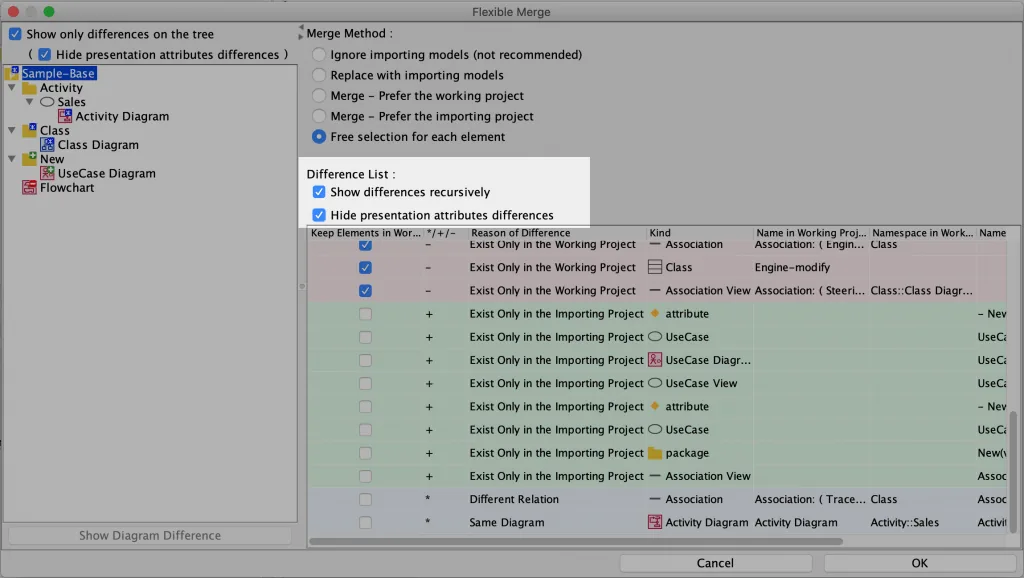
Show Diagram Difference
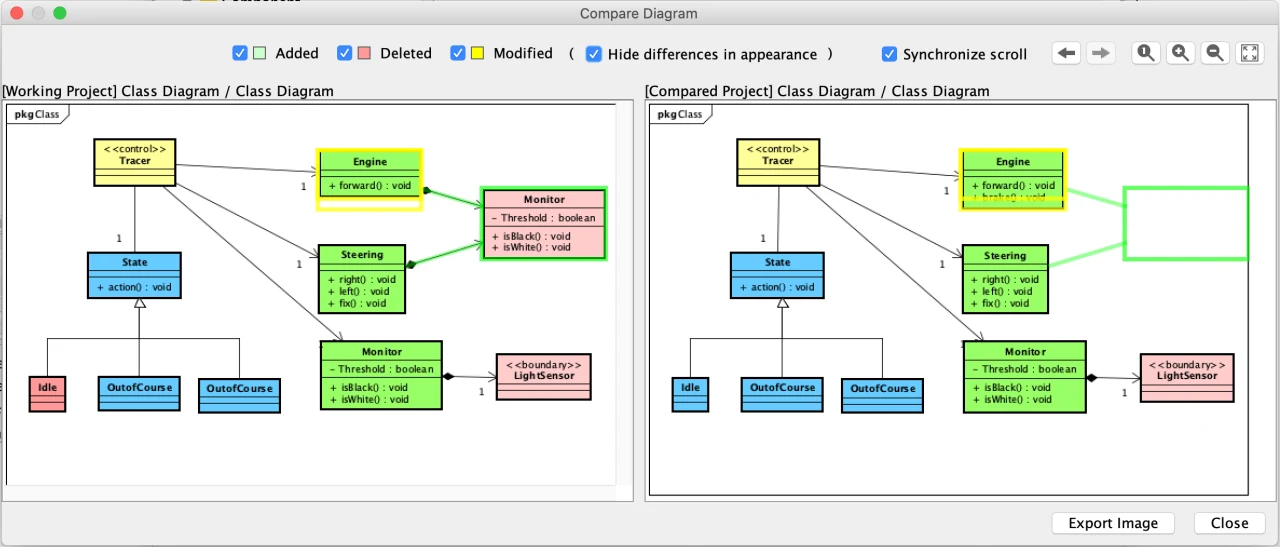
You can compare two diagrams visually by clicking the [Show Diagram Difference] button.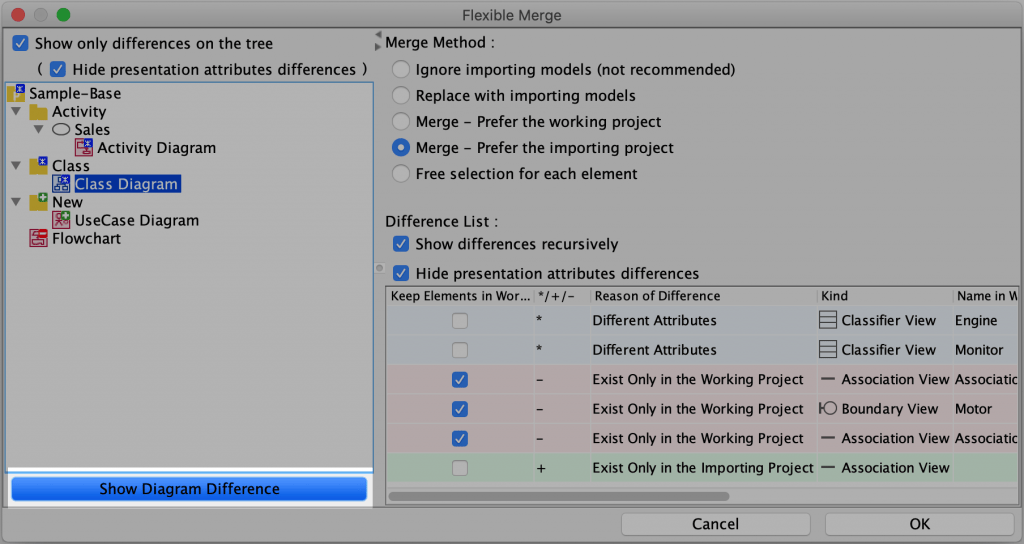
A new window opens, showing the two diagrams side by side with the conflicting models marked. You can filter the marks by type of change, such as “Added”, “Deleted” and “Modified”.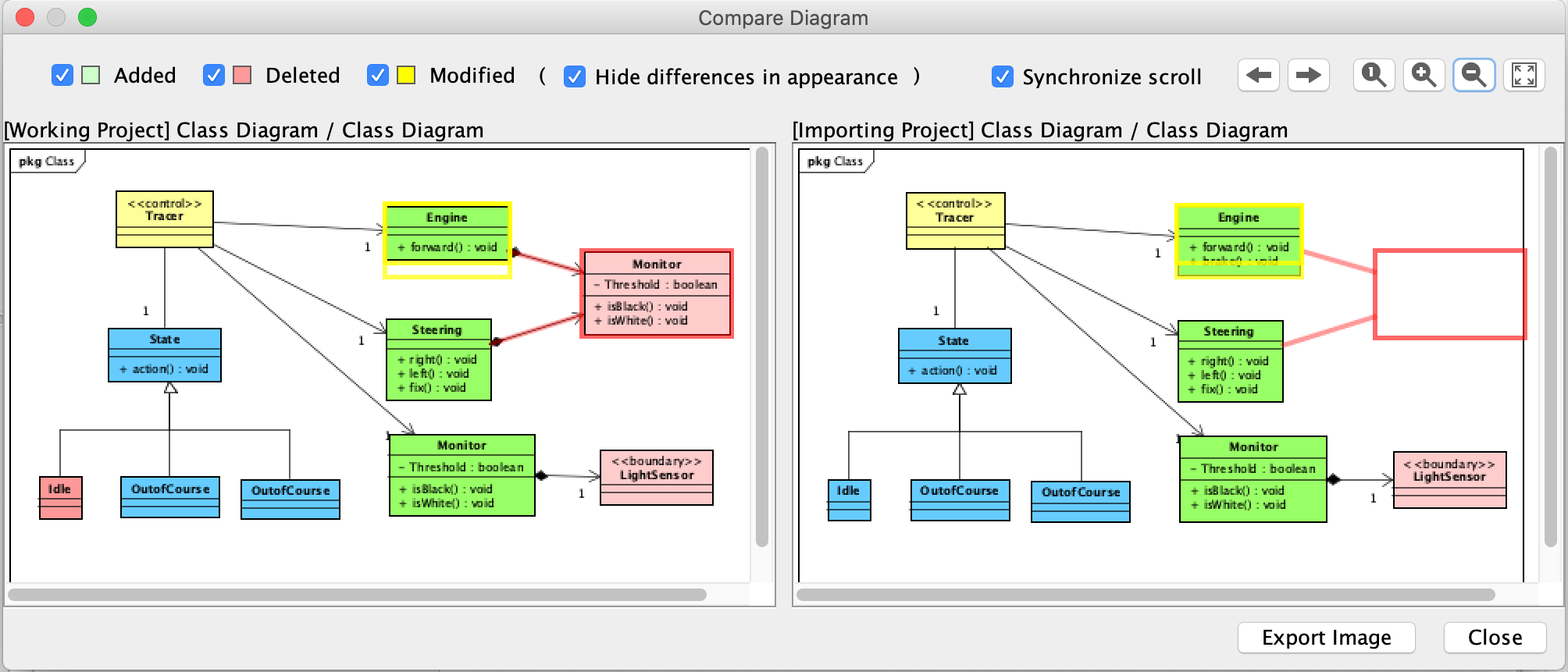
Filtering Option
Check the “Hide differences in appearance” option to filter out models whose only changes are in presentation, such as color changes or small position changes.
Merge Method
You can choose a Merge Method for each Model selected in the Conflict Tree. If you select multiple Models with different Merge Method options, all the options are displayed.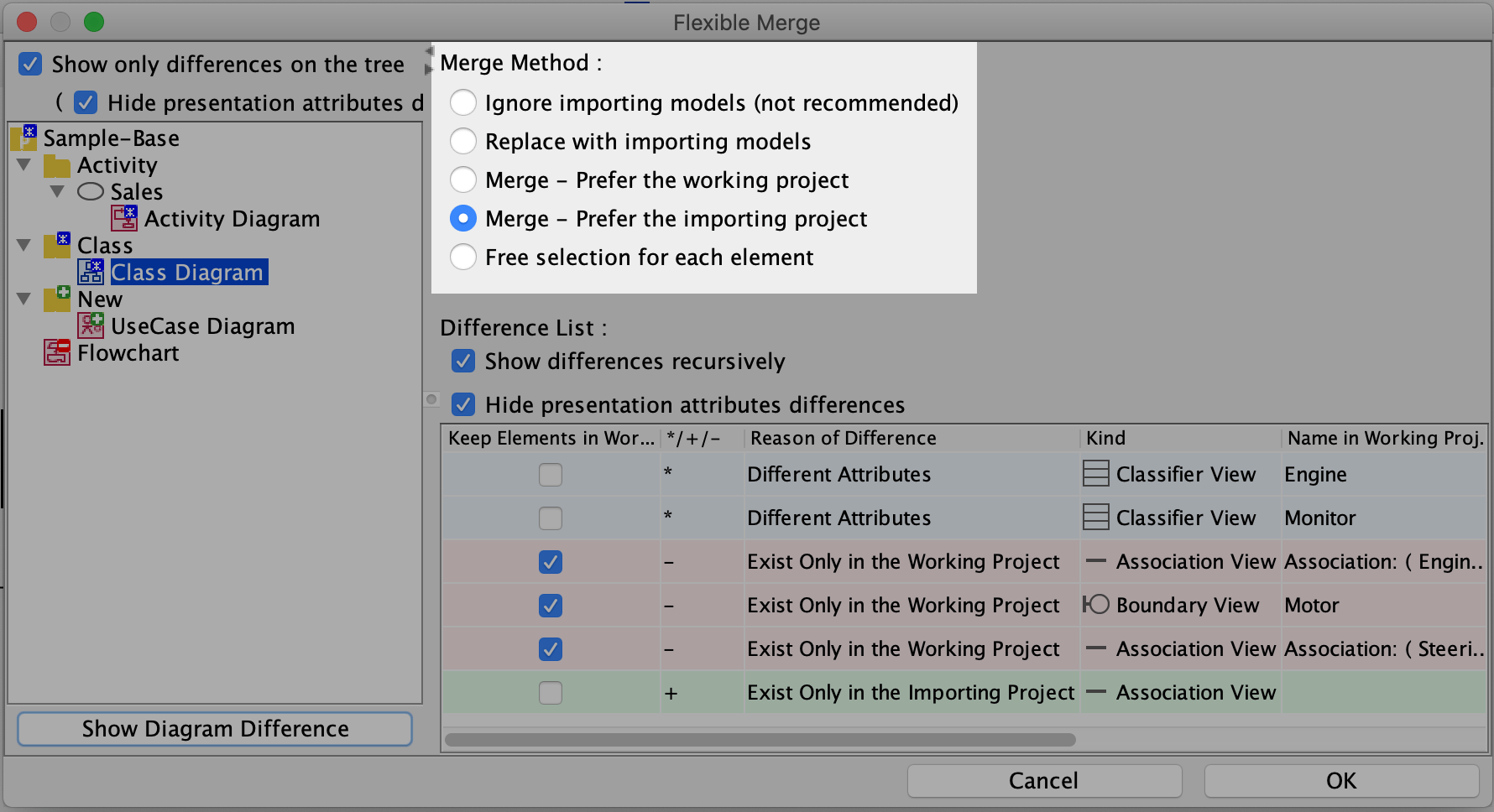
(1) Ignore importing Models
If this option is selected, importing models are not included in the merged Project.
(2) Replacing with importing Models
The Models are replaced with those in the importing Project. If the importing Project is empty, all Models will be deleted.
(3) Merge – Using this option
Using this option, Elements that exist only in either the working Project or the importing Project are merged. For other Elements, the working Project is prioritized.
(4) Merge – Prefer the Importing Project
Using this option, Elements that exist only in either the working Project or the importing Project are merged. For other Elements, the importing Project is prioritized.
(5) Free Selection for each Element
Using this option, Elements are merged according to the selection in the checkbox [Keep Elements in the Working] in the Conflict List.
Restrictions
- Merging the contents of the following diagrams is not supported: Sequence Diagrams, Communication Diagrams, Statemachine Diagrams, Activity Diagrams, Flowcharts, Data Flow Diagrams, CRUDs and Mindmaps. For these, you select either the working diagram or the importing diagram, and it overwrites the other.
- Sequence Diagrams, Communication Diagrams, Statemachine Diagrams, Activity Diagrams, Flowcharts, Data Flow Diagrams, CRUDs and Mindmaps are always displayed in the Conflict Dialog even if there are no changes.