
AI Chat Copilot




Astah version 11 include AI Chat Copilot, an in-app assistant pane that supports your modeling work through natural conversation – without leaving Astah.
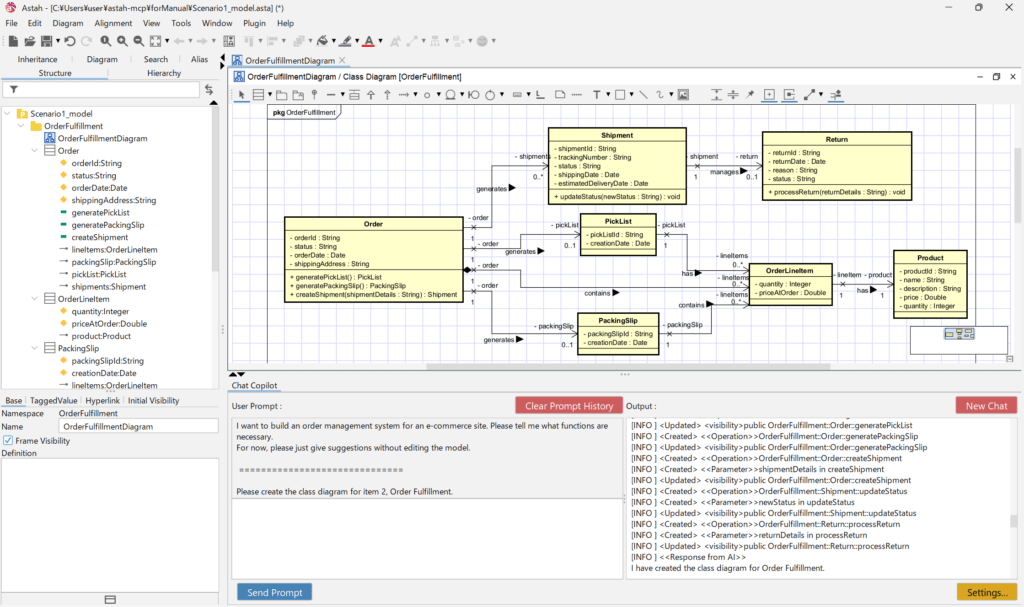
Overview
AI Chat Copilot adds a Chat pane to Astah, allowing you to interact with an AI service directly while working with models and diagrams.
AI Chat Copilot uses an external AI service you select. Astah itself does not perform AI processing, nor does it learn from or analyze user data.
To use AI Chat Copilot, a valid API key must be configured. If the API key is not configured correctly, AI Chat Copilot will not function.
Why Use AI with Astah?
- Convert textual descriptions into diagrams
- Explore design ideas quickly
- Reduce manual diagram creation
- Improve understanding of existing models
What AI Chat Copilot Can Do
Copilot supports your modeling with three core actions:
1. Generate diagrams from text
Describe a system, feature, or scenario in your own words, and Copilot proposes diagrams.
Supported Diagram types
(Available diagram types depend on your Astah edition):
- Class Diagram
- UseCase Diagram
- Sequence Diagram
- Activity Diagram
- Statemachine Diagram
- ER Diagram
- Block Definition Diagram
- Internal Block Diagram
- Parametric Diagram
2. Summarize and interpret existing diagrams
Ask Copilot to:
- Explain a diagram in plain language
- Highlight key flows or main scenarios
- Describe responsibilities and relationships between elements
This is useful for documentation, onboarding, and design reviews – even when stakeholders use different languages.
3. Refine and expand designs
Use conversation to:
- Improve the structure of your diagrams
- Check for missing elements or inconsistencies
- Request additional details or alternative designs
Copilot helps you iterate quickly, while you keep full control over what is applied to your models.
For more scenarios and prompt examples for design workflows, model analysis, documentation generation, and code integration — see: Detailed Scenarios & Prompt Examples (Currently for Astah Professional and UML only.)
Quick Start
You can begin using Copilot in just a few steps.
- Create a new or open a file
- Open the Chat Copilot pane
Select the Chat Copilot tab in the Extra view which you can open from [View] – [Show/Hide Extra View].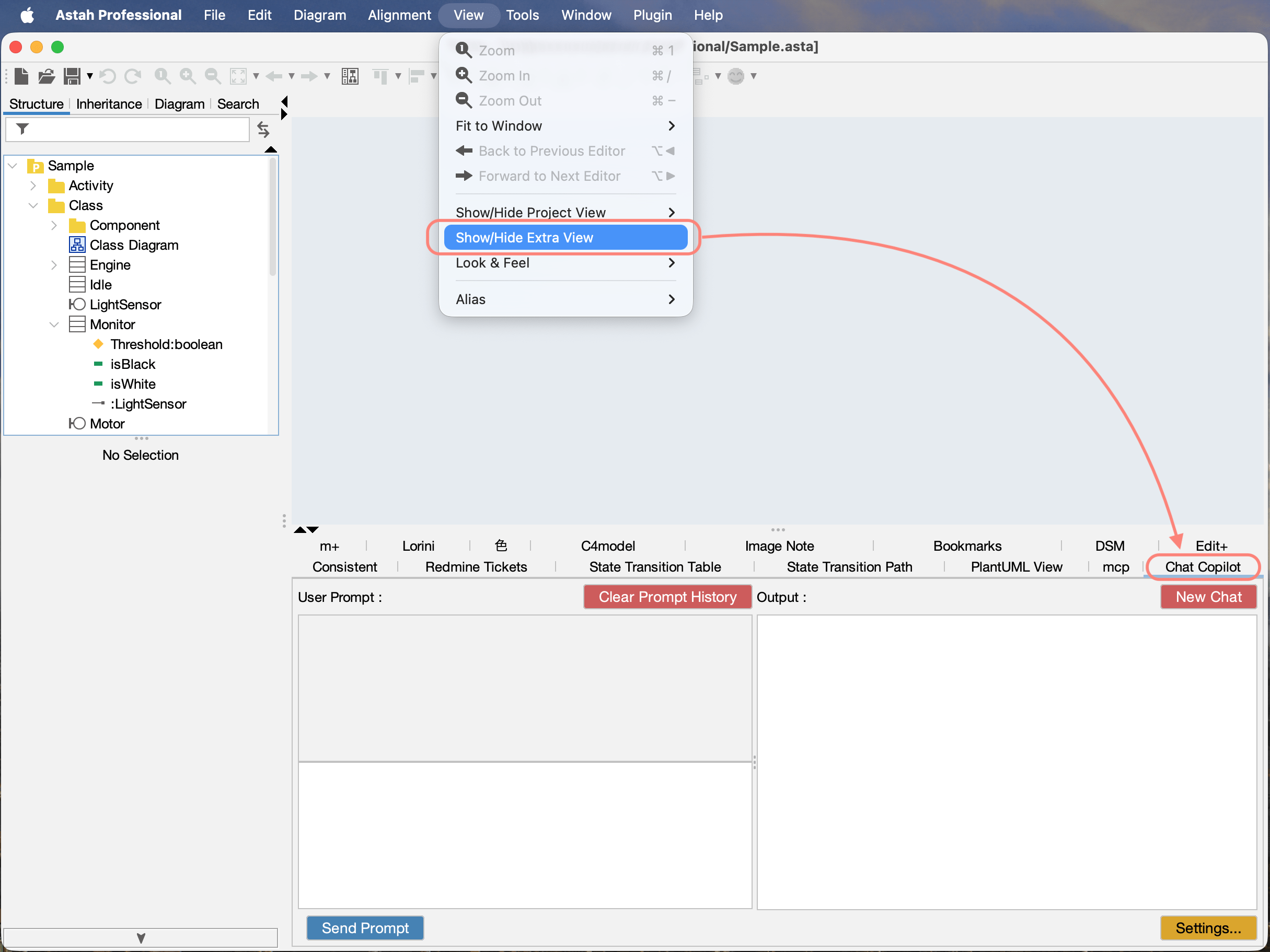
- Settings
Click Settings in the Chat Copilot view and select which AI services and models you want to use, along with other options. For more details, see the Settings section below.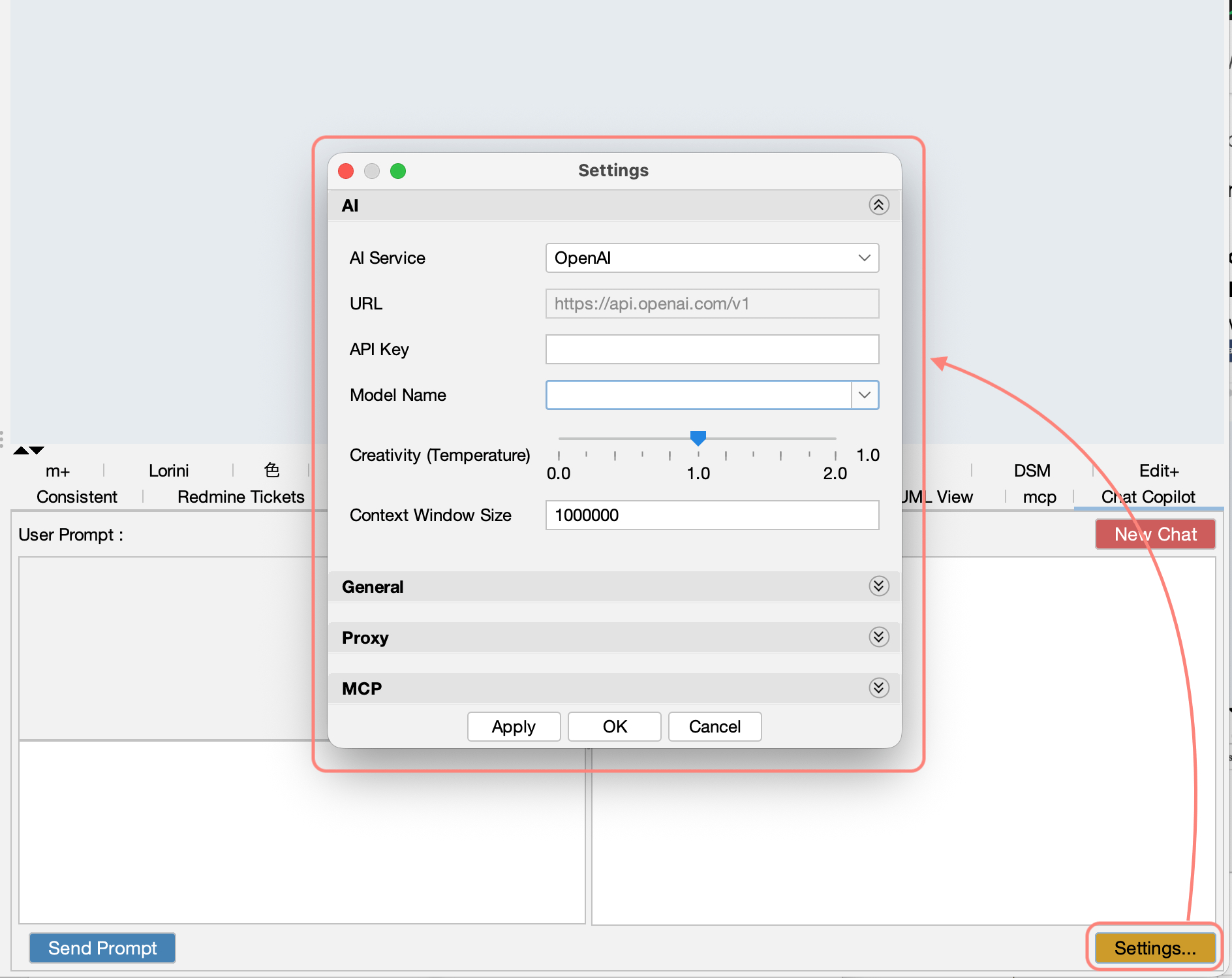
- Enter your prompt:
In the User Prompt area, type what you want to model or understand. You can write naturally in your preferred language – no special syntax is required. - Send and review results
Click Send Prompt. Copilot’s response appears in the Output area. Use the result as a draft and refine it in Astah as needed.
Tip: To start a new conversation, click New Chat in the upper-right of the pane.
Settings
Enable and Configure AI Chat Copilot
To use AI Chat Copilot, you need to enable AI features and confirm your connection settings.
Configuration Steps
- Open Settings in the Chat Copilot view, then configure the following sections.
1. AI Settings

- AI Service:
Select the AI Service to use.
Available options: OpenAI / Claude / Gemini / OpenAI-compatible. - URL:
Specify the base URL of the selected AI service API.
This field is editable only when “OpenAI-compatible” is selected. - API Key:
Enter the API key for the AI service.
Generate and obtain your API key from your AI service provider. - Model Name:
Select or enter the AI model to use.
After setting the API key, click [Apply] to fetch the list of available models. - Creativity (Temperature):
Adjust how creative or deterministic the responses should be. Higher values produce more creative and varied outputs. The available range may vary depending on the model and AI service. - Context Window Size:
Set the context window size for the AI. You can leave this unset to rely on the automatic control. A larger value allows longer responses, but increases cost. The available range depends on the AI model. For details, refer to the specifications of your AI service.
2. General
Configure general behavior of AI Chat Copilot.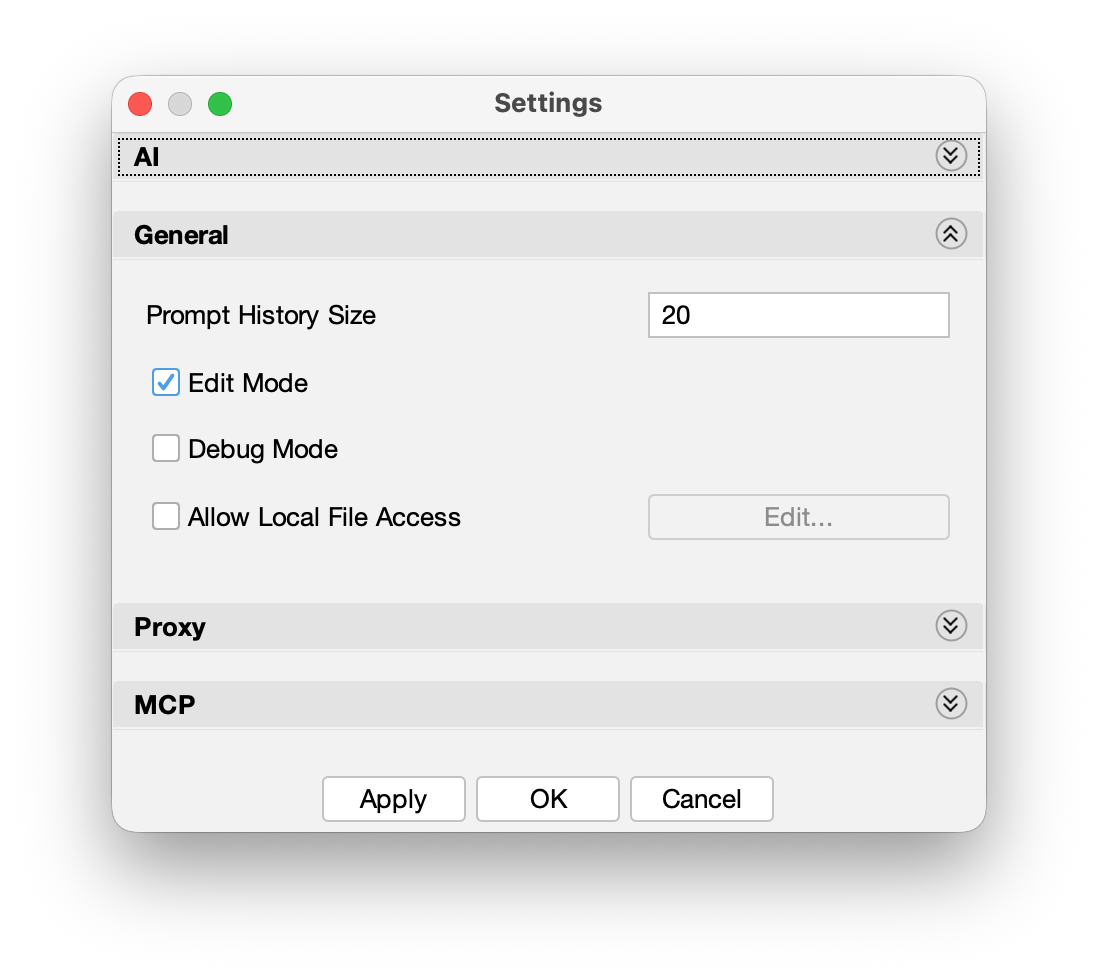
- Prompt History Size:
Set how many entered prompts are kept in history.
Note: Astah AI Chat Copilot does not store the history of AI outputs (responses). - Edit Mode:
Allows the AI to edit models. This is enabled by default.
Turn this off if you want to restrict AI to “read-only” assistance. - Debug Mode:
This outputs detailed logs.
Log file location: (User Home)/.astah/professional, uml, sysml or systemsafety/astah-copilot.log - Allow Local File Access:
Allows the AI to read local files. Click [Edit] to set allowed paths. Please take extra care when granting access to folders that contain confidential information.
3. Proxy
Configure network connection settings.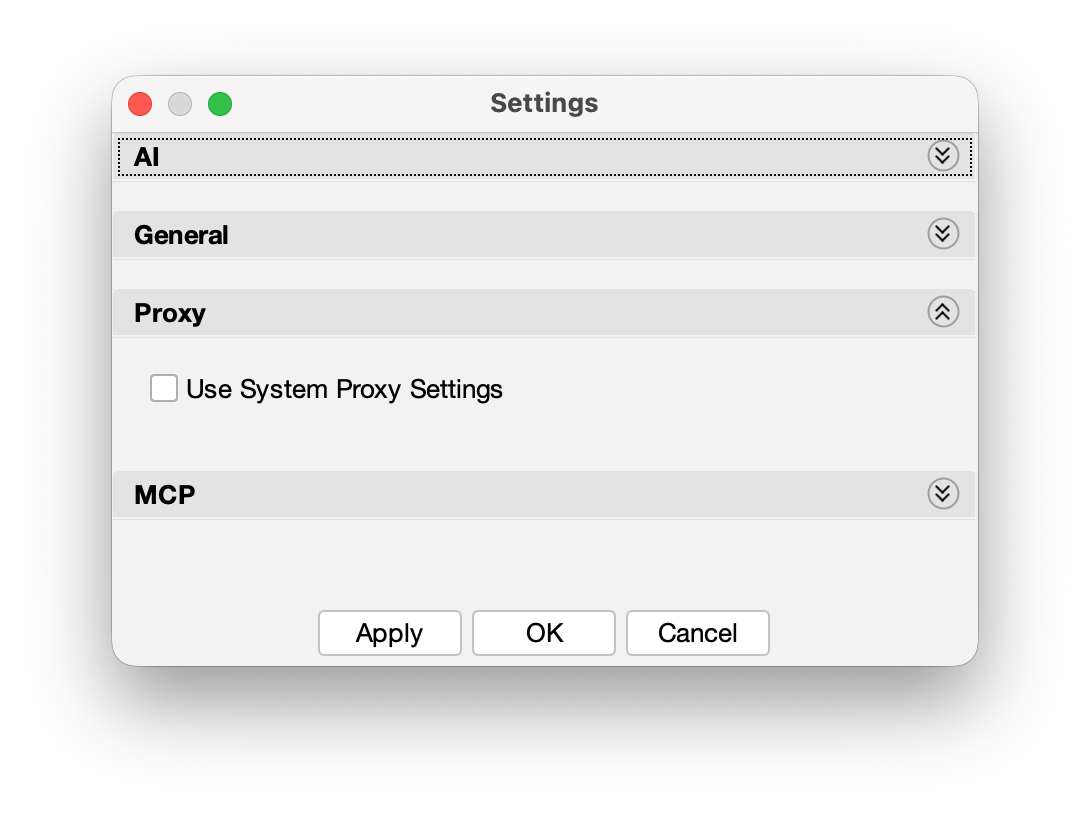
- Use System Proxy Settings: Enable this to connect to the AI service using the system proxy settings.
4. MCP
You do not need to configure MCP section if you only use AI Chat Copilot inside Astah.
Configure settings if you want to integrate Astah with external AI clients that support MCP.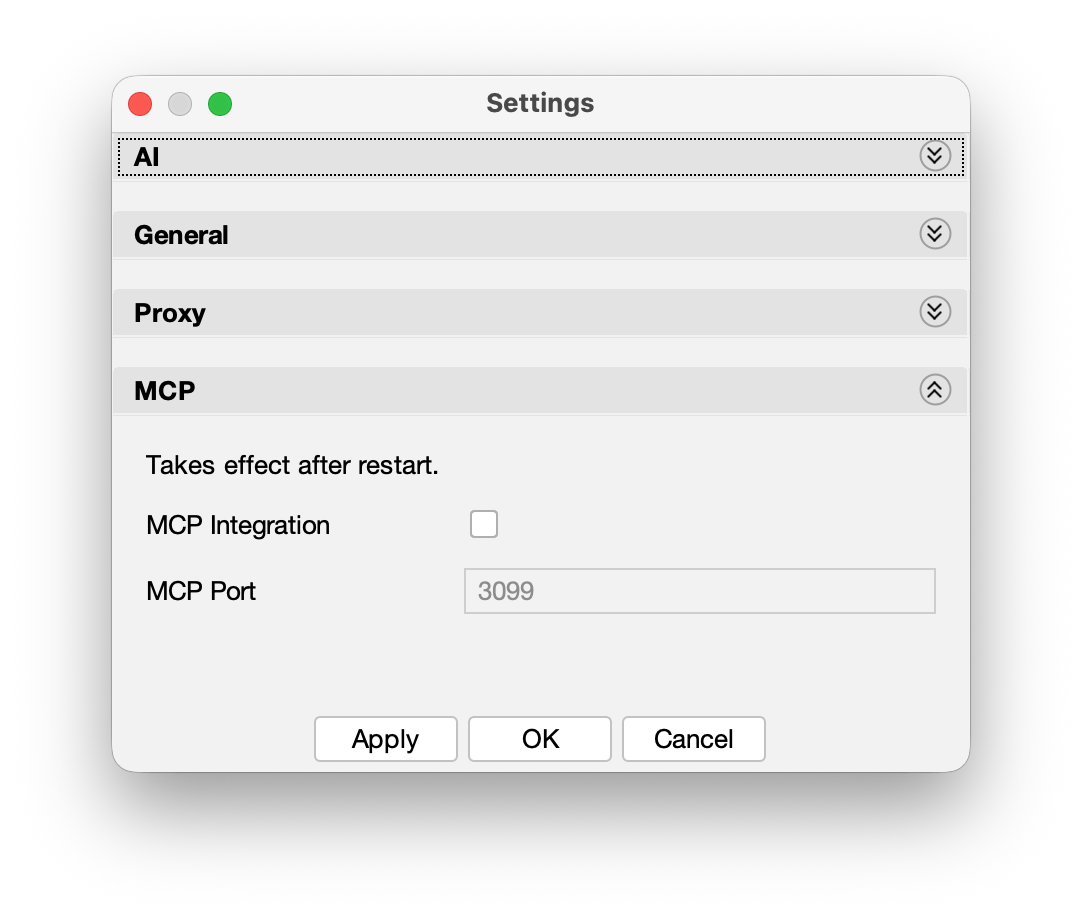
Notes and Limitations
- AI Chat Copilot relies on an external AI service.
- AI-generated results may be incomplete or inaccurate.
- Always review and validate diagrams before use.
- Do not enter confidential or sensitive information unless permitted by your organization’s policies.
Token Limitations
- AI services have an upper limit on the number of tokens they can process.
- Sending or receiving very large specifications or model data in a single request may:
- Reduce response quality
- Cause timeout or errors
- Make processing unstable
- Try to adjust your prompts so that the exchanged information does not become excessively long.
Updating AI Chat Copilot
AI Chat Copilot is provided as a plug-in.
When updates with bug fixes or improvements become available, we provide an updated plug-in .jar file. Follow the steps below to update Chat Copilot to the latest version.
How to Update AI Chat Copilot
- Download the latest AI Chat Copilot .jar file.
Currently the latest version is bundled with Astah version 11. - Drag and drop the .jar file into the Astah window while Astah is running.
- Restart Astah to apply the update.
Current Version Information
- Latest AI Chat Copilot Version: 1.0
- Bundled Astah Version: Astah version 11
How to Check Your Installed AI Chat Copilot Version
- Open [Plugin] → [Installed Plugin].
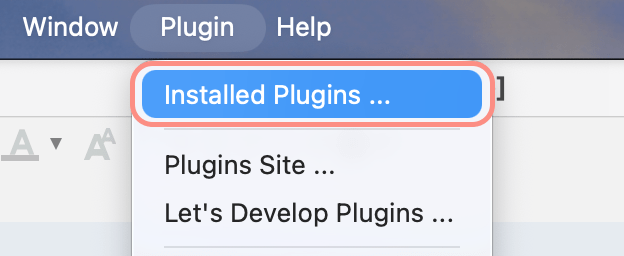
- A list of installed plug-ins will appear.
- Locate “Astah AI Chat Copilot” and check the Version column.
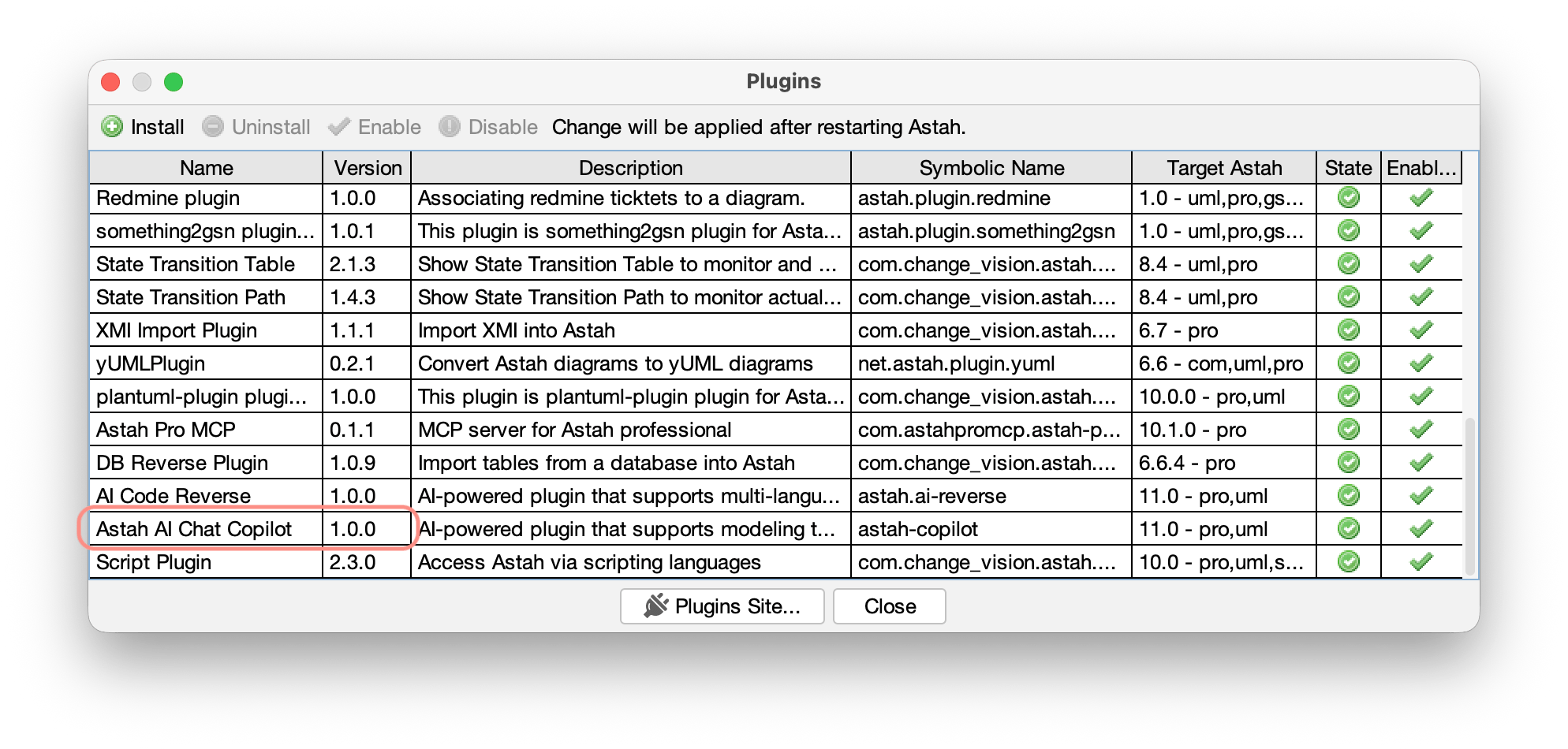
How to uninstall AI Chat Copilot
- Open [Plugin] → [Installed Plugin].
- A list of installed plug-ins will appear.
- Locate “Astah AI Chat Copilot” and click [Uninstall].
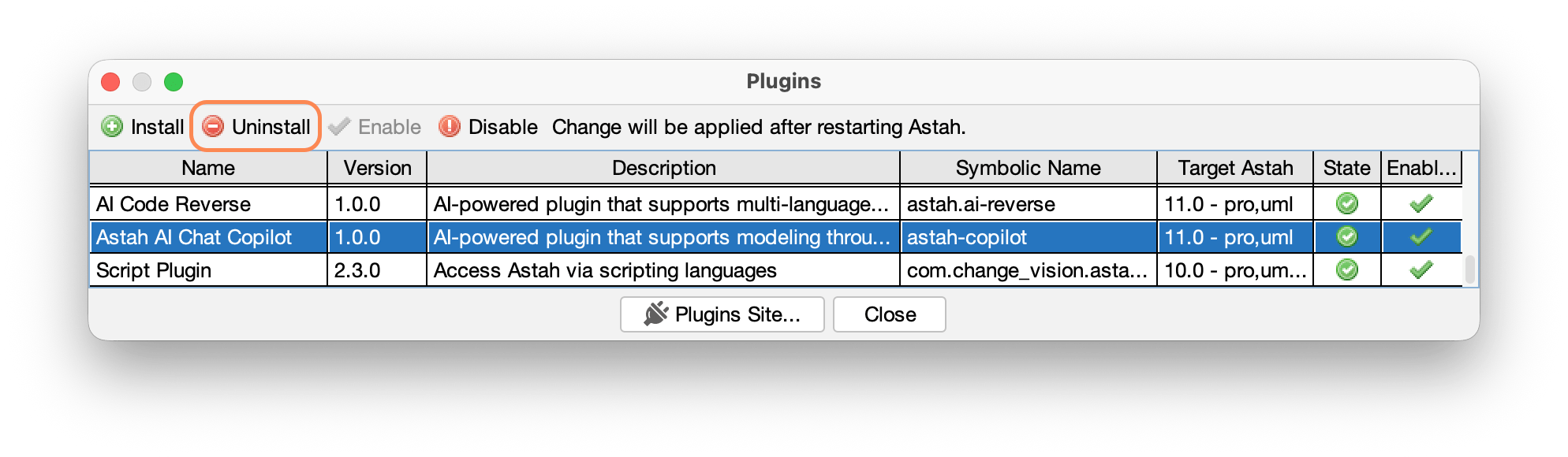
- Restart Astah.
- AI Chat Copilot pane no longer appears.