Astah MCP Server


Connect Astah to external AI clients
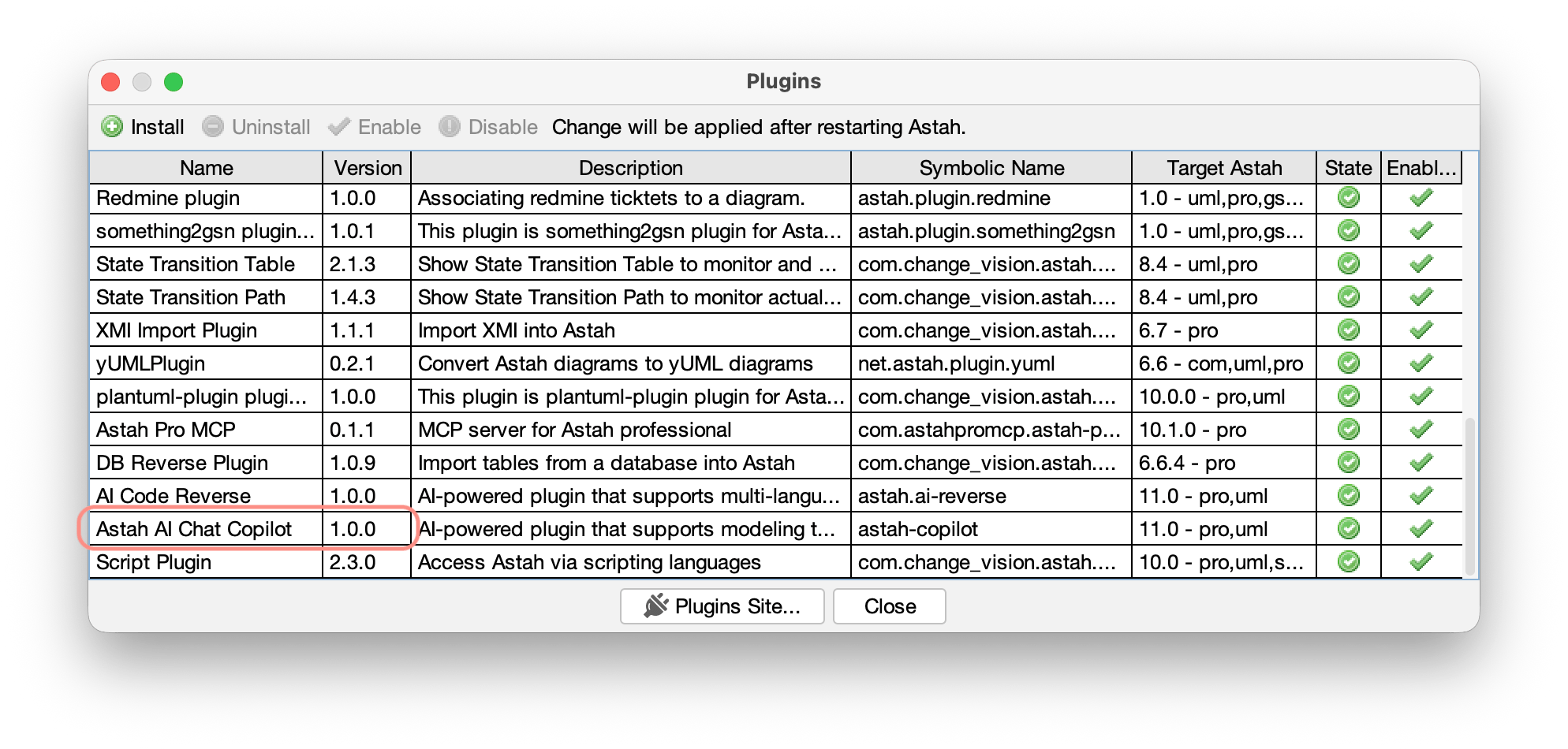
Starting with Astah Professional and Astah UML version 11, the AI Chat Copilot plugin is included by default. This plugin lets you connect Astah to an external AI service via MCP(Model Context Protocol).
So that you can work with your Astah models using your preferred AI clients.
What is MCP?
MCP (Model Context Protocol) is a standard protocol for connecting AI clients to tools and applications. For more details, see the official MCP documentation.
What you can do with a MCP Server
You can:
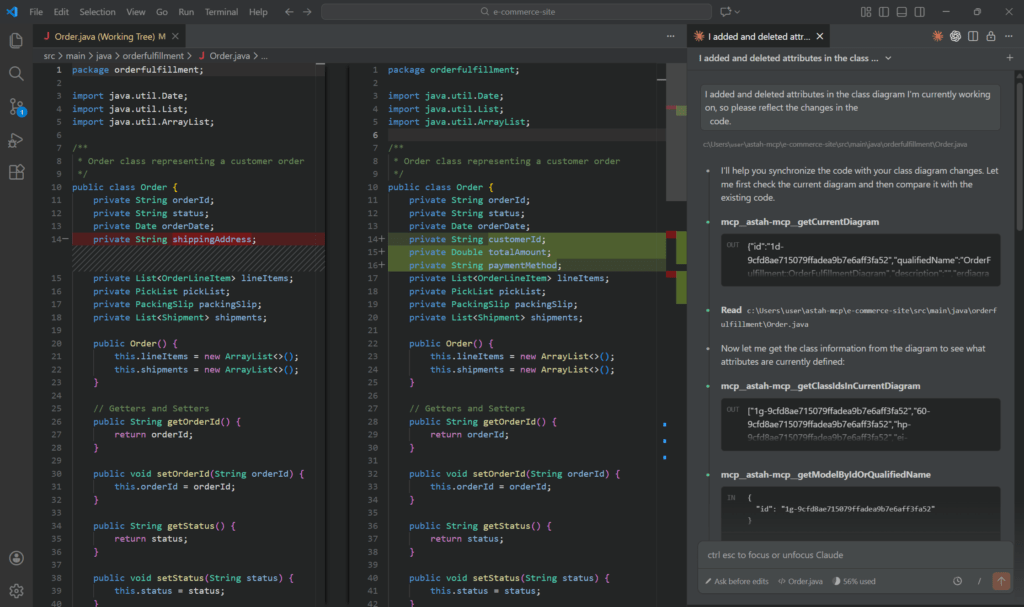
- Use your preferred AI client to work with Astah models
- Generate, update, and analyze diagrams from outside Astah
- Bring external context such as documents, specifications, or files into AI-assisted modeling
- Combine diagram operations with documentation, code, and review workflows
For scenarios and prompt examples for design workflows, model analysis, documentation generation, and code integration — see: Detailed Scenarios & Prompt Examples
Configure Astah
You can enable the MCP Server in a few minutes.
- Launch Astah Professional or Astah UML (version 11 or later)
- Open the Chat Copilot pane
Select the Chat Copilot tab in the Extra view which you can open from [View] ▸ [Show/Hide Extra View].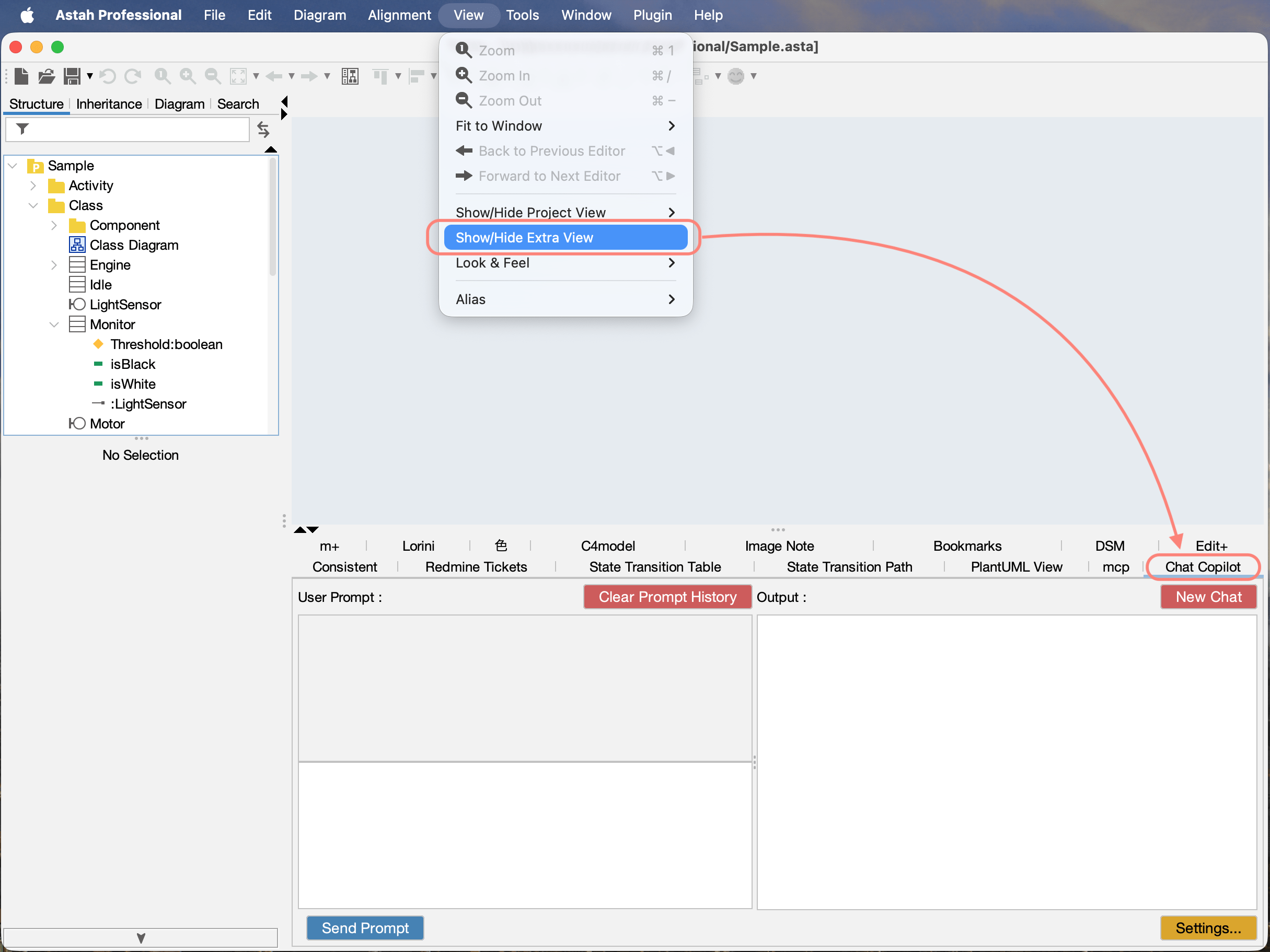
- Settings
Click Settings to configure the setting to connect Astah with AI service.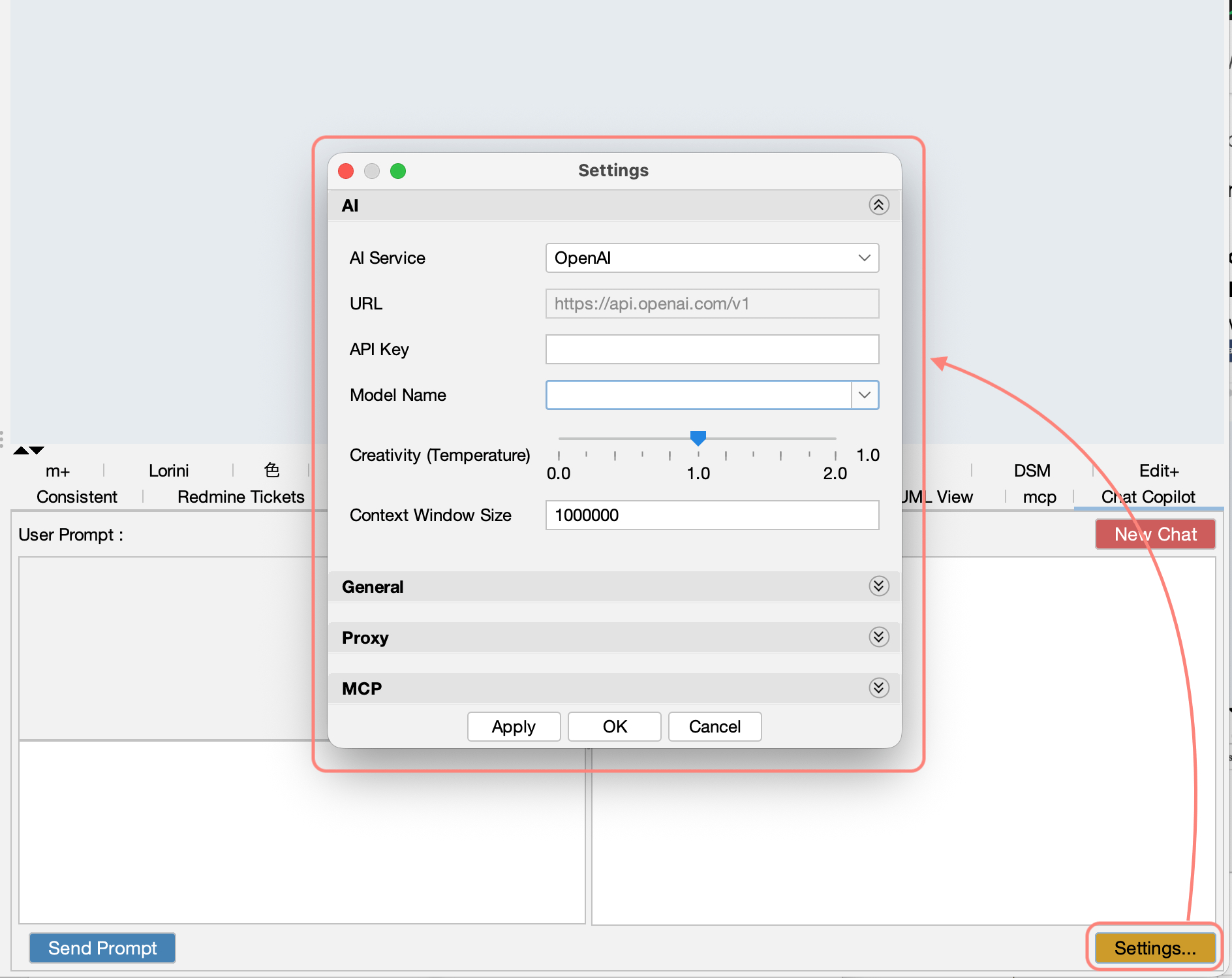
- Open MCP section to enable integration with MCP-compatible AI clients.
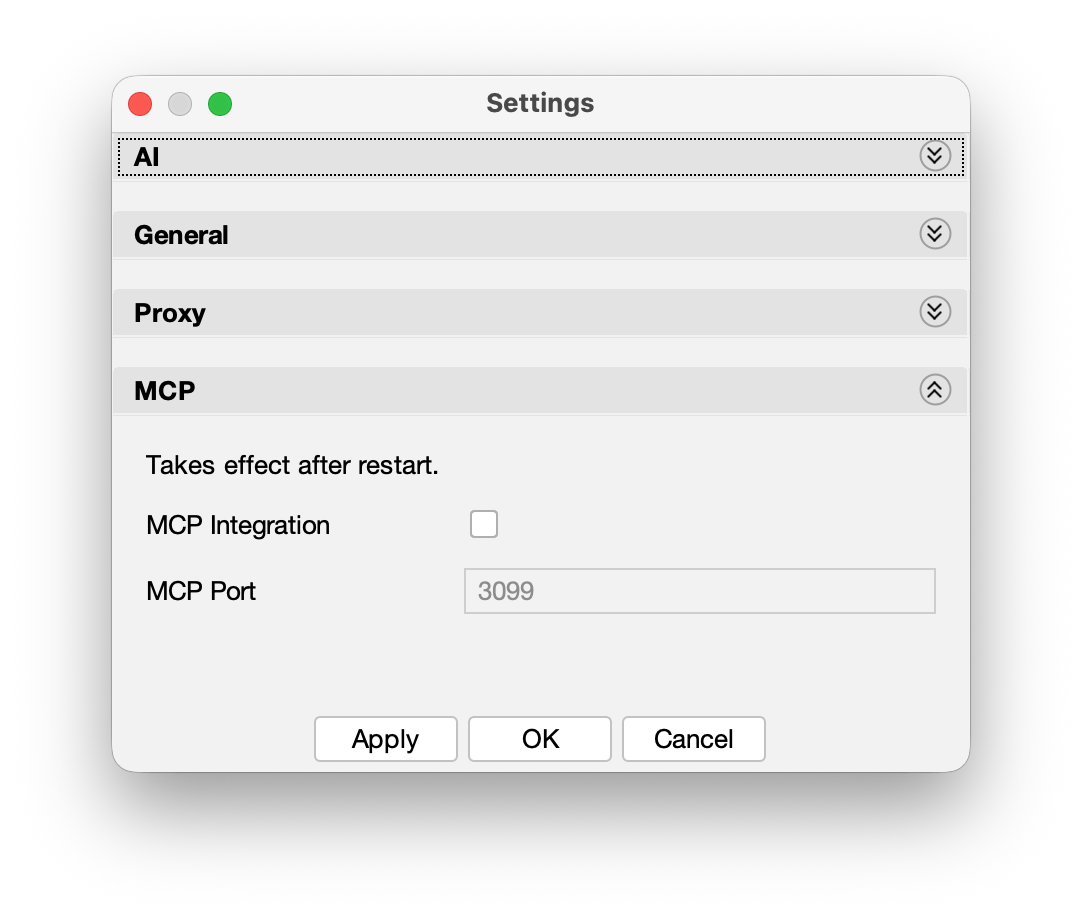
- MCP Integration:
Enable this option to allow external AI clients to connect to Astah via MCP.
You must separately register the MCP server in the external tools or agents you use. - MCP Port:
Specify the port number used by the MCP Server.
If you change this value, update the port setting in your AI client as well.
NOTE:
If you plan to use an external AI client via MCP, you only need to configure the MCP section. To use the in-app Chat Copilot, configure the other sections as well.
Configure Clients
Verified Clients you can connect with Astah via MCP
The following MCP-compatible clients have been verified to work with Astah:
Other MCP clients
You can also use other clients that support MCP. If your preferred client is not listed above, configure it using the MCP server URL and port.
Connection Information
- Communication method: HTTP Streamable (SSE)
- Default port: 3099
- Endpoint: http://localhost:3099/mcp
Claude Code (-VSCode)
On a computer where Claude Code is installed, run the following command:
```bash
claude mcp add --transport http --scope user astah-mcp http://localhost:3099/mcp
```
The –scope option supports three types:
- local: Enabled only for the current working folder (local workspace). Default
- project: Saved per project. You can include .mcp.json in your repository to share the configuration with your team.
- user: Enabled for the entire user account on this PC. The same MCP server can be used from any folder.
GitHub Copilot Chat – VS Code
- Open VS Code (with the GitHub Copilot Chat extension installed).
- Open the Command Palette:
- Windows/Linux: Ctrl + Shift + P
- macOS: Cmd + Shift + P
- Search for and run MCP: Add Servers.
- Configure the following items:
- Server type: Select HTTP
- URL: Enter http://localhost:3099/mcp
- Server ID: Enter astah-mcp
- Where to install the MCP server setting: Choose either
- Local (current workspace only), or
- Global (all workspaces)
Cline – VSCode
- Open VS Code.
- In the Activity Bar on the left, select the Cline extension tab.
- In the Cline panel, click the settings icon to open the MCP settings.
- Click Configure MCP Servers.
- Add the following to the configuration file:
```json
{
  "mcpServers": {
    "mcp-remote": {
      "url": "http://localhost:3099/mcp",
      "type": "streamableHttp",
      "disabled": false
    }
  }
}
```
Copilot CLI
- Launch Copilot CLI.
- Run the /mcp add command.
- Set the following items:
- Server Name: astah-mcp
- Server Type: [2] HTTP
- URL: http://localhost:3099/mcp
When you set Server Type to HTTP, you will be able to edit the URL.
You do not need to configure HTTP Headers.
Configure Tools only if necessary for your use case.
Codex
On a computer where Claude Code is installed, run the following command.
- Windows: run it in Command Prompt
- macOS/Linux: run it in Terminal
```bash
codex mcp add astah-mcp npx mcp-remote http://localhost:3099/mcp
```
Claude Desktop
- Launch Claude Desktop and open the menu in the top-left.
- Select Settings → Developer → Edit Config.
- Add the following to the configuration file (claude_desktop_config.json) and save it:
```json
{
  "mcpServers": {
    "astah-mcp": {
      "command": "npx",
      "args": [
        "-y",
        "mcp-remote",
        "http://localhost:3099/mcp",
        "--allow-http"
      ]
    }
  }
}
```
- Quit Claude Desktop completely via Quit.
- Restart Claude Desktop.
⚠️ If you close the window using the “×” button, the app may keep running in the background. Please make sure to quit it from the menu.
Start
- Launch Astah
- Launch AI Service
⚠️ Important: Start Astah before launching the AI client. If the AI client starts first, it may fail to connect to the MCP Server.
For prompt examples for design workflows, model analysis, documentation generation, and code integration — see: Detailed Scenarios & Prompt Examples
Troubleshooting
Issue: Astah Cannot Connect to MCP Server
Checks:
- Is Astah running?
- Is MCP integration enabled in the Settings?
Solution:
- Confirm the MCP integration is enabled in the Settings.
- Restart Astah.
- Restart the AI Client.
Issue: Port is already in use
Cause:
Another application is using the same port number.
Solution:
- Change the port number in the Settings. (e.g., to 3010).
- Restart Astah
- Update the port setting in the AI client as well.
Issue: AI Client does not detect Astah
Cause:
The startup order is incorrect, or the settings have not been applied.
Solution:
- Fully quit the AI client, including any background processes.
- Launch Astah and confirm that the MCP server is enabled in the Settings.
- Start the AI client.
- Check the connection status by sending new prompts.
Issue: Node.js Version Error (Claude Desktop)
Cause:
A version of Node.js older than 18 is installed.
Solution:
- Download and install the LTS version from the official Node.js website
- After installation, run node –version in Command Prompt / Terminal to confirm the version.
- Restart Astah.
- Restart Claude Desktop.
Notes, Cautions, and Safe Use
Handling Confidential Information
- The handling of information sent to AI services varies depending on the service used and the applicable contract terms. Please review the terms of use, data policies, and settings of each AI service before using it.
Backup Recommendation
- Before editing models with AI, we strongly recommend creating a full backup of the project.
About AI-Generated Content
- AI-generated content may not always be complete, correct, or consistent.
- Always review the output carefully and revise it as needed.
- Unexpected behavior or issues may occur depending on your prompts, model settings, or service status.
Token Limitations
- AI services have an upper limit on the number of tokens they can process.
- Sending or receiving very large specifications or model data in a single request may:
- Reduce response quality
- Cause timeout or errors
- Make processing unstable
- Try to adjust your prompts so that the exchanged information does not become excessively long.
Updating Astah MCP Server
Astah MCP Server is provided as a plug-in.
When updates with bug fixes or improvements become available, we provide an updated plug-in .jar file. Follow the steps below to update MCP Server to the latest version.
How to Update Astah MCP Server
- Download the latest plugin .jar file (file name: astah-copilot-x.x.jar).
Currently the latest version is bundled with Astah Professional / Astah UML version 11. - Drag and drop the .jar file into the Astah window while Astah is running.
- Restart Astah to apply the update.
Current Version Information
- Latest Version: 1.0 (Released on 2025/12/17)
- Bundled Astah Version: Astah Professional / Astah UML Version 11
How to Check Your Installed Plugin Version
- Open [Plugin] → [Installed Plugin].
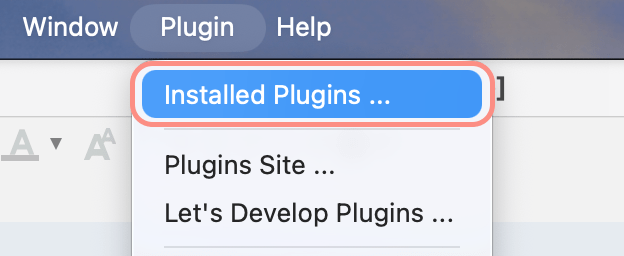
- A list of installed plug-ins will appear.
- Locate “Astah AI Chat Copilot” and check the Version column.